Review Lunches, Breaks and Prep Time on the Day Board
See who is away from a room for lunch, prep, or support.
Last updated About 3 hours ago
See who is away from a room for lunch, prep, or support.
For center admins using Bloomily on a computer. The orange outline shows where to look or click.
1. Open Schedule
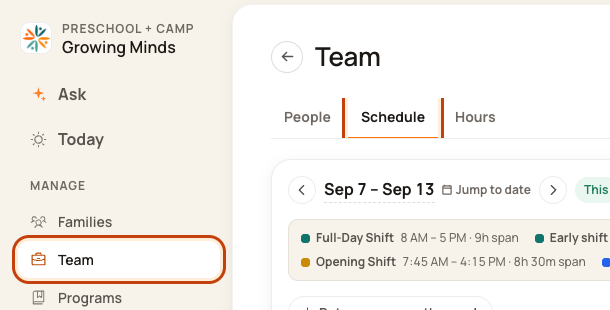
Click Team on the left. Then click Schedule.
2. Open the Day Board
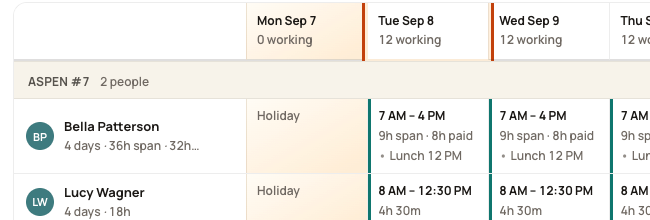
Click a date at the top of the week, such as Tue Sep 8. This opens that day’s room plan.
3. Show the row
If a row is folded, click Show beside Lunch, Prep, or Support.

4. Read the block
Find the person and read their times. Click a block to see its available actions.

5. Check the room below
Read the room’s staffing line during the same time. A paid block can still take the person out of room coverage.

Good to know
Folding a row only changes what you see. It does not remove a break. Stagger breaks when the room needs cover.
Was this helpful?