Understand Staff Blocks and Coverage Markings
Use blocks to read where a person is expected to be.
Last updated About 3 hours ago
Use blocks to read where a person is expected to be.
For center admins using Bloomily on a computer. The orange outline shows where to look or click.
1. Open Schedule
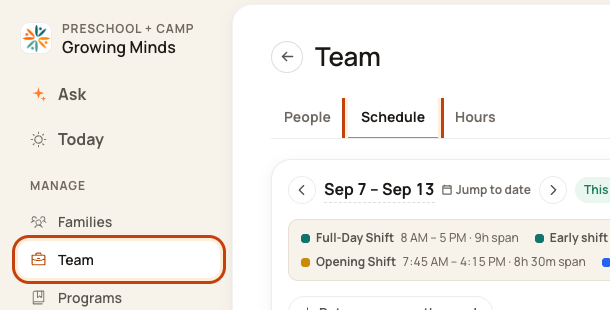
Click Team on the left. Then click Schedule.
2. Open the Day Board
Click a date at the top of the week, such as Tue Sep 8. This opens that day’s room plan.
3. Read a work block
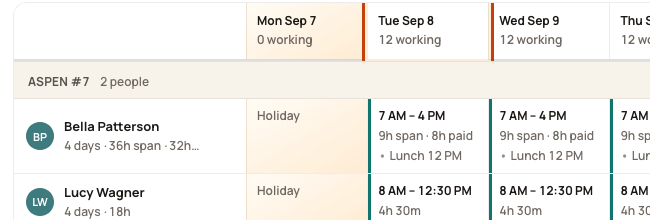
A solid block shows planned work and its time window. Click it to inspect the room or change the plan.

4. Read time away
Lunch, prep, and support sit in their own rows. Dashed late or early blocks show approved time away from room coverage.

Good to know
Block colors do not prove that time is paid. Paid time follows your center’s settings. These blocks are not clock-in records.
Was this helpful?