Print the Daily Staffing Record
Print a dated copy of the planned staff coverage.
Last updated About 3 hours ago
Print a dated copy of the planned staff coverage.
For center admins using Bloomily on a computer. The orange outline shows where to look or click.
1. Open Schedule
Click Team on the left. Then click Schedule.
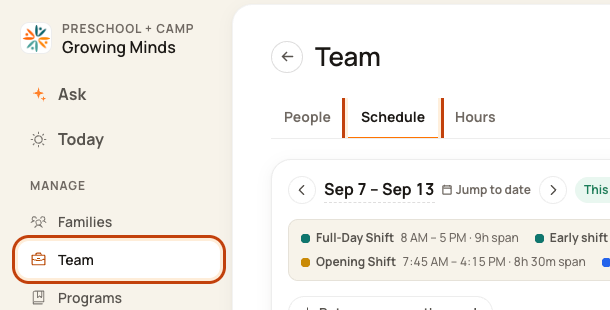
2. Open the Day Board
Click a date at the top of the week, such as Tue Sep 8. This opens that day’s room plan.
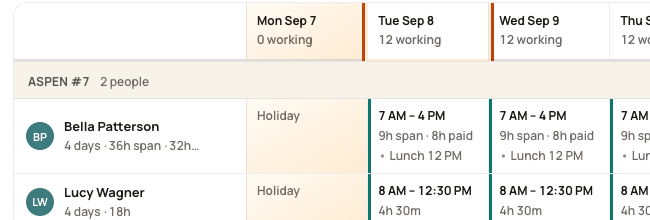
3. Check the date
Choose the date you want to print.

4. Open the print record
Click Print staffing record. Review the new window. Use your browser’s print controls to print or save a PDF.

Good to know
If no window opens, check your browser’s pop-up setting for Bloomily. The browser’s print screen may look different from these pictures.
Check when you are done
Check the center name, date, rooms, staff, and page edges. Printing does not notify staff. The record shows a plan, not proof of attendance.
Was this helpful?