Use the Week View to Review Coverage
Use the week grid first, then check exact room gaps by day.
Last updated About 3 hours ago
Use the week grid first, then check exact room gaps by day.
For center admins using Bloomily on a computer. The orange outline shows where to look or click.
1. Open Schedule
Click Team on the left. Then click Schedule.
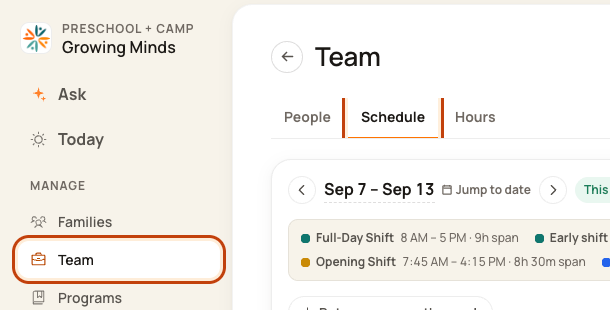
2. Choose the week
Use the date controls. Group by Room to compare people across the week.

3. Open a date
Read the planned days and hours. Click a date heading to inspect that day.
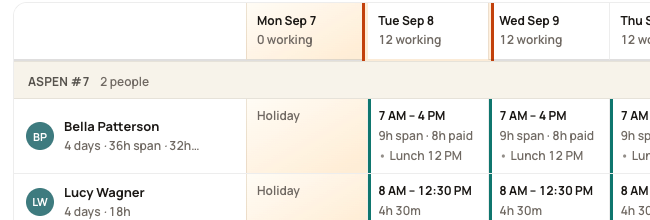
4. Check each time window
Compare staff planned with staff needed. Check opening, breaks, and closing. Go back to Week to fix the pattern.

Good to know
A weekly total does not prove that a room has enough staff all day. Check each date before publishing.
Was this helpful?