Hours Overview
Use Hours to review staff clock-in and clock-out records.
Last updated About 3 hours ago
Use Hours to review staff clock-in and clock-out records.
For center admins using Bloomily on a computer. The orange outline shows where to look or click.
1. Open Hours
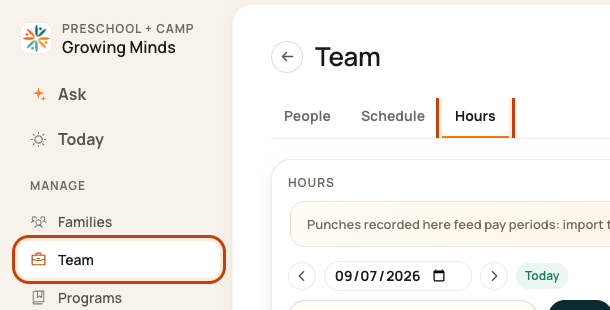
Click Team on the left. Then click Hours.
2. Choose the date
Use the date box or arrows to pick the day.

3. Find a person
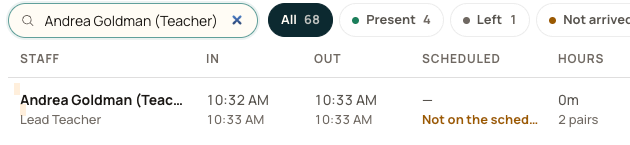
Type a name in the search box. Use the status buttons to narrow the list.

4. Read their record
In is check-in. Out is check-out. Hours adds the recorded in-and-out pairs. Time between pairs is off the clock.
Good to know
Our example has two very short test pairs and shows 0m after rounding. Still in means a check-out is missing. Not on the schedule means no planned shift for that date.
Check when you are done
Review missing or odd times before using the records for payroll.
Was this helpful?