Manually Check a Staff Member In or Out
Record when a staff member starts or ends work using Team → Attendance.
Last updated About 3 hours ago
Record when a staff member starts or ends work using Team → Attendance.
For center admins using Bloomily on a computer. Screenshots show the Growing Minds demo center.
1. Open Attendance
Click Team in the left sidebar, then select Attendance. This tab was previously called Hours.
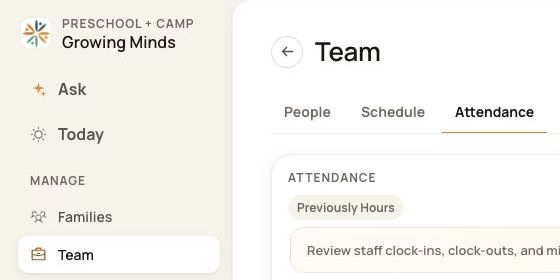
2. Find the person and check the date
Choose today and search for the staff member’s name. If they are missing, select All to clear the status filter. Check the matching name, existing In and Out times, and status before continuing.

3. Choose Check in or Check out
For a person marked Not arrived, choose Check in when they start work. For a person marked Present, choose Check out when they leave.
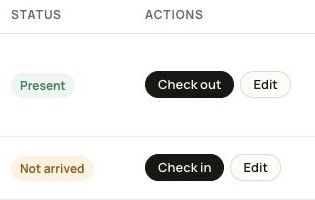
4. Review and confirm
Check the staff member’s name and the date in the confirmation panel. Click Check in or Check out to record the action. Choose Cancel if you opened the wrong person or are not ready to record it.
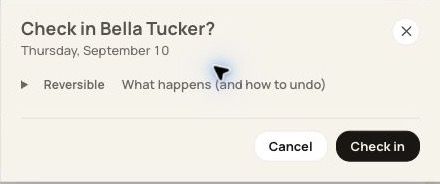
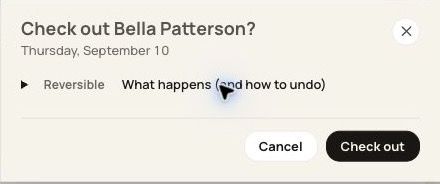
5. Check the attendance record
After the action succeeds, review the new In or Out value and the resulting status. If an error appears, review the message and the existing record before trying again.
Good to know
Only confirm when the person actually starts or ends work. Check out records departure.
Do not add a second check-in when the person is already marked Present or has an open punch.
If a historical time is missing or incorrect, use Edit to record the correct time rather than creating a new current-time punch.
Attendance and Timesheets are separate steps. Use Go to Timesheets when you are ready to import attendance, review it, and prepare payroll exports. A manual punch does not finalize payroll.
Was this helpful?