Review Scheduled Hours Against Hours Worked
Compare the work plan with time that was actually recorded.
Last updated About 3 hours ago
Compare the work plan with time that was actually recorded.
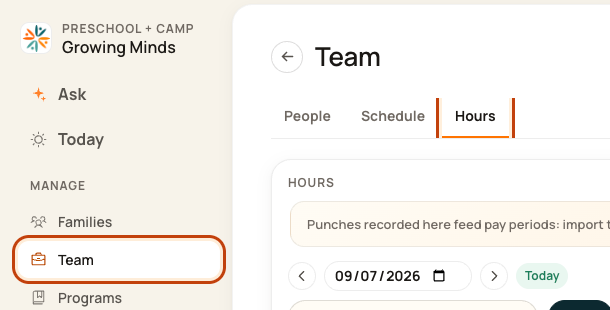
For center admins using Bloomily on a computer. The orange outline shows where to look or click.
1. Open Hours
Click Team on the left. Then click Hours.
2. Choose the day and person
Use the date box, then search for the person.

3. Compare the columns
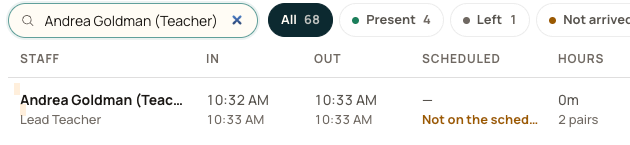
Read Scheduled, In, Out, and Hours. Check every pair, not just the first and last time.
4. Fix the right record
If a clock time is wrong, use Edit in Hours. If the plan is wrong, change Schedule. Check the facts first.

Good to know
A difference may be valid. A break, approved change, or missed punch can explain it. The example has no planned shift, so there is no shift to compare.
Check when you are done
For payroll, review the full pay period and import the punches in Timesheets → Hours.
Was this helpful?