Export Staff Hours
Download staff hours as a CSV file for review.
Last updated About 3 hours ago
Download staff hours as a CSV file for review.
For center admins using Bloomily on a computer. The orange outline shows where to look or click.
1. Open Hours
Click Team on the left. Then click Hours.
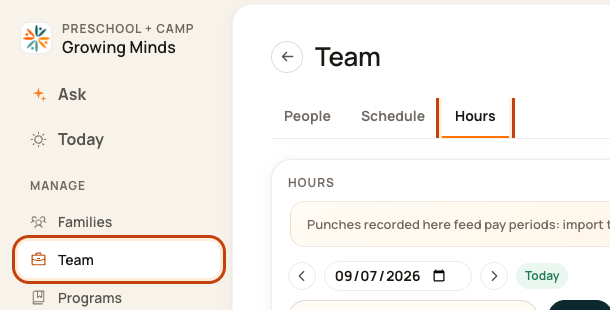
2. Check the records first
Choose the date and review missing punches or wrong times.

3. Open Export
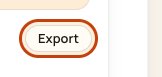
Click Export.
4. Choose the dates and download
Use Download this day, or set From and To and click Download range. To must be the same day as From or later.
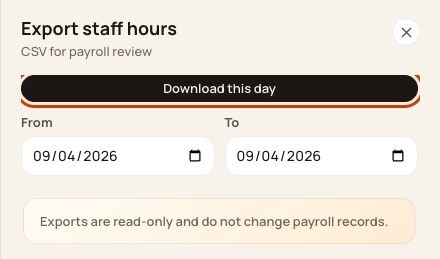
At the bottom of the form:

Good to know
Downloading does not change pay records or pay anyone. It does not import hours into Timesheets.
Check when you are done
Open the file. Check the dates and records. Use Timesheets → Hours to import and review punches for a pay period.
Was this helpful?