Creating a Daily Menu
Create a menu for a particular service date and meal type. You can save it as a draft while you review the details.
Last updated About 3 hours ago
Create a menu for a particular service date and meal type. You can save it as a draft while you review the details.
1. Choose the meal and month
Open More → Meals → Menus. Select the meal type and the month. Find the date you want to plan.
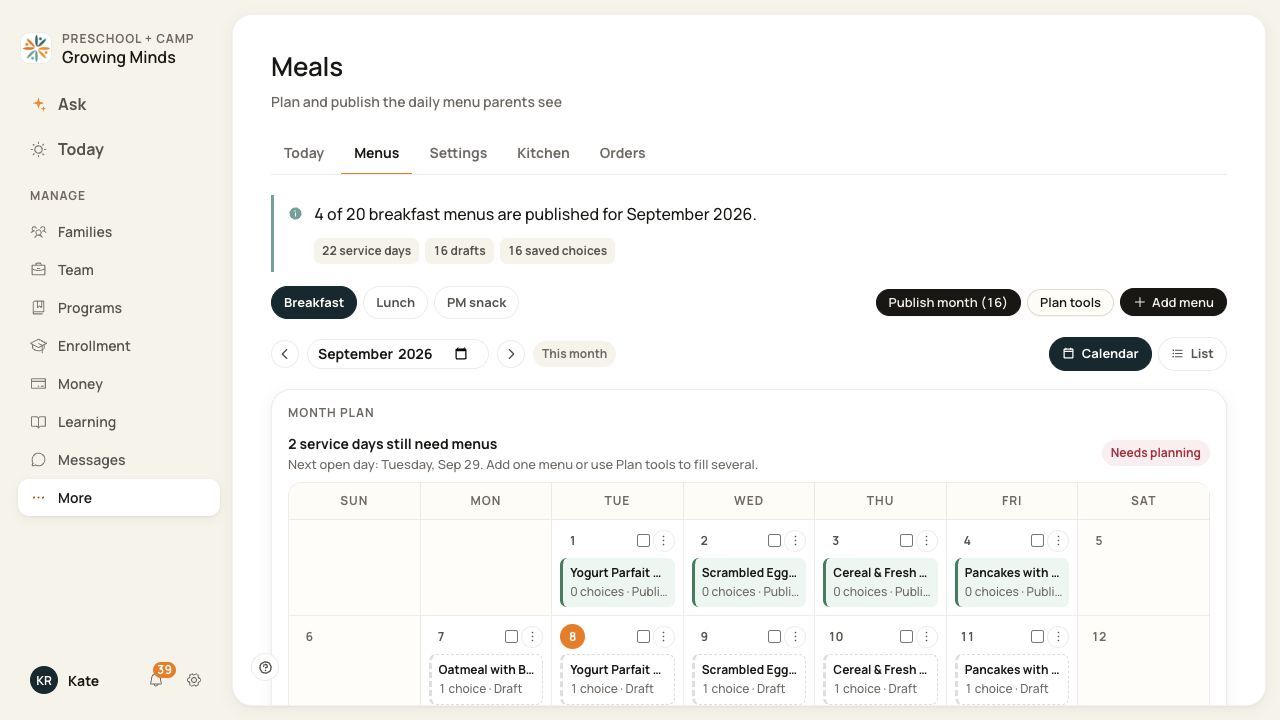
Check the selected meal type and month before adding a menu.
2. Open the date
Choose the add control on an empty service date. Add menu may open the next unplanned service day, so always verify the date in the form.
3. Describe the meal
Keep Menu selected and enter the Main item and optional description. Add family notes, allergens, dietary labels and choices as needed.
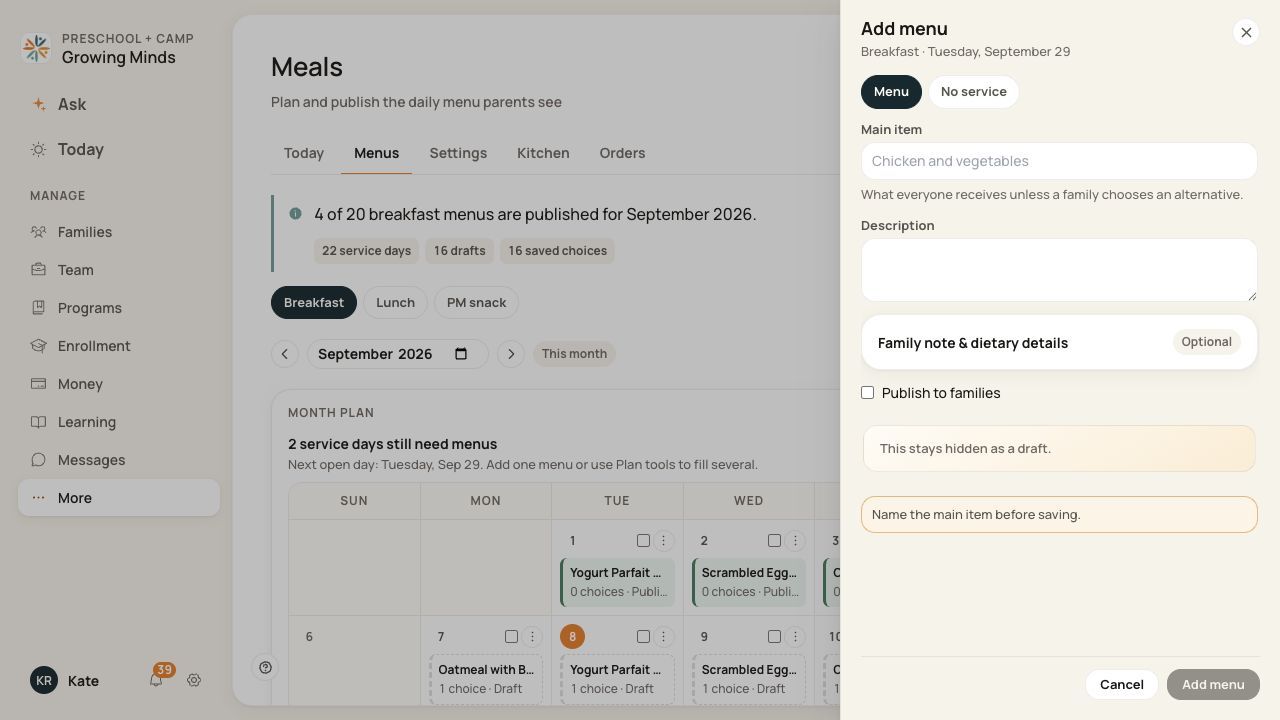
The main item describes the meal families receive unless they select an alternative.
4. Save with the intended visibility
Leave Publish to families unchecked for a draft, or select it after review. Choose Add menu and confirm the date’s title and Draft or Published label.
Before you finish
If there is no meal service that day, use No service and the appropriate reason rather than describing a meal that will not be offered.
A saved draft is not a published family menu. Creating a menu does not place orders for children.
Related guides
Screenshots show an example center. Meal prices, times, service days and ordering policies depend on your center’s configuration.
Was this helpful?