Meals Overview
Use Meals to configure your meal service, plan menus, manage orders and prepare food. Open More → Meals in Admin OS. Your access and your center’s setup determine the actions available.
Last updated About 3 hours ago
Use Meals to configure your meal service, plan menus, manage orders and prepare food. Open More → Meals in Admin OS. Your access and your center’s setup determine the actions available.
Workflow: Configure service → Plan menus → Publish → Receive orders → Prepare & record
1. Find the right workspace
Today shows daily counts. Menus is for planning and publishing. Settings controls service and pricing. Kitchen helps staff prepare orders. Orders contains the order ledger.
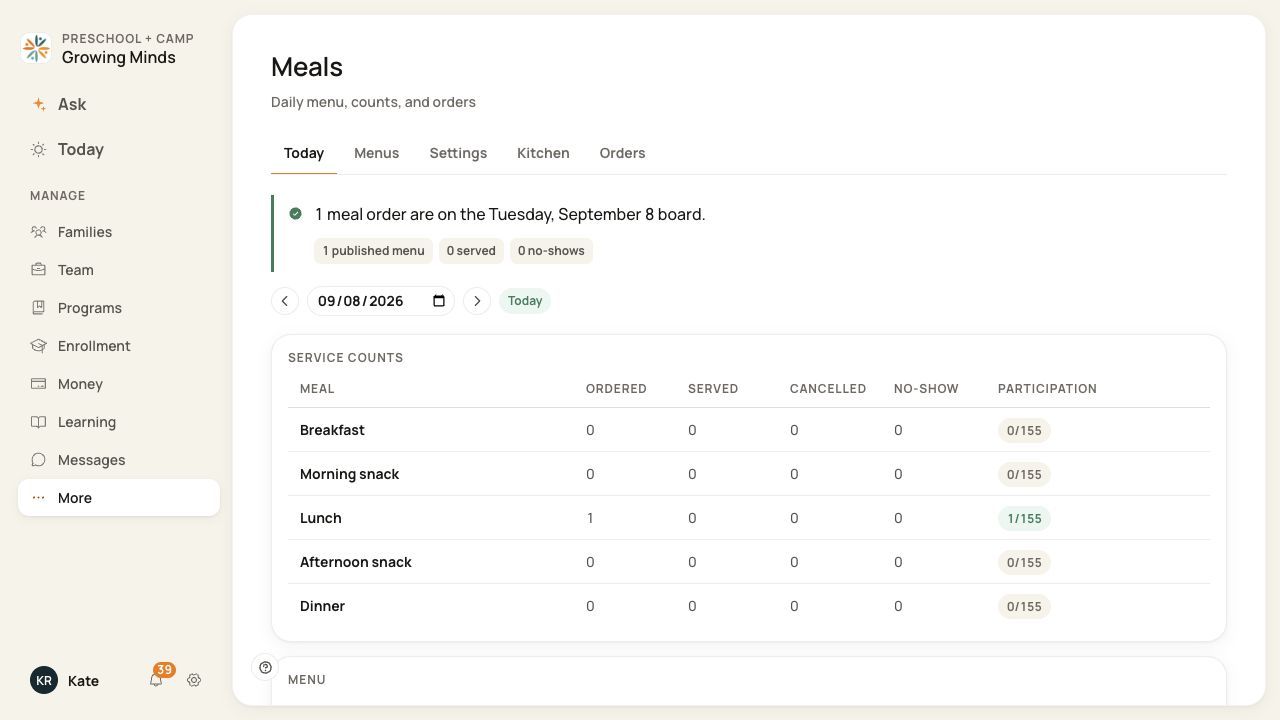
Start with the five Meals tabs; select the date before reading the counts.
2. Set up before planning
Configure the meal types you actually offer, their service days and times, pricing, ordering policy and any family choices in Settings.
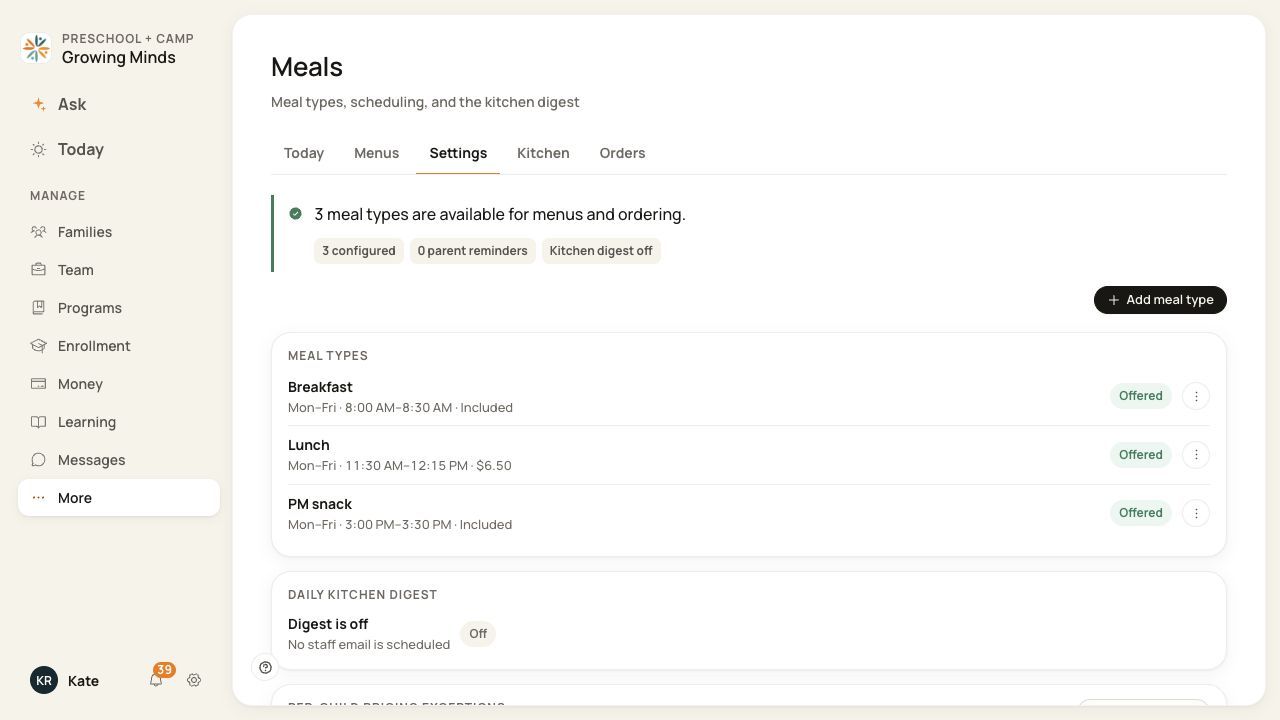
The meal types, prices and times shown are examples from one center.
3. Plan, review and publish
Create menus or copy existing plans. Check the main item, choices and dietary information, then publish the menus you want families to see. Copies start as drafts.
4. Prepare and record
Review orders and kitchen counts for the service date. Record what was actually served. Use the separate More → Food program workspace for enabled food-program records.
Before you finish
A menu, an order, a served status, a daily care log and a food-program meal count are separate records. One does not prove the others exist.
Meal prices and deadlines are set by your center; screenshots do not describe a universal Bloomily meal policy.
All meal guides
Meal setup
Menu planning
Orders & kitchen
For families
Screenshots show an example center. Meal prices, times, service days and ordering policies depend on your center’s configuration.
Was this helpful?