Opening a New or Empty Pay Period
Create an empty pay period to hold staff hours. Creating it does not import attendance or prepare a payroll payment.
Last updated About 3 hours ago
Create an empty pay period to hold staff hours. Creating it does not import attendance or prepare a payroll payment.
1. Check for an existing period
In Overview, expand Choose a pay period and inspect the date ranges first.
2. Open the creation form
Choose More timesheet actions → Create pay period. When a suggestion is available, the button may say Create next period.
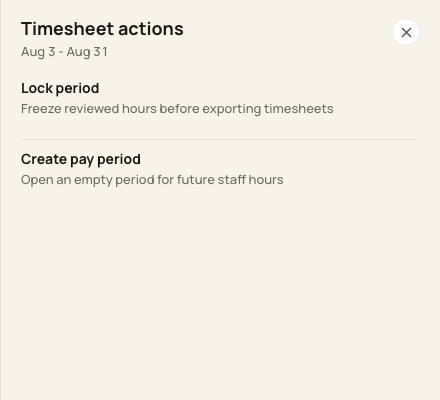
The period action menu separates creating a period from locking one.
3. Enter the dates
Review Starts, Ends and the optional Pay date. Use the intended non-overlapping range.
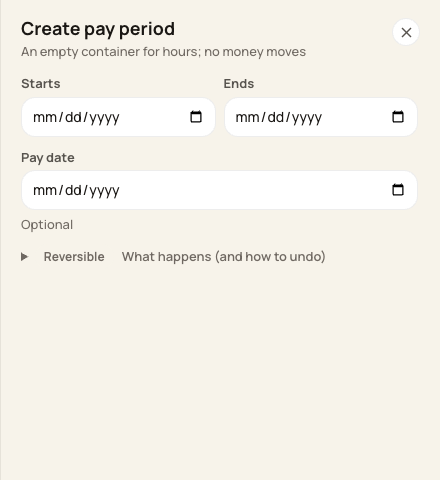
Check all dates before selecting Create period.
4. Create and verify
Choose Create period, complete the confirmation shown and confirm the new period appears. Add or import hours separately.
Before you finish
If the range overlaps, choose the existing period or correct the proposed dates. Do not create a duplicate to work around a locked period.
Related guides
Screenshots show an example center. Pay periods, approval, rounding, breaks and overtime settings depend on your organization’s configuration.
Was this helpful?