Reviewing Automatic Break Deductions
Review the actual deduction source before treating a break as correct.
Last updated About 3 hours ago
Review the actual deduction source before treating a break as correct.
1. Review automatic-break settings
Open Staff & setup → Pay period settings → Edit settings → Advanced calculation rules. Check Auto-deduct unpaid breaks, Break length and Deduct after.
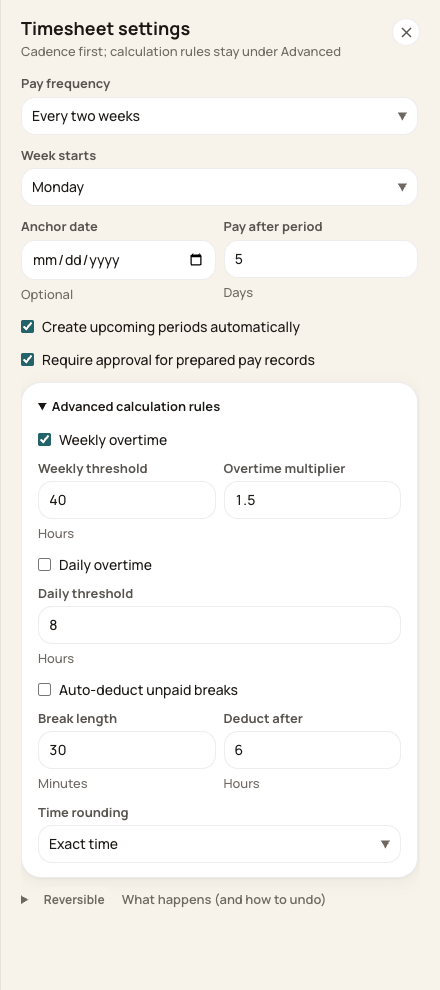
Automatic deduction is configurable; the screenshot does not define every center’s policy.
2. Check schedule-derived breaks
When schedule blocks determine the break, unpaid blocks supply the deduction and a paid lunch can intentionally supply zero. This schedule decision takes precedence over the automatic fallback during schedule fill.
3. Check attendance and manual entries
Attendance import can apply the configured automatic rule. For a manual entry or correction, inspect Break minutes and recheck the saved hours; a zero may still be subject to an enabled automatic rule.
4. Correct a mismatch
Compare with the actual break taken and your organization’s policy. Correct eligible entries, then verify the recalculated hours before approval.
Before you finish
Do not deduct a paid break as unpaid merely because it is labeled Lunch.
Changing settings is not evidence all historical entries were retroactively corrected. Review existing entries and re-export when needed.
Related guides
Screenshots show an example center. Pay periods, approval, rounding, breaks and overtime settings depend on your organization’s configuration.
Was this helpful?