Understanding the Timesheet Activity and Audit History
Timesheet mutations create system audit records, but the current Time entries screen is not a complete self-service audit-history viewer.
Last updated About 3 hours ago
Timesheet mutations create system audit records, but the current Time entries screen is not a complete self-service audit-history viewer.
1. Review the visible evidence
Check Source, Status and the saved clock/break values. Adjusted indicates a correction but is not a full before/after history.
2. Use an export for the current snapshot
Detailed CSV contains current source, status and notes. It does not list every prior revision.
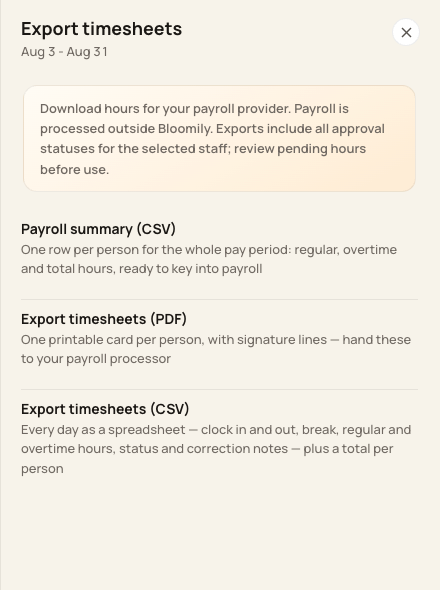
Use detailed CSV for a current snapshot, not a complete change-history report.
3. Distinguish prepared-record history
Previously prepared records can expose pay-record timelines and history. Those are not the complete audit history for every unprepared time entry.
4. Request specific history when needed
Ask Support for the affected entry/period’s audit context. Correction audit records include actor and before/after values; do not assume every correction includes a free-text explanation.
Before you finish
No universal retention duration or guaranteed self-service audit download is established by this screen. Confirm recordkeeping needs with Support.
Related guides
Screenshots show an example center. Pay periods, approval, rounding, breaks and overtime settings depend on your organization’s configuration.
Was this helpful?