Adding Staff Payroll Codes
Map a Bloomily staff member to the correct employee in your payroll provider.
Last updated About 3 hours ago
Map a Bloomily staff member to the correct employee in your payroll provider.
1. Get the provider’s code
Use the employee identifier expected by your payroll provider. Confirm the person rather than matching only a similar name.
2. Open the staff pay-rate form
Go to Staff & setup → Staff pay rates and open the correct row.
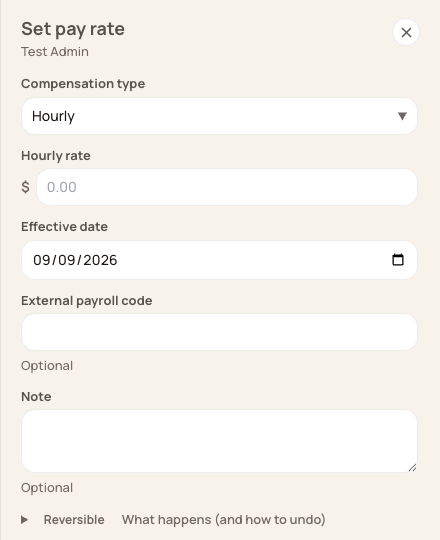
Payroll code is optional in the form but may be required by your provider.
3. Enter and save the code
Enter the exact payroll code together with valid compensation details and save. Preserve any meaningful leading zeros when handling the CSV.
4. Verify the next export
Check that the code matches the intended employee in both the Bloomily export and the provider’s import preview.
Before you finish
A missing code is not proof that a person should be excluded from payroll.
Do not invent a code to make a provider import pass.
Related guides
Screenshots show an example center. Pay periods, approval, rounding, breaks and overtime settings depend on your organization’s configuration.
Was this helpful?