Correcting Regular and Overtime Hours
The current correction form changes clock times and breaks; it does not offer editable regular and overtime hour boxes.
Last updated About 2 hours ago
The current correction form changes clock times and breaks; it does not offer editable regular and overtime hour boxes.
1. Identify the cause
Check the clock times, break deduction and workweek coverage before assuming the overtime number itself should be overwritten.
2. Review the rules
Inspect Advanced calculation rules in Timesheet settings, including daily/weekly thresholds and rounding.
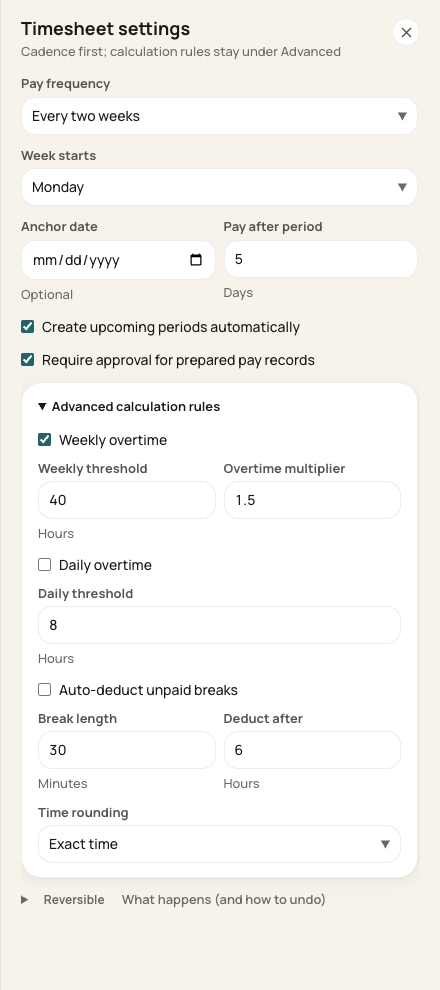
Review configuration before interpreting the stored split.
3. Correct the facts where eligible
Use Correct on an eligible entry for verified clock or break changes. Bloomily then recalculates the hours and split.
4. Reconcile the outcome
Check regular, overtime and total hours in the exported summary. Ask the payroll reviewer or Support about a classification that cannot be resolved through the available controls.
Before you finish
Do not alter a clock time simply to force a desired overtime number.
The overtime multiplier is a pay-calculation setting, not extra worked hours added to the timecard.
Related guides
Screenshots show an example center. Pay periods, approval, rounding, breaks and overtime settings depend on your organization’s configuration.
Was this helpful?