Setting the Effective Date for a Pay Rate
Choose when the agreed compensation starts, using an exact calendar date.
Last updated About 2 hours ago
Choose when the agreed compensation starts, using an exact calendar date.
1. Open the staff compensation form
In Staff & setup → Staff pay rates, open the intended person’s rate.
2. Set the Effective date
Replace the default date if the agreement starts on another day. Check the year as well as the month and day.
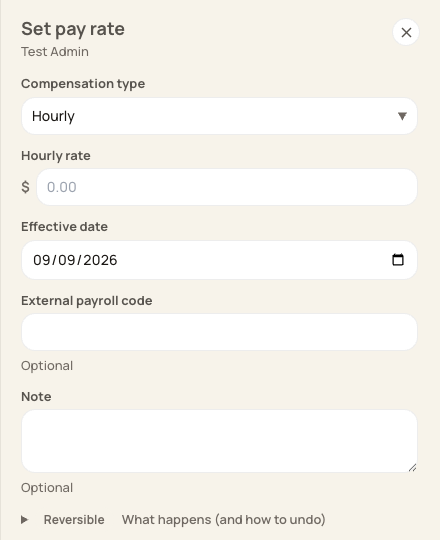
Effective date belongs to the compensation record.
3. Save the agreed record
Confirm the compensation type and amount before saving. A new dated rate maintains compensation history; saving the same effective date updates that dated record.
4. Review payroll separately
If a rate changes during a pay period, confirm how the payroll provider must split the hours. The timesheet export does not supply a guaranteed prorated wage calculation.
Before you finish
A date shown in this screenshot is an example.
Do not infer the correct payroll amount solely from the latest rate shown in the staff table.
Related guides
Screenshots show an example center. Pay periods, approval, rounding, breaks and overtime settings depend on your organization’s configuration.
Was this helpful?