Importing Bloomily Timesheet Data into a Payroll Provider
Use the downloaded data with your provider’s current import instructions.
Last updated About 2 hours ago
Use the downloaded data with your provider’s current import instructions.
1. Get the required template
Confirm required columns, employee identifiers, earning codes, hours categories and date format with the provider.
2. Download the appropriate Bloomily file
Choose the summary or detailed CSV after reviewing the period and staff scope.
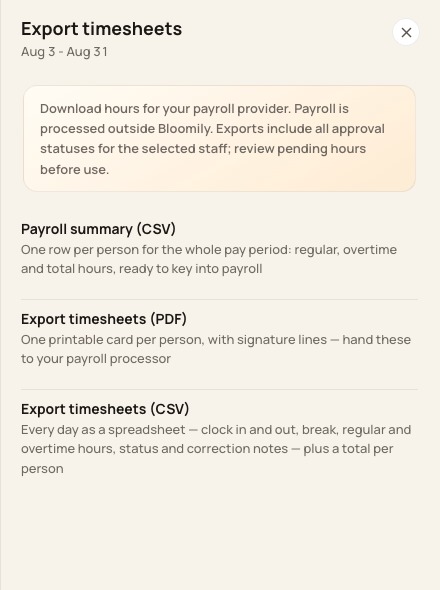
Bloomily offers generic downloadable files.
3. Map and prepare the data
Check payroll codes, preserve meaningful leading zeros and map regular/overtime categories. Remove report preamble and total rows when the provider expects only data rows. Add independently verified provider-required fields.
4. Review the provider’s preview
Reconcile people, hours and rates before final submission. Follow the provider’s confirmation process and retain its receipt.
Before you finish
No provider-specific integration or automatic upload is established by the Timesheets export menu.
Do not assume an absent PTO or holiday column means no payable leave is owed. Handle those categories in your approved payroll process.
Related guides
Screenshots show an example center. Pay periods, approval, rounding, breaks and overtime settings depend on your organization’s configuration.
Was this helpful?