Reviewing and publishing assessment reports (for centers)
For center admins: finding assessment reports, what Draft and In review mean, sending a report back to a teacher, and what changes when you publish.
Last updated About 2 hours ago
Teachers record ratings through the term and generate a report when they're ready. This guide covers what happens next — finding reports, reviewing them, sending them back, and publishing to families.
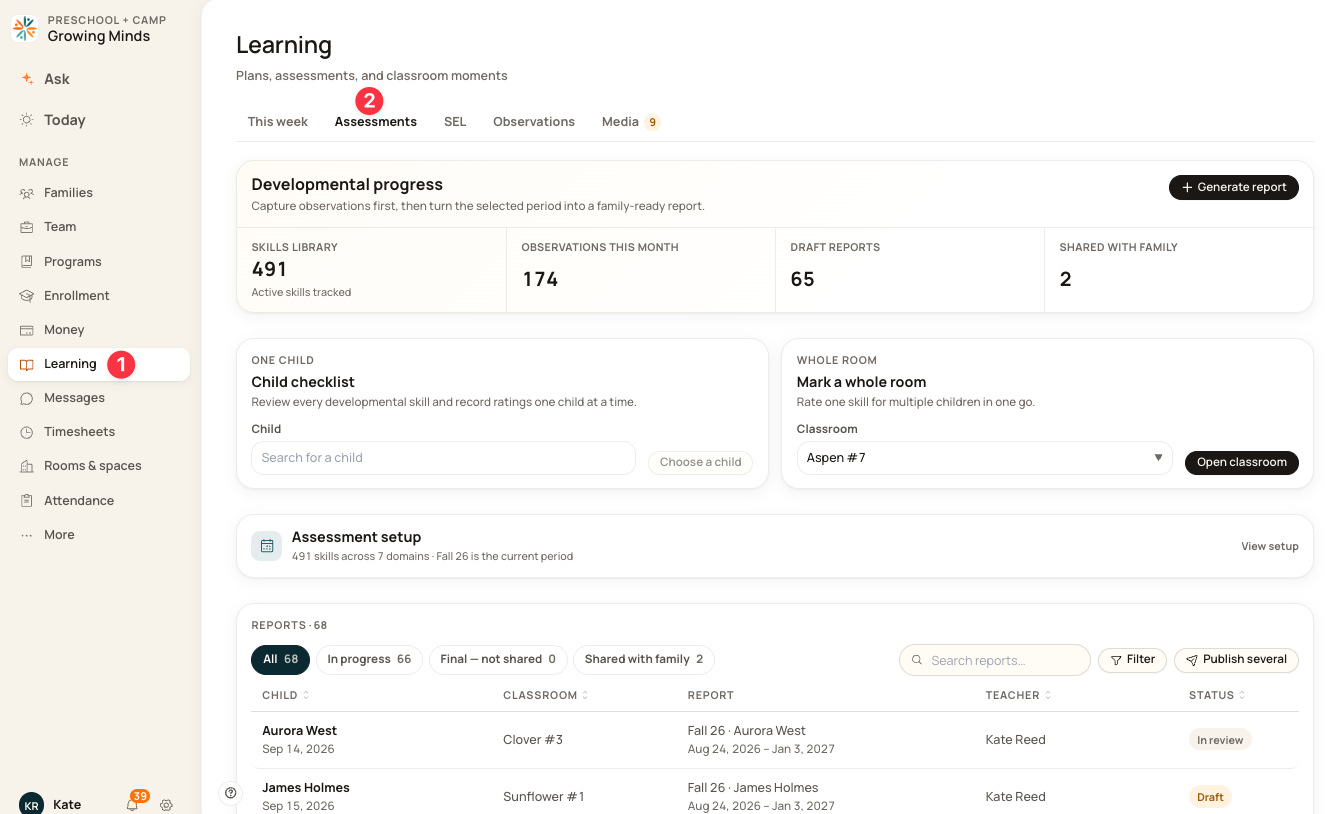
Go to Learning > Assessments in the Admin OS.
Prefer to watch? The whole flow — review, publish and share:
Finding reports
The Reports list sits below the assessment setup card, showing every report for the center.
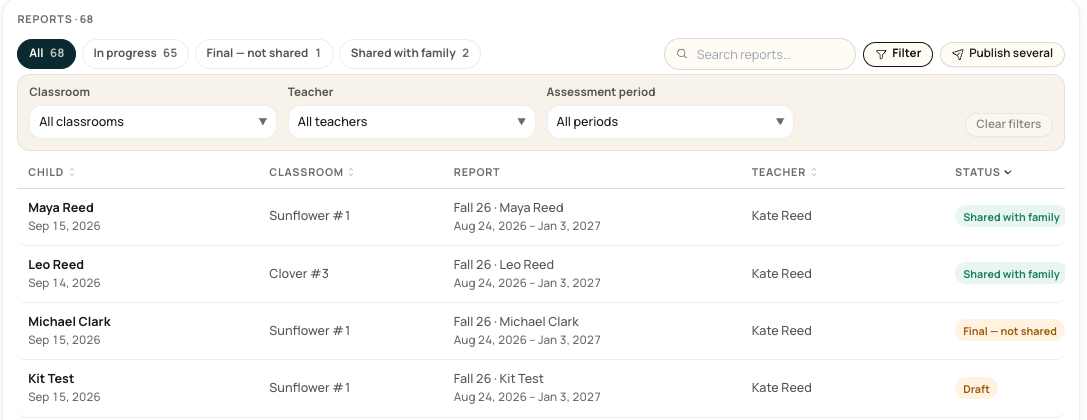
Filter with the tabs — All, In progress, Final — not shared, Shared with family — or search by name. Each row shows the child, classroom, report period, the teacher who owns it, and its status.
A draft is visible to you as soon as the teacher generates it. They do not have to send it for review first — so an in-progress report will appear in your list looking incomplete, because it is.

Reading a report
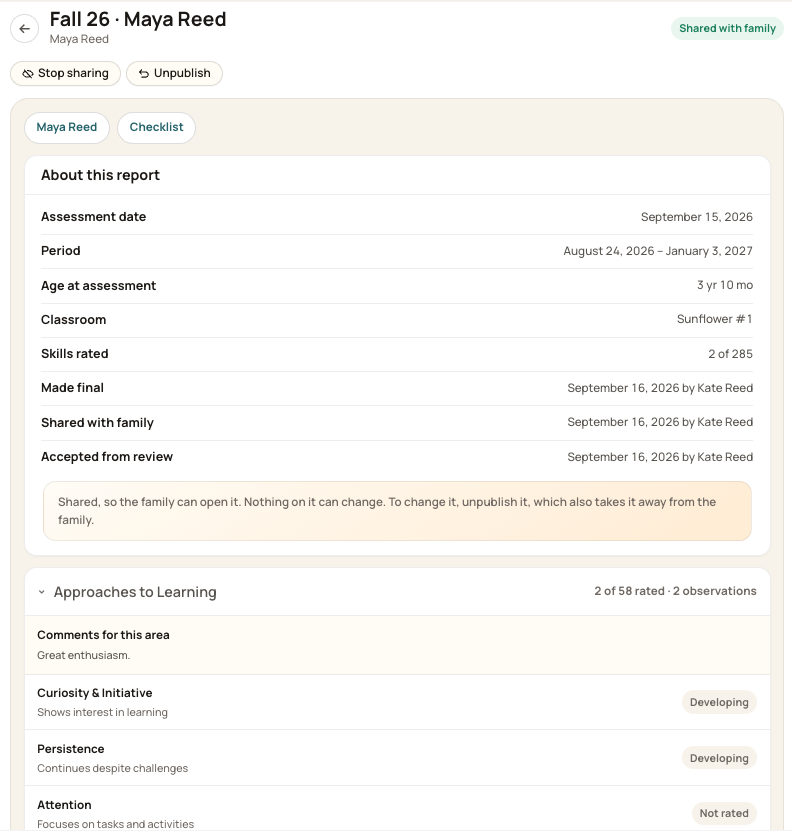
Open a report and About this report gives you the assessment date, the period it covers, the child's age at assessment, their classroom, and how many main skills have been rated.
Below that, each learning area lists its skills with the rating against each one, or Not rated, along with any note the teacher wrote for that area.
When ratings are live, and when they are fixed
While a report is a draft, its ratings follow the teacher's checklist. If the teacher rates something new, the report picks it up. One exception: a rating you set on the report itself using Edit stays put and overrides the checklist from then on.
Once it is in review, the report is locked for everyone. You cannot edit it and neither can the teacher. If something needs changing, the only route is to send it back — there is no version of this where you quietly fix a typo yourself.
Making a report final fixes it permanently. From that point it is a record rather than a live view — ratings, notes and all. If something has to change, Unpublish is the only route, and it takes the report back from the family if it had been shared.
What you can do with a report
You see the actions that fit the report's status. A report in review offers Publish and share or Send back to teacher; one that is shared offers Stop sharing or Unpublish.
Stop sharing or unpublish?
Both take a shared report away from the family. The difference is what happens to the report itself.
Stop sharing leaves it final and locked. Use it when the report is right but the timing is wrong — you shared it early, or you would rather walk a family through it in person.
Unpublish unlocks it for editing. Use it when the report itself needs to change.

Publishing and sharing are one step: unless you choose otherwise

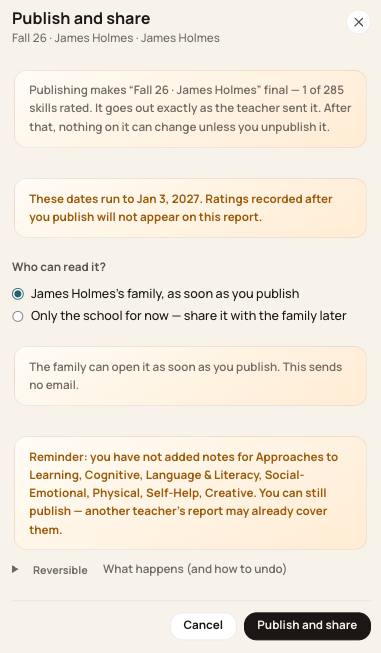
Publish and share asks Who can read it? before it does anything:
The family, as soon as you publish — the default, and what you want at the end of a term.
Only the school for now — the report is made final and locked, but stays internal. It shows as Final — not shared, and you release it later with Share with family.
The second option is for the case where you want a report finished before a conference but intend to hand it over in person or only on the day.
Who gets told, and when
Sharing is what tells a family — not publishing. When you share a report, the child's guardians get an email, along with a push and an in-app notification: New report from [your center] — [child]'s [period] report is ready to read. It fires from Share with family and from Publish and share, in bulk as well as one at a time.
Choosing "Only the school for now" is silent, and so are Unpublish and Stop sharing. Nothing is sent until you share, and nothing is sent to say a report has been taken back.
This is not something your center turns on or off. Sharing a report always tells the family. It reaches the guardians who take communications — always a subset of the people who could already open the report, so it can never tell someone who cannot read it — and a parent can turn it off for themselves under Progress reports in their communication settings.
Publish and share appears on drafts too. That means you can release a report the teacher hasn't finished or sent you — worth being deliberate about, because a draft in your list is not a request for review, and sharing it tells the family straight away.

Sending a report back
Send back to teacher returns the report to draft. It reappears in the teacher's My reports list, they can change ratings and notes again, and they send it back to you when it's ready.
You have to say why
The panel asks What needs changing? and the Send back button stays greyed out until you write something. Up to 1,000 characters.
The teacher reads this on the report itself, so it arrives attached to the thing it is about rather than in a separate message.
Be specific. "Physical development has no notes yet — please add them before this goes to the family" tells a teacher exactly what to do. "Needs more detail" sends them back to you asking which part.
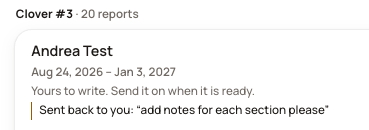
Sending back is reversible — the panel's What happens (and how to undo) section explains how.
Publishing several at once
At the end of a term you will not want to open forty reports one by one.
Bulk publishing covers one classroom and one assessment period at a time. That is the rule to remember — you cannot publish across rooms or across periods in a single pass.
Choose Filter above the reports list.
Set Classroom and Assessment period. Narrow by Teacher too if it helps.
Tick the reports you want.
Publish.
Clear filters resets the three dropdowns, and Cancel leaves bulk publishing without doing anything.

Check before you tick
Publishing in bulk is still publishing. Each report is fixed from that moment, and every one you share tells its family.
Watch the status column. A filtered list can hold drafts as well as reports in review, and bulk publishing will take whatever you tick.
Check the period is the one you mean, particularly early in a new term when the previous one is still fresh.
If you have not read them individually, at least scan for any that look unusually thin.
Before you publish
Check the period. A report generated under the wrong term covers the wrong window of observations.
Check how much is rated. A report with three of a hundred main skills rated will read as thin to a family.
Read the wording as a parent would. Teacher comments and area notes go out as written.
Remember that making a report final fixes the ratings. Anything the teacher records afterwards will not appear on it.
No family sees a report until it is shared with them. Draft, In review and Final — not shared are all internal.
Related
Start here: assessments for directors — the order to work through everything
Assessments (for centers) — skills library, reporting periods, and assessment setup
Assessments in the staff portal — what your teachers see at their end
Was this helpful?