Messaging Families
For teachers: sending messages to families from Bloomily Center, what belongs in a message versus the daily report or an announcement, and when to hand a conversation to your director.
Last updated About 3 hours ago
Messaging is how you reach a child's family during the day — a quick photo, a heads-up that a nap ran long, a reminder about tomorrow. It is also a written record a parent can screenshot, forward, or bring to a meeting. Both things are true at once, and this guide is built around that.
Where messaging lives
You can message from either place you use Bloomily, and they show the same conversations:
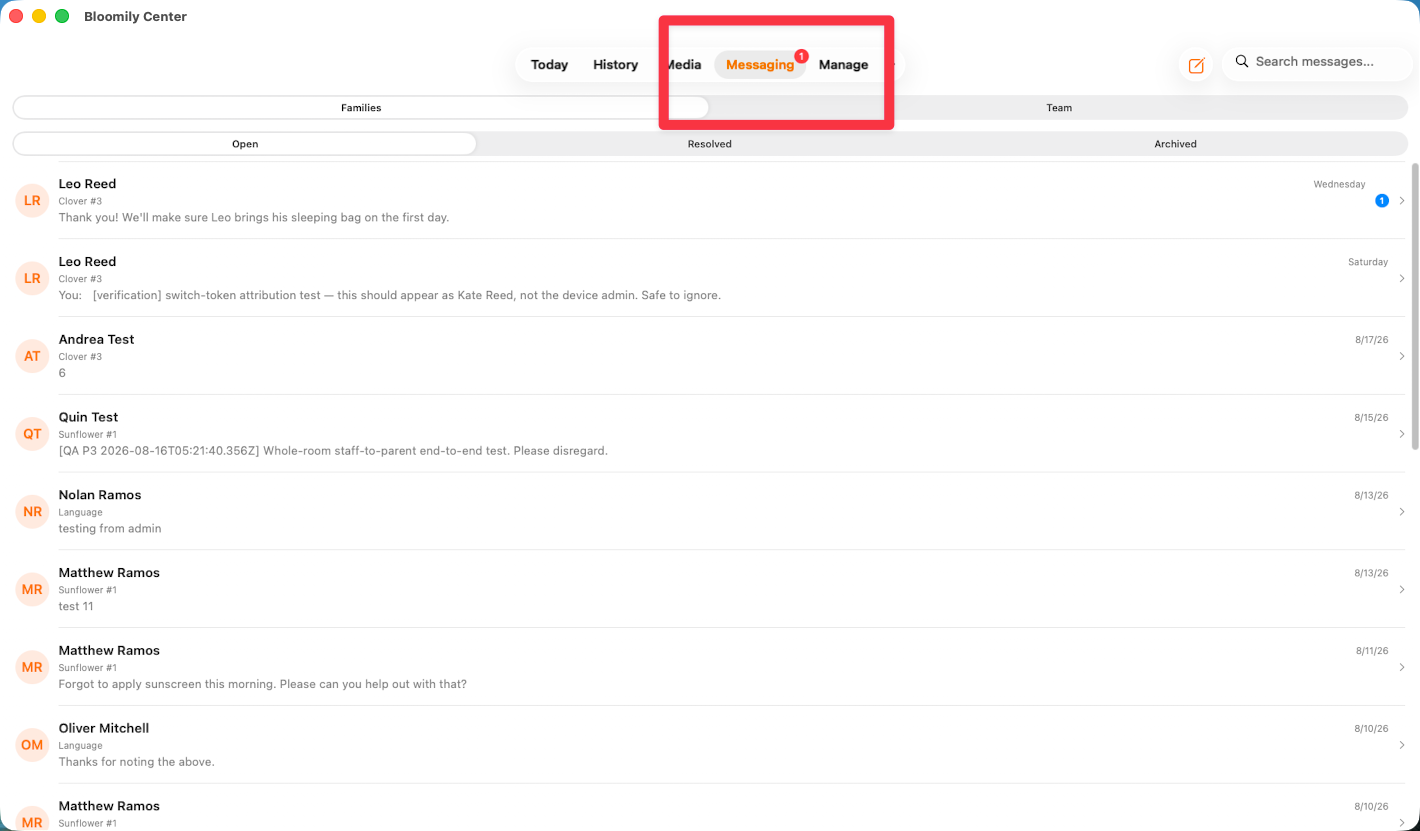
On the iPad — open Bloomily Center (the orange app) and tap the Messaging tab, next to Today, History, Media and Manage.
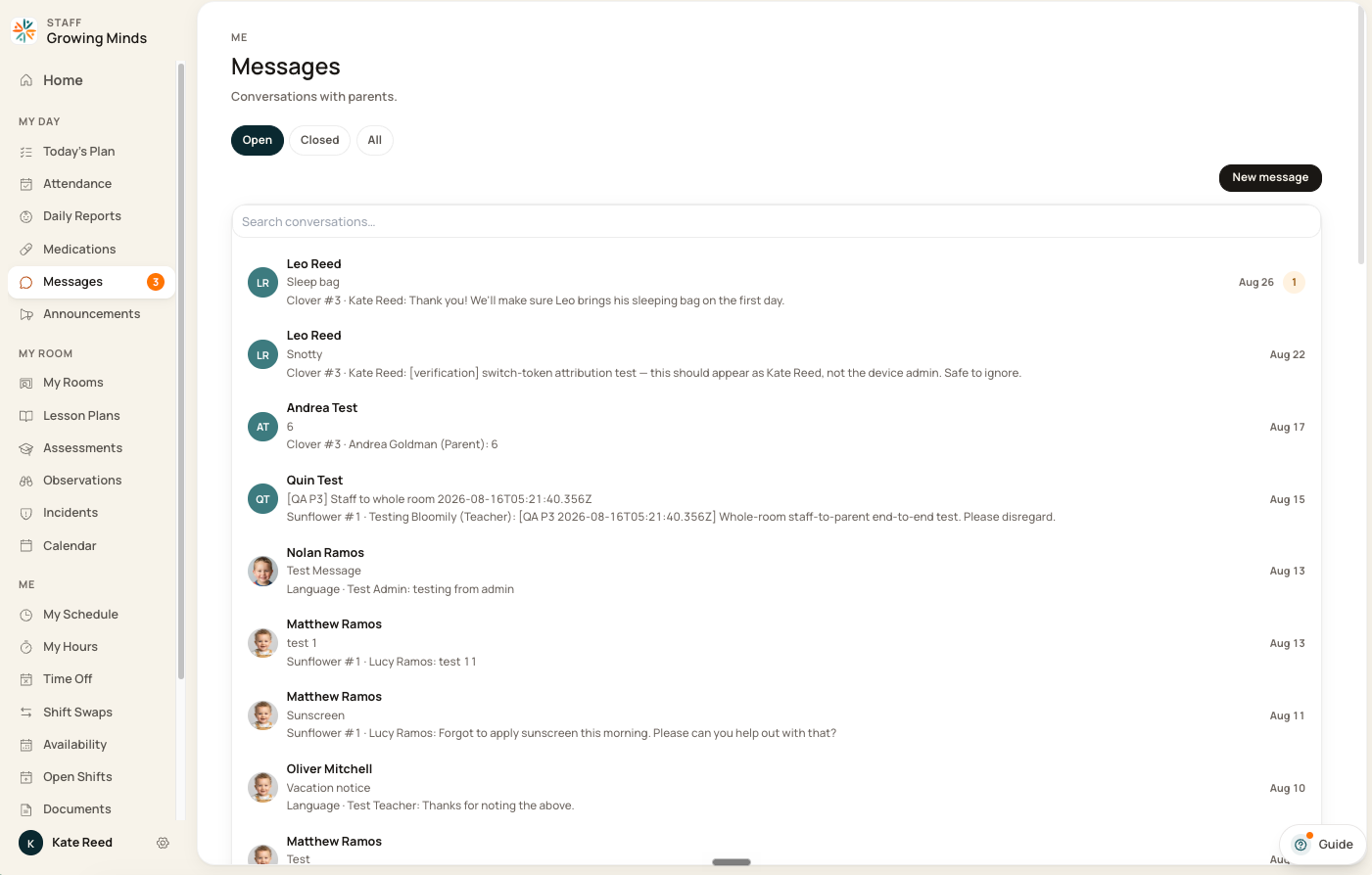
In a browser — sign in at bloomily.app and open Messages, under My Day in the left-hand menu.
Staff Dashboard:
Staff App:
Who you can message
The children and conversations you can access depend on your organization role, app access and room permissions. Some staff are restricted to assigned rooms; others have broader access. Ask your director to check permissions if an expected family is missing.
Before sending, check the conversation and its recipients. Guardian relationships, portal access and pickup authorization are different records; authorizing someone for pickup does not automatically add them to family messaging.
Sending a message
Open Messaging and tap the child's conversation, or start a new one.
Type your message.
Attach a photo if you want one.
Send.
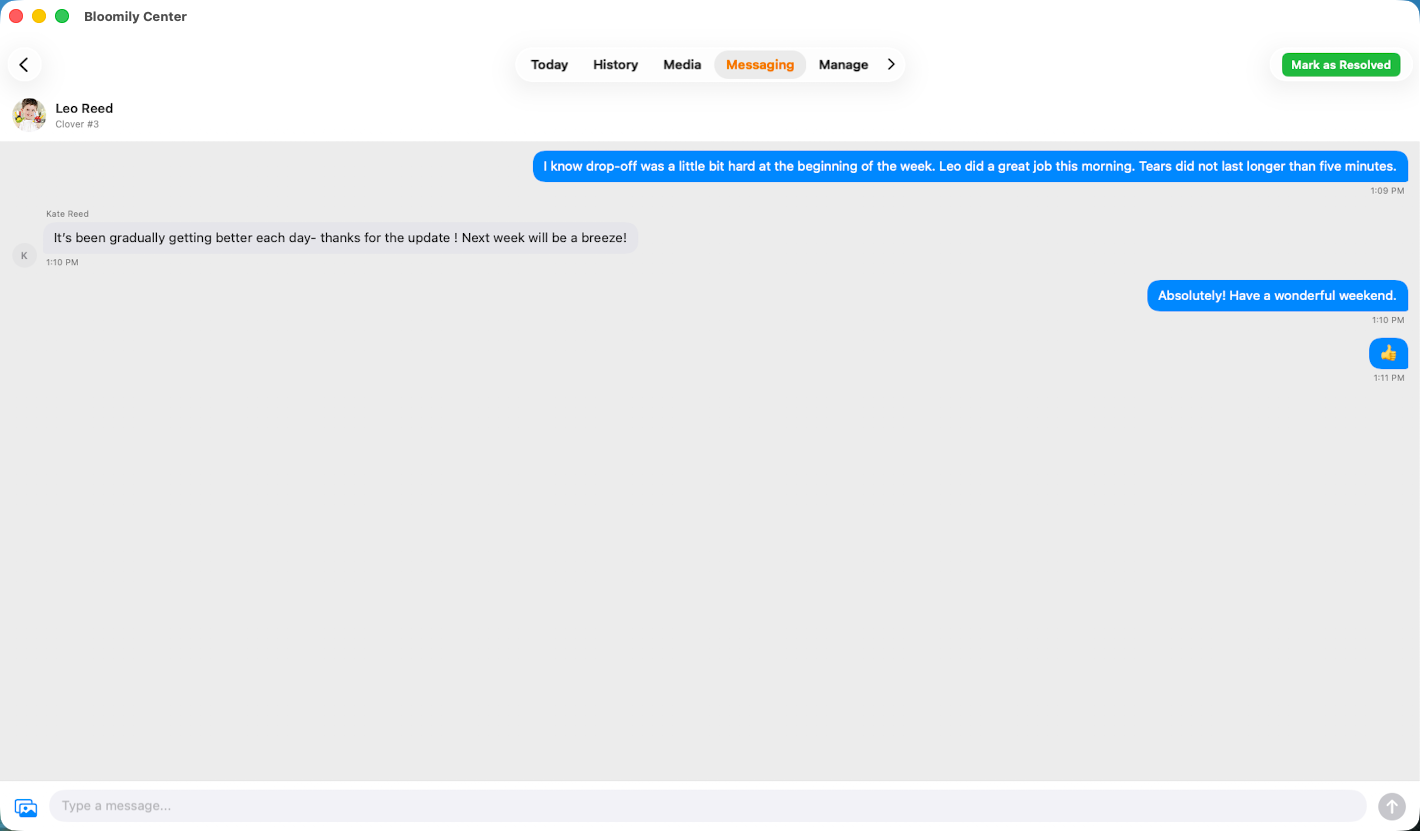
Try it yourself — open Messaging and sending your first message:
Attaching photos and PDFs
Use the attachment control available in your current messaging interface. Staff OS browser messaging supports supported image formats and PDFs.
From the app you can only attach photos. A photo attachment is shared in that conversation.
Posting to Media is a separate workflow with its own album audience, tagging and approval rules. Do not assume a message attachment becomes a daily-report photo or goes through the Media approval queue.
Before attaching anything, check the recipients and avoid sharing another child’s information.
Three ways to reach families — and which to use
Bloomily gives you three separate routes to a family. Picking the wrong one is the most common reason a message doesn't land the way you expected.
Where each one lands
Push and email follow each parent's own notification settings. A parent who has turned messages push off still sees the message in the app — so a quiet phone doesn't mean the message didn't arrive.
About announcements
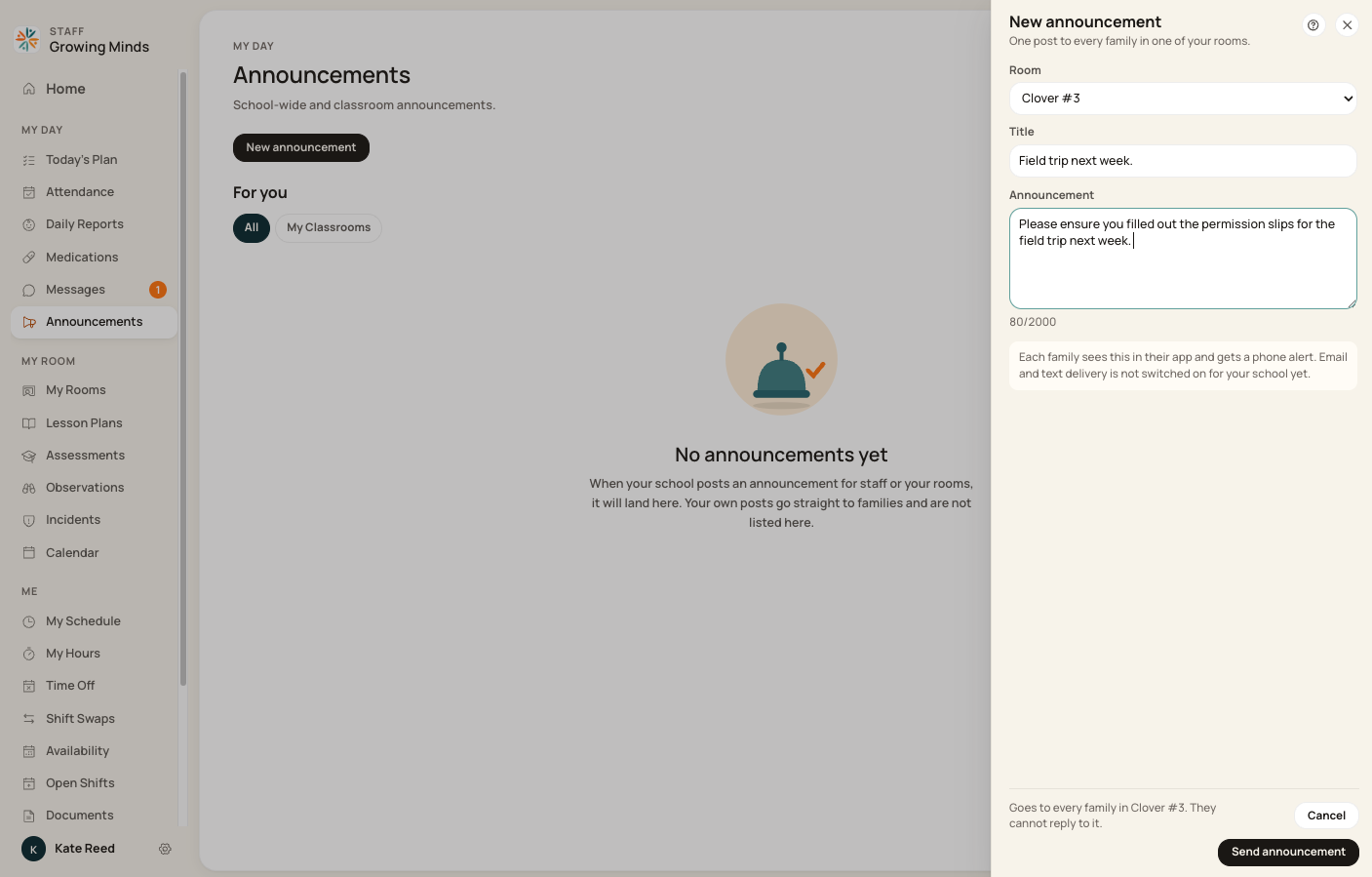
Announcements are posted from Announcements in the staff portal, in a browser. You can't post one from the Center iPad app. Pick a room you're assigned to, give it a title of up to 200 characters, and write up to 2,000.
It goes out signed with your name and the room.
Announcements are one-way. Families cannot reply to them. If you need an answer back, send a message instead.
Families get it as a notification in their app — the bell — and a push notification.
No email, no text, and it doesn't appear on the daily report.
Your own announcements do not appear in your Announcements list. That list shows posts your school has made to staff or to your rooms — your own posts go straight to families and aren't listed back to you. This is expected. It does not mean the announcement failed to send.
Notes on the ipad for families
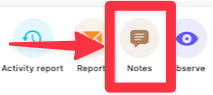
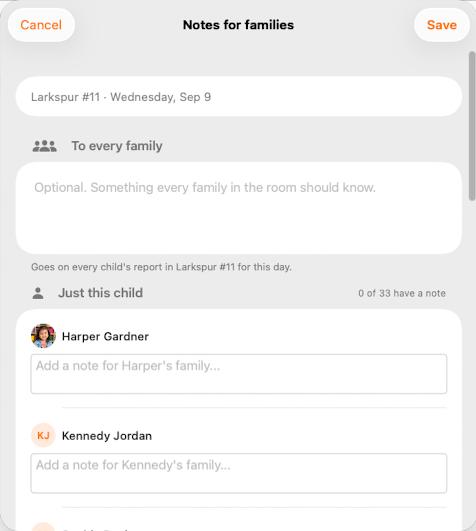
This note is attached to the daily report. There are two note boxes, and they do different jobs:
To every family — one note per room per day, printing on every report in the room as "Classroom message". Use it for what the room did, or a reminder for tomorrow. Saving again replaces it, so it's one note, not a running list.
Just this child — one note per child, printing as "A note from the teacher". Use it for something about their day that belongs with the day's record.
Each holds up to 2,000 characters.
Not for anything time-sensitive. A note doesn't leave the building until the report is sent — so if a family needs to know now, send a message.
And one route that is not for families: Team Chat
Team Chat is for talking to colleagues, not to parents. It lives in the staff portal, separately from Messages, and nothing you write there reaches a family.
Use it when you need to flag something internally — you're running late back from the playground, a child needs a second pair of hands, or you want a director's view before you reply to a parent. Working out what to say in Team Chat first, then writing to the family once, is usually better than thinking out loud in a thread the family can read.
The two are easy to mix up because both look like messaging. Here is the test: if a parent should see it, it belongs in Messages. If only staff should see it, it belongs in Team Chat.
What belongs in a message
Good fits:
A short update on how the day is going
A photo the family will enjoy
A logistics question — is someone different collecting today?
A quick answer to a question the family asked you
Not a good fit — these belong in the daily report instead:
The full record of meals, naps, nappies and moods. Log those as activities and they build the report automatically. Duplicating them in a message gives the family two versions to reconcile.
Learning observations and assessment notes.
Remember the report assembles itself from what you log. A child with nothing logged has no activity detail to include — so log the day, don't narrate it in messages.
What to hand to your director
Stop and escalate rather than replying:
Billing, tuition, invoices or refunds. Even a small question. You cannot see a family's account and a wrong answer creates a real problem.
Incidents and injuries. Use Manage → Incidents in Bloomily Center, or Incidents in Staff OS, to create the formal record. Follow your school’s policy for immediate family contact and report review. Approval permissions and notification delivery depend on your organization’s configuration. A submitted report does not prove that a family received or read an alert; check the report’s records and confirm urgent contact directly.
Anything involving another child. Never name or describe another child — including in a biting or collision incident. Describe only this child's experience.
Custody, court orders, or who is allowed to collect. Every time, without exception.
Complaints about the centre, a colleague, or you. Your director handles these. Don't take it up in the message thread.
Medical advice. You can say what you observed. You cannot diagnose or advise treatment.
Enrolment, withdrawal or schedule changes.
Handing something over is not a failure to help. It is the help.
Writing well under pressure
Put the point in the first line. Parents see the first 100 characters in the push notification and the first 200 in the email. Anything after that, they have to open the app for.
Lead with the child. "Maya had a great morning at the water table" before "she also found pickup hard."
Describe, don't diagnose. "He rubbed his eyes and lay down twice before lunch" is useful. "He seems to be coming down with something" is a medical claim.
Don't send while frustrated. Write it, put the iPad down, read it again. A sent message is permanent — there is no edit and no delete. What you send is what the family keeps.
Assume it will be read aloud — to a co-parent, a director, possibly an inspector.
Write plainly — your message may be translated. Families can choose a language, and translated message text may be available when supported and configured. Idioms, jokes and abbreviations survive that badly. "He had a bit of a wobble at drop-off" may arrive as nonsense; "he was upset when you left, and settled after ten minutes" will arrive intact.
Short is kind. Families read these between meetings.
Sending does not mean read
Do not treat sending as proof that a family received, opened or understood a message. Review any delivery or read information the current interface provides, and confirm time-sensitive matters through your center’s appropriate direct-contact process.
A message reaches a family three ways: the full text in their app and portal, a push notification, and an email with a preview and a link to reply. It is never sent as a text message.
Notification channels and timing depend on settings and delivery availability. Messaging should not be your only route for an urgent matter.
Resolving conversations
When you have finished a conversation with a parent, resolve it. The conversation moves out of Open and into the Resolved tab.
Resolving is safe. If that family replies later, the conversation comes straight back into Open. You cannot lose a thread by resolving it, and you will not miss a reply.
Try it yourself — resolving a conversation:
That is what makes it worth doing. Your Open tab stops being a pile of everything that has ever been said, and becomes a list of what still needs you. A parent asked whether Friday is a half day, you answered, you resolve it — gone. A parent asked you to check whether their child's spare clothes came home, and you haven't checked yet — it stays in Open, where you'll see it.
A good end-of-day habit: before you check out, run down your Open tab and resolve anything finished. It takes a minute, and it means whoever opens Messages tomorrow morning — including you — is looking at real work rather than noise.
One thing not to resolve: anything you have passed to your director. Leave it in Open until you know it has actually been dealt with. Resolving it makes it look handled when it isn't.
Your notifications
Open Notifications in the staff portal to choose how Bloomily reaches you.
Two levels of control:
How we reach you — Push, Email and Text. Turning a channel off here silences everything sent that way, across every category.
Per category — including Messages from families, which can reach you by push, email, or both.
If you don't want messages pinging your phone after your shift, switch off push for Messages from families and leave email on. You'll still see everything the next morning, and you're not on call in the evening.
Shared iPads
On a shared classroom iPad, whoever is switched in sees that person's conversations — and you see conversations for every classroom you are assigned to.
Whoever is holding the iPad should be signed in as themselves. When you hand it to a colleague, press Switch User at that moment so they pick it up on their own account. Don't leave someone working under your login, and don't work under theirs.
Remember that switching users is not the same as checking out. You still check yourself out at the end of your shift.
When a child moves room or leaves
Conversation access can change when a child’s room or your permissions change. Before a move or departure, hand unresolved matters to the director or receiving staff and verify who will retain access.
When something isn't working
A family isn't seeing messages: most often no guardian account exists yet. Your director can check.
A child's conversation isn't there: confirm the child is on your room's roster today. If you had already finished with it, check the Resolved tab.
You sent something to the wrong family: you cannot delete it. Tell your director immediately, the same day, and let them decide how to handle it with the family. Do not fire off a follow-up trying to explain it away first — that puts a second message in front of the wrong people.
Something isn't where you expect it: don't assume it's broken. What you can see depends on your access level and the rooms you're assigned to, and your school configures that. Ask your director.
An announcement doesn't appear in your list: that's normal. Your own posts aren't listed back to you.
Every screen has a ? guide button that explains the page you are on. For anything else, use in-app support or email support@bloomily.app. Never include a PIN, a password, or a child's medical details in a support message.
Walkthrough: Resolving a conversation
Open the conversation you have finished handling and choose Mark as resolved.
Find it under Resolved when you need to review it.
If a family replies, check the open inbox for the reopened conversation.
Resolving organizes the conversation; it is not deletion or proof that the family read every message.
The recording uses one center’s example data and settings. Names, amounts, dates, counts and policy choices are examples. Follow the written guidance above where recording labels differ.
Walkthrough: Teacher Messaging
Open Messaging and choose the compose icon.
Select the intended child or conversation, then review the recipients.
Enter the subject and message, check any attachments and choose Send when ready.
Check the thread and send result; resolve the conversation when the matter is complete.
Recipient access, room scope and notification behavior depend on permissions and settings. A sent message is not proof that every guardian has read it.
The recording uses one center’s example data and settings. Names, amounts, dates, counts and policy choices are examples. Follow the written guidance above where recording labels differ.
Was this helpful?