Incident Reporting
An incident report is a formal record. A parent will read it, a director will review it, and it may be read again weeks later by someone who wasn't there — including an inspector.
Last updated About 3 hours ago
Your school also chooses how incident severity is recorded and whether families are asked for a signature, a read confirmation, or no acknowledgment. Follow the action shown on the report; a demonstration from another school may use different settings.
Finding incident reports
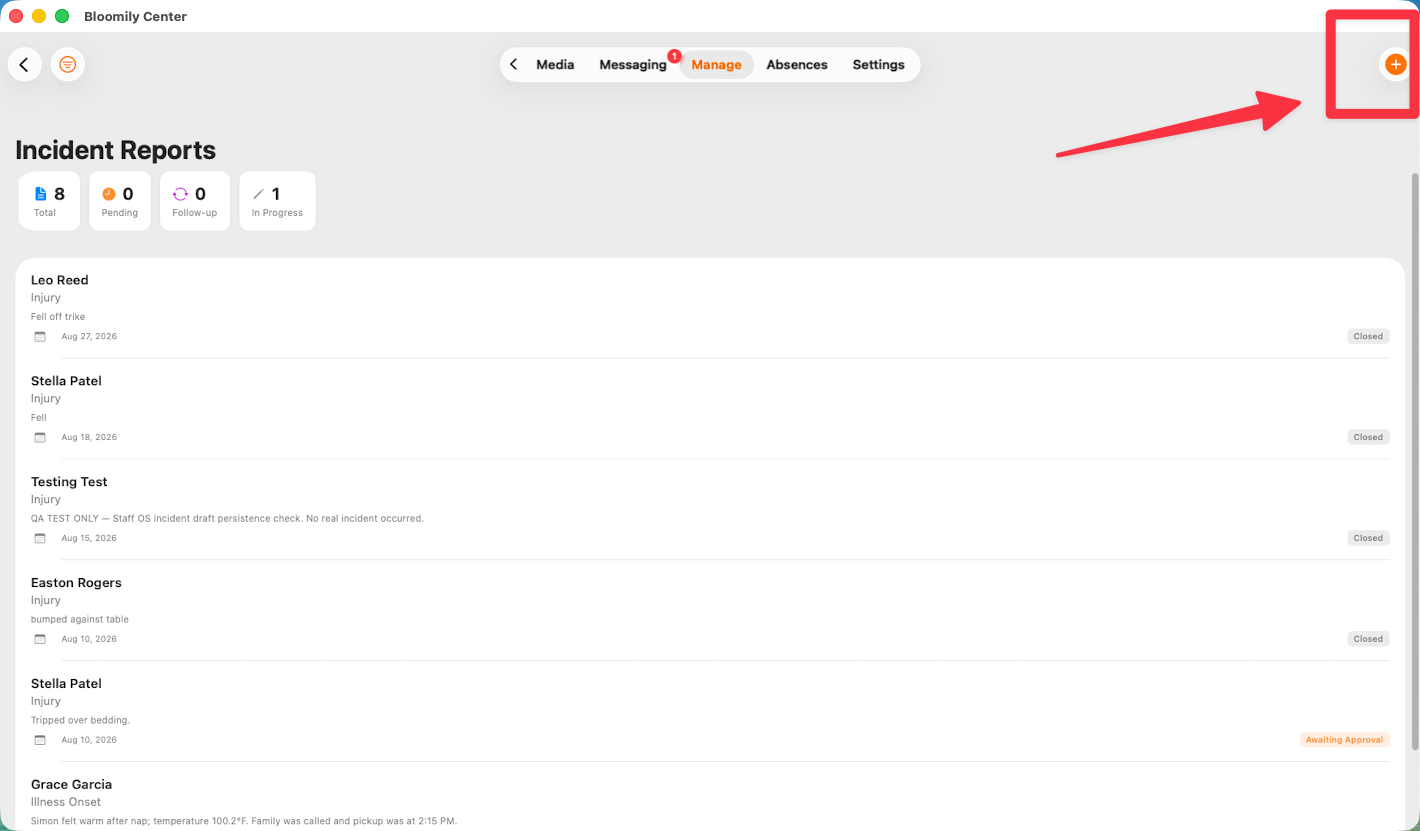
On the iPad in Bloomily Center, tap Manage, then Incidents under Health & Safety. It's on the Manage screen — you don't need to scroll.
That opens the Incident Reports list: every report for your group, newest first, with four counters across the top.
Each report in the list shows the child, the incident type, a short description, the date, and a status of Draft, Pending Acknowledgment, or Closed.
To start a new report, tap the orange + button in the top right.
Here is the whole thing, start to finish — walk through it before you need it for real:
Step 1 — Child & Time
Three things to record:
Which child was involved? Tap to pick from your group. Next stays greyed out until you've chosen someone.
When did it happen? Date and time default to now — change them if you're writing this up later.
Where did it happen? Type the place.
Be specific about the location. "Playground" is fine. "Playground — climbing frame" is far more useful if the same thing happens again. Patterns in location are how hazards get spotted and fixed.
Step 2 — Incident Details
What type of incident?
Seven options: Injury, Behavioral, Illness Onset, Allergic Reaction, Near Miss, Property Damage and Other.
Near Miss is worth using. Nothing happened, but it nearly did. Logging it is how a hazard gets fixed before it hurts someone, and it costs you two minutes.
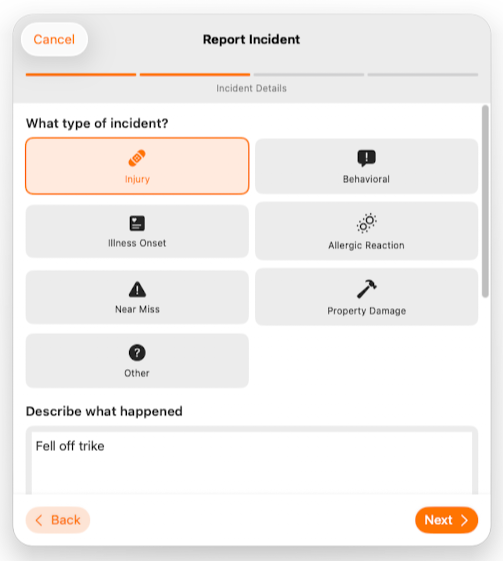
Describe what happened
Write what you saw, not what you assume. "Tripped over own feet," not "wasn't looking where they were going."
Plain, factual, no blame. A parent will read this.
Include what happened next if it matters — whether the child settled, kept playing, stayed upset.
Don't name another child in the description. Follow your school policy. The description is the part the family reads, and another family's child doesn't belong in it.
Injury Details
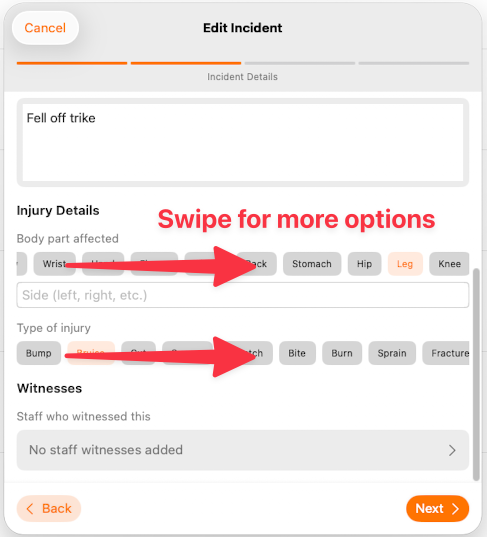
If the type is an injury, record the body part affected, the side, and the type of injury.
Both of these rows swipe sideways. The body part row and the type of injury row each hold more options than fit on screen, and there are options hidden at both ends. Swipe left along the row to see the rest. If you still can't find what you need, use Other and describe it in the text.
Witnesses
Staff who witnessed this — tap to add anyone who saw it. Add yourself if you were there.
Step 3 — First Aid
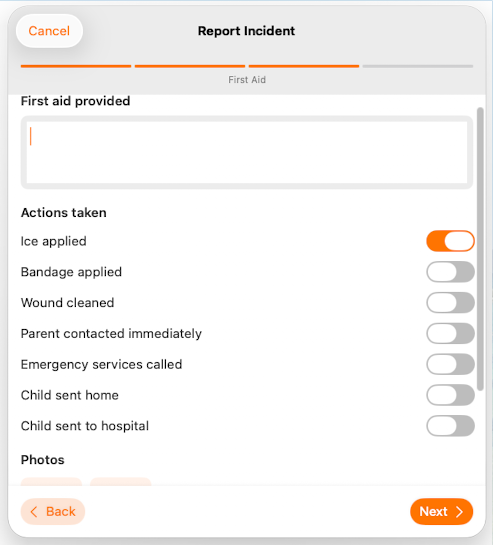
Record what was actually done. First aid provided is a free-text box. Below it, Actions taken is a list of toggles.
Photos and follow-up
Photos — add from Library or take one with the Camera. Centers differ on photographing injuries: some require it, some prohibit it. Check yours before you take one.
Follow-up required — switch this on if something still needs doing: checking a bruise tomorrow, a conversation with a parent, a hazard to fix. It puts the report in the Follow-up counter so it doesn't get lost.
Switch it on whenever you're unsure. A report that turns out not to need anything is easy to close. One that needed something and wasn't flagged is how things get missed.
Step 4 — Review
The last step shows the whole report on one screen. Read it once before saving, particularly the description.
Scroll to the bottom for the notification setting and the save options.
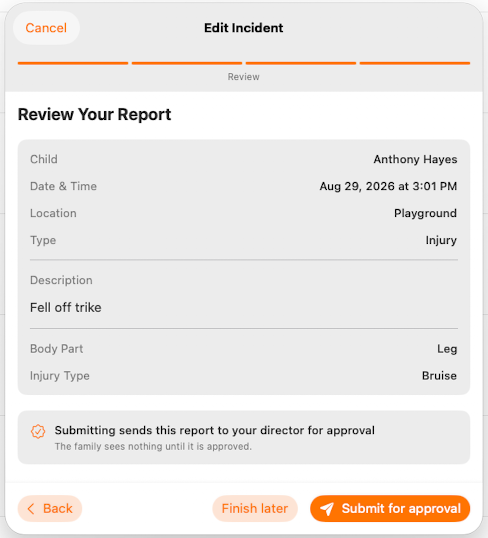
Finish Later
Saves the report without sending anything to a parent. It appears as in progress, a director or administrator can still review it in this state, check the wording, and submit it on your behalf.
Follow your school’s review process. Who can approve a report or submit it directly depends on the organization’s permissions.
Submitting the report
The submit button says one of two things, and which one you see tells you exactly what will happen.
Submit for Approval — the report goes to a director or administrator to review first. Nothing reaches the family until they release it.
Submit to Notify Parents — requests direct submission when your permissions allow it. Notification delivery also depends on the organization’s enabled notification settings and the send result. Check the resulting report status; the button label alone does not confirm delivery.
Read the button before you tap it. Review the wording and the notification option before submitting. A notification that has already been sent cannot be recalled.
If you're not sure what your center expects of you, use Finish Later and ask. A saved report can always be sent on later; a notification can't be taken back.
Submission does not guarantee notification delivery. Your organization’s notification configuration, recipient details and delivery result affect whether an alert is sent. Check the report’s notification and acknowledgment records. For urgent contact, follow your school’s incident procedure rather than relying on an app alert.
Incidents and messages don't mix
Follow your organization’s policy for contacting families and reviewing incident reports. Bloomily does not set a universal rule that families must only be contacted after a director releases a report. Record the incident accurately and record any immediate contact or care provided.
If you need a colleague or a director's eyes on something before you file, use Team Chat.
A few things worth remembering
A report saved with Finish Later sends no alert to anyone else. If something needs a director's attention now, tell them — don't rely on it being seen.
Read the submit button before you tap it. It tells you whether a director reviews the report first, or whether the family is notified straight away.
Near Misses are worth logging even though nothing happened.
Write it today. A half-finished report saved with Finish Later beats a remembered one written tomorrow.
Every screen has a ? guide button that explains the page you're on. For anything else, use in-app support or email support@bloomily.app.
Was this helpful?