Finding a child's information
For teachers: allergy and medication flags, finding emergency contacts and authorized pickups, and other essential information.
Last updated About 3 hours ago
Most of what you need about a child is on the Today screen or one tap from it. The things you'll need in a hurry — allergies, who is allowed to collect them — are worth knowing where to find before you need them.
Allergy and medication flags
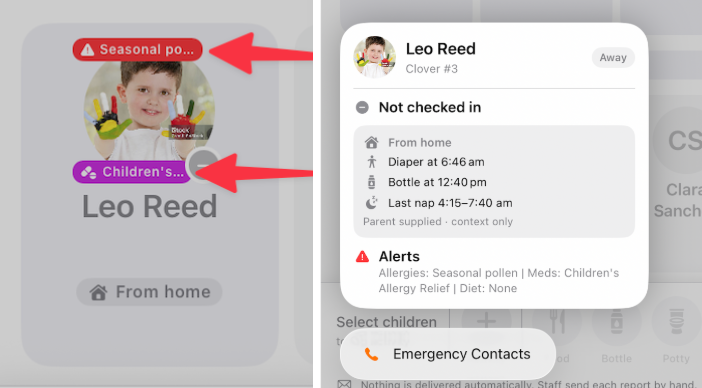
A child with an allergy or a medication on file carries a flag on their card in the room list. You'll see it without opening anything.
Red Pill Shape Flag= Allergy, Purple Pill Shape Flag= Medication.
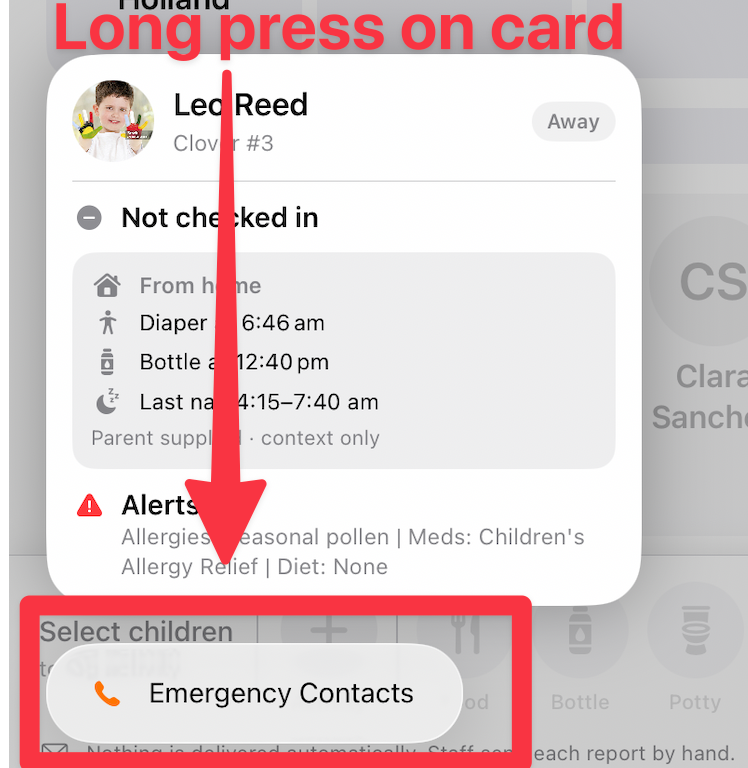
Long press the card to read it in full. The panel that opens shows Alerts spelled out — allergies, medications and any dietary requirement.
Cover teachers, floaters and anyone new to the room won't have your familiarity with the children, and the flag is there so they don't need it.
Flags on the card Long press to find more information
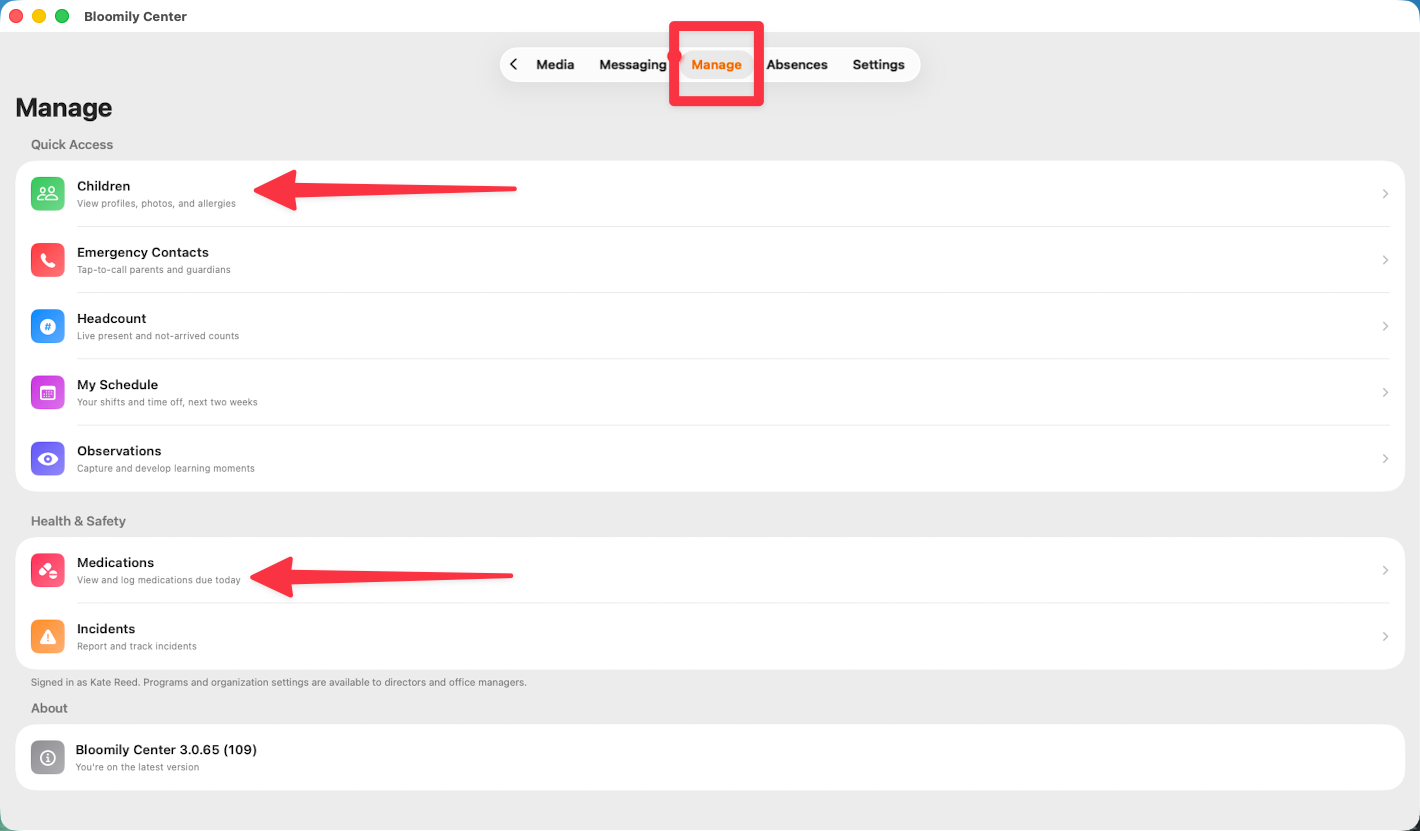
You can also reach this from Manage > Children, which lists every child in your rooms with their profile, photo and allergies. Medications due today are alongside it under Manage > Medications.
What families sent from home
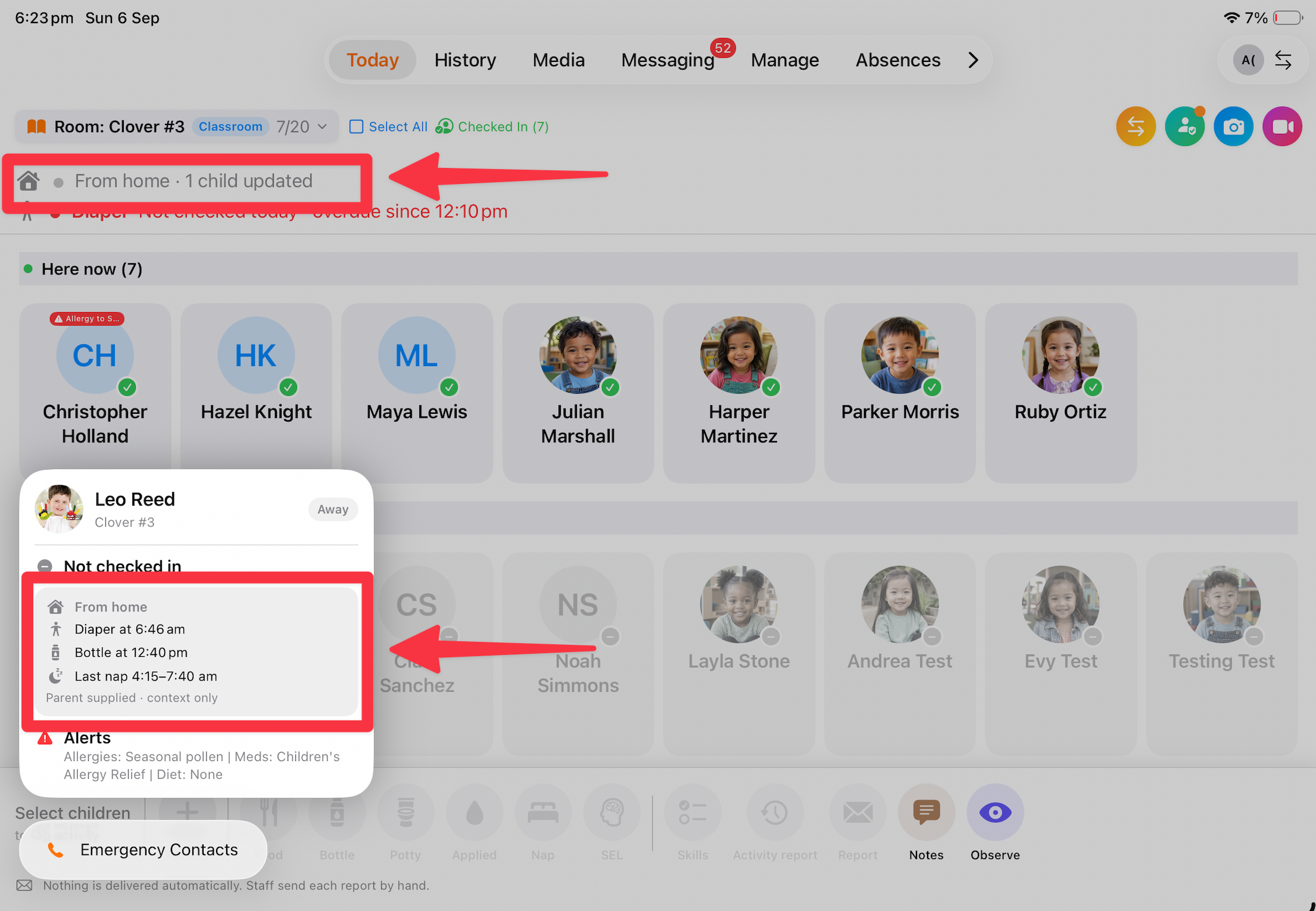
Families of younger children can share how the morning went before they arrive — when the child was last changed, last fed, and when their last nap started and ended. It's there so your first diaper change, first bottle and first nap land at the right time, rather than being guesses.
You'll see it in three places:
A From home line at the top of Today, telling you how many children have updates
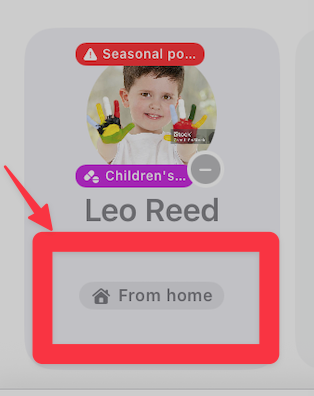
A From home chip on the child's card
The times themselves in the child's card panel. Long press the card to open the panel.
It's background from the family, not care you recorded. If something needs to be part of the child's record, log it yourself.
Two things to expect:
It's optional and it can be partial. A family might fill in the nap and skip the bottle. A blank row means nothing was shared, not that nothing happened.
It locks when you check the child in. Families can edit it right up to that point, so what you see at check-in is final.
Emergency contacts and authorized pickups
Long press a child's card and the panel has an Emergency Contacts button — the quickest route.
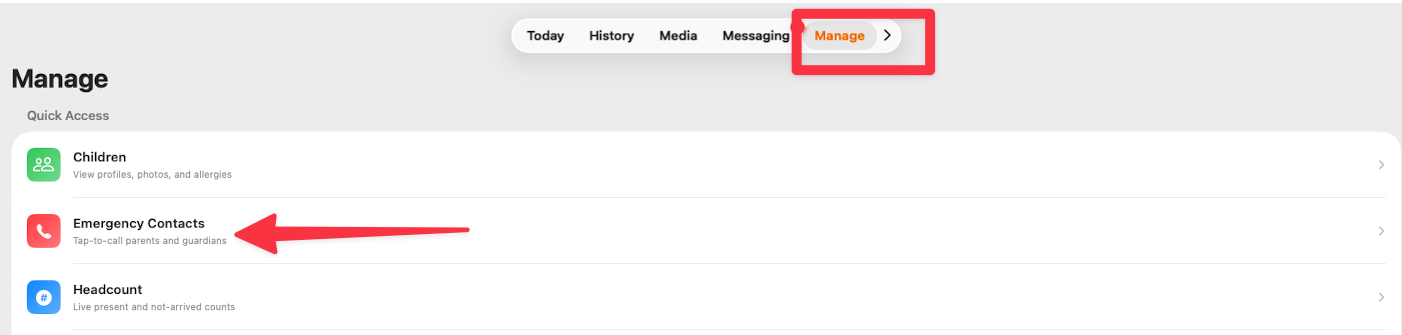
For the full picture, go to Manage > Emergency Contacts and search for the child's name. That shows their emergency contacts, authorized guardians, and authorized pickup list on one page.
This is the list to check before you start a sign-out, not after. If the person collecting isn't on it, or you aren't sure, stop and get your director.
See guide: Staff-assisted check-in and check-out for the handoff itself.
Who's absent today
Tap the Absences tab along the top to see which children have a reported absence for the day. Remember, a parent can report an absence from the app.
Checking the room against the roster
Your Here now list is only as accurate as the last person who updated it. Run a name-to-face check at the points your center requires — and any time the count doesn't match the room.
Look at the children, then the screen, in that order. Counting the screen first makes it easy to see the number you expect.
If the screen and the room disagree, believe the room. Then work out why the screen is wrong: a child checked in without a signature, a group signed out and not signed back in, a child moved between rooms, or a child with a reported absence.
If you can't reconcile it, tell your director straight away rather than adjusting the screen to match.
What you won't see
You see the children in the rooms you're assigned to.
If you need something outside your rooms, your director can get it. Something missing usually means an access level rather than a fault.
Every screen has a ? guide button that explains the page you're on. For anything else, use in-app support or email support@bloomily.app.
Was this helpful?