Checking yourself in and out
For teachers: why logging in isn't checking in, switching users isn't checking out, and how to make sure your hours are recorded correctly.
Last updated About 3 hours ago
Your hours in Bloomily are a payroll record and part of how your center shows it met required ratios. Getting them right takes about four seconds a day, twice a day.
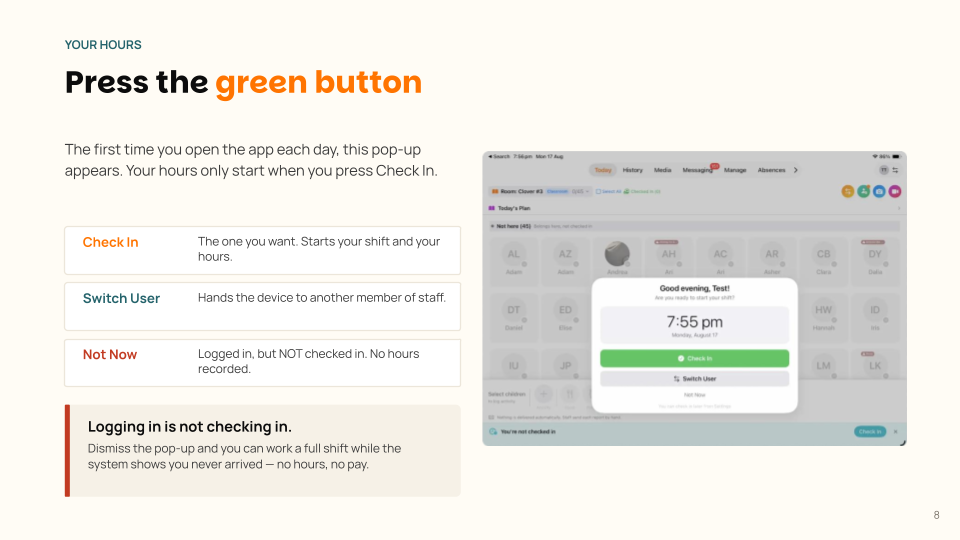
Logging in is not checking in
Opening the app and signing in does not start your shift. Your hours only begin when you check in, and those are two separate actions.
The first time you open Bloomily Center each day, a pop-up appears with a green Check In button. Press it.
If you tap Not Now and carry on, you will work a full shift with nothing recorded. The dashboard will show you as Not arrived even though you are standing in your room with eleven children.
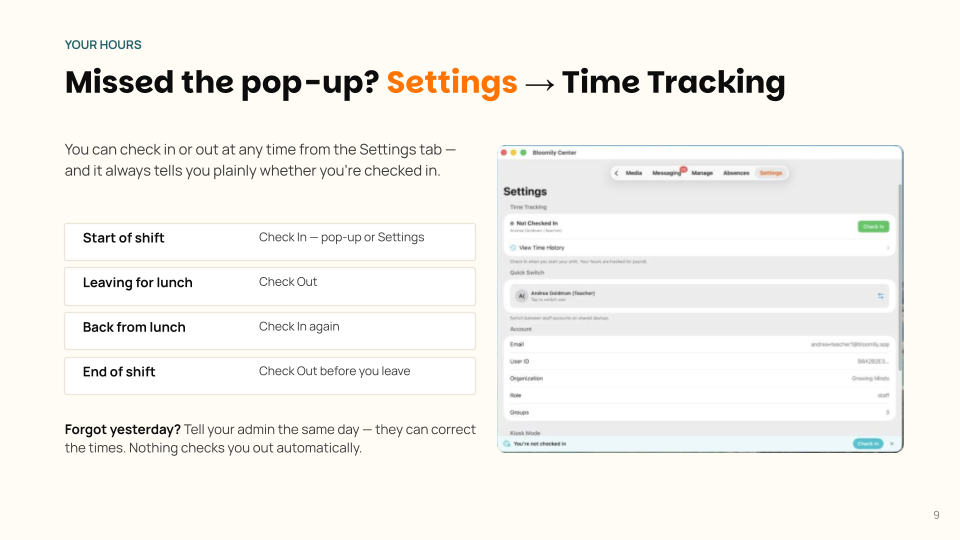
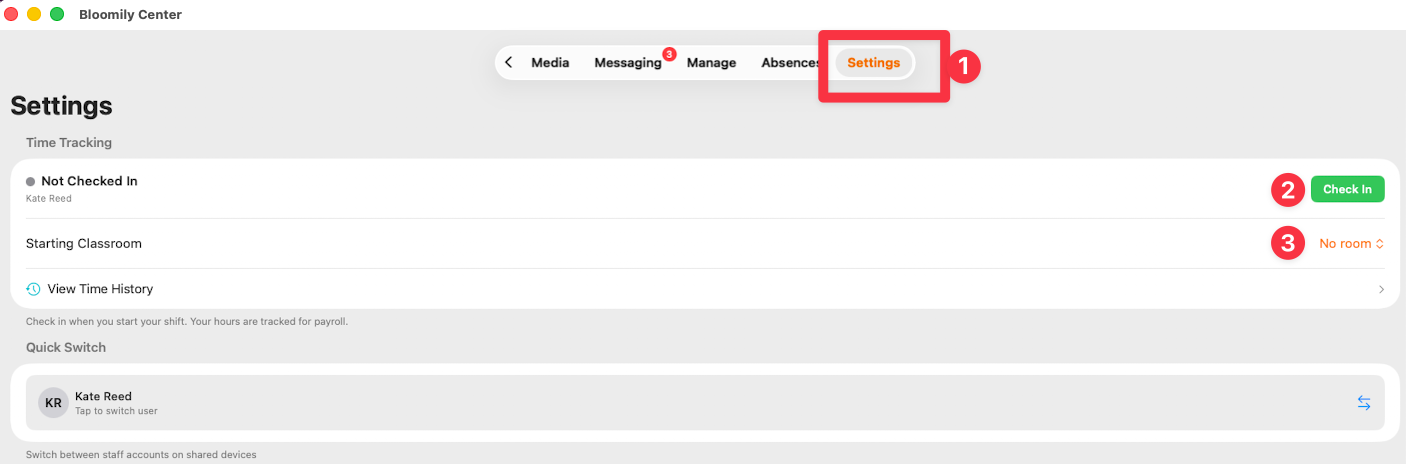
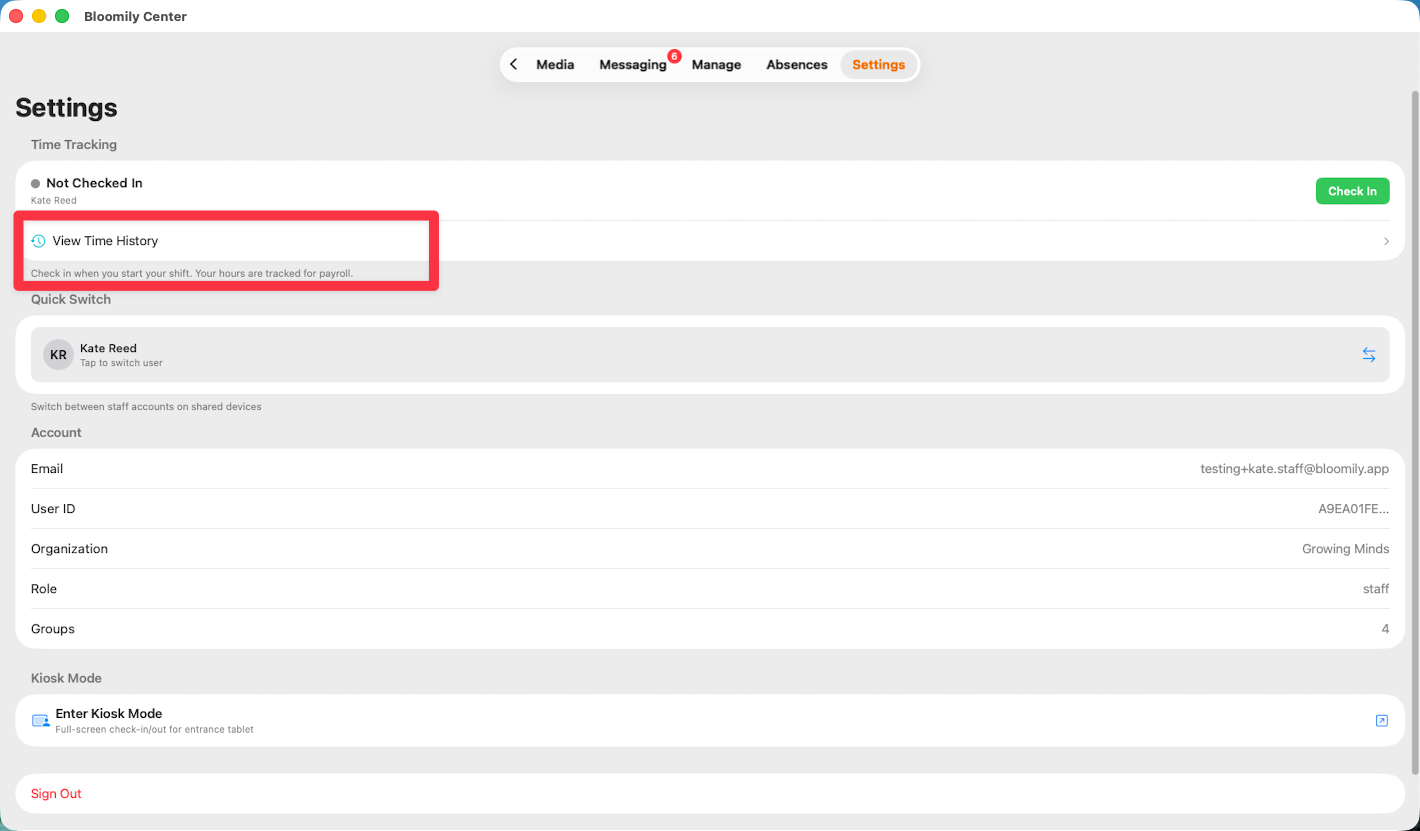
Missed the pop-up? Go to Settings → Time Tracking and check in from there.
Picking your room
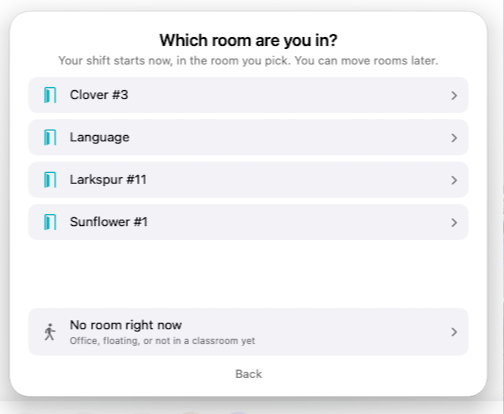
After you tap Check In, you choose the room you're working in. Only the rooms you're authorized for appear in the list.
These are two different things, and it's worth keeping them apart:
Floating still counts. If you're standing in a room and part of its ratio, pick that room. No room right now is for office or admin time — not for covering a floor.
Your homeroom doesn't change when you pick a room. It stays exactly as it was.
Not offered a room?
If you tap Check In and no room list appears, set one from Settings → Time Tracking using the Current Classroom row. That row isn't only for moving — it adds a room when it's empty.
No Current Classroom row there at all means your center hasn't turned classroom tracking on, and there's nothing for you to set.
Moving to another room
If your center lets staff move themselves:
Go to Settings → Time Tracking.
Next to Current Classroom, tap Move.
Choose the room you're moving to. The list shows every other room you're cleared for.
Moving rooms never checks you out. It doesn't start a new shift and it doesn't touch your homeroom. Stay checked in while you move — if you check out and back in instead, your hours split into two separate blocks for the same shift.
Move yourself whenever you switch rooms. If you don't, the ratio is wrong in two places at once: the room you left looks better staffed than it is, and the room you're standing in looks short.
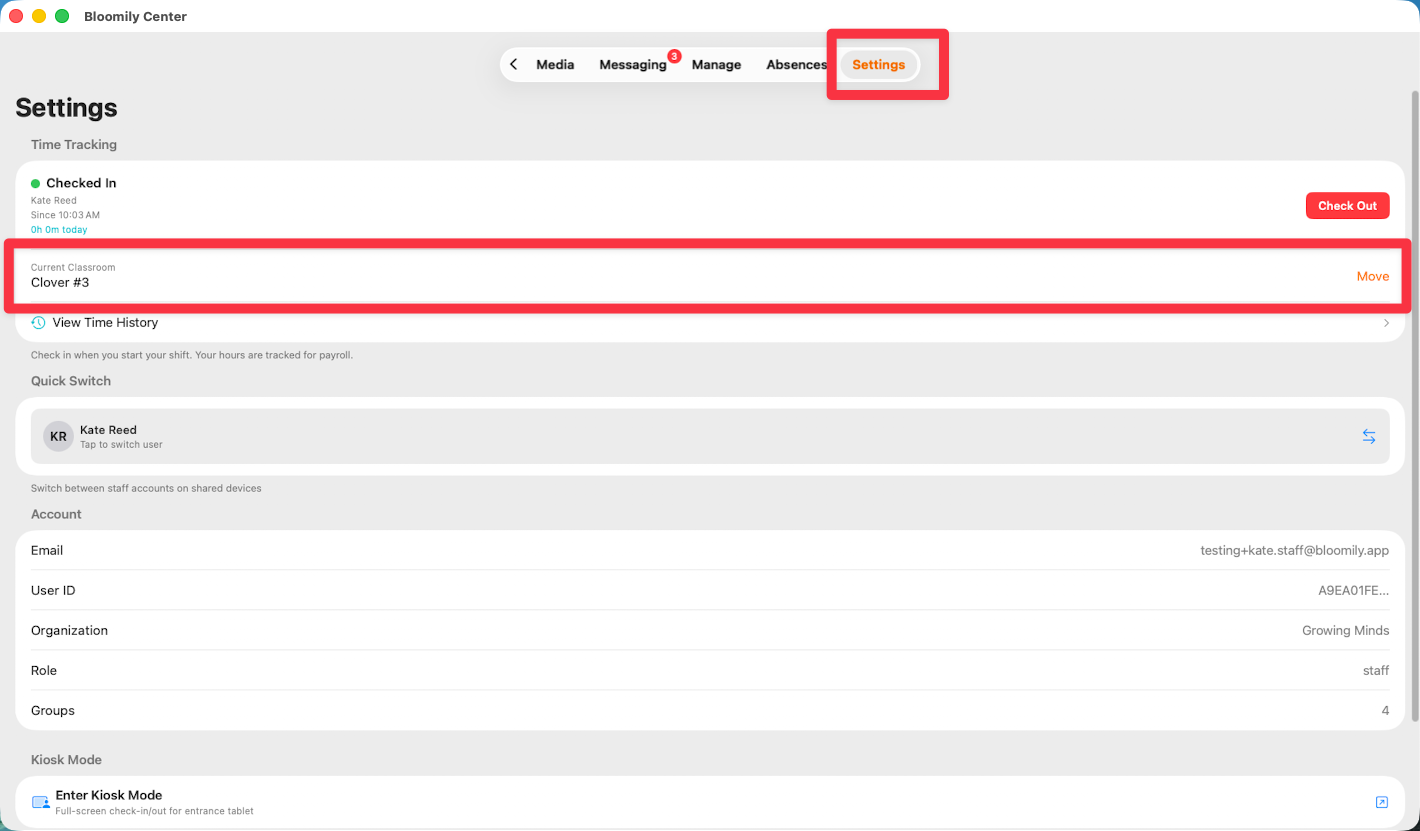
No Move link? Your center hasn't enabled staff moving themselves, which is a setting rather than a fault. An administrator can move you instead, from the dashboard or the app — ask a lead.
Sharing an iPad
Where a classroom shares one device, you switch between accounts rather than signing in and out.
Switching users is not checking out. When your colleague switches in, you stay checked in and your hours keep running. Whoever is holding the iPad should be switched in as themselves — press Switch User at the moment you hand it over, not afterwards.
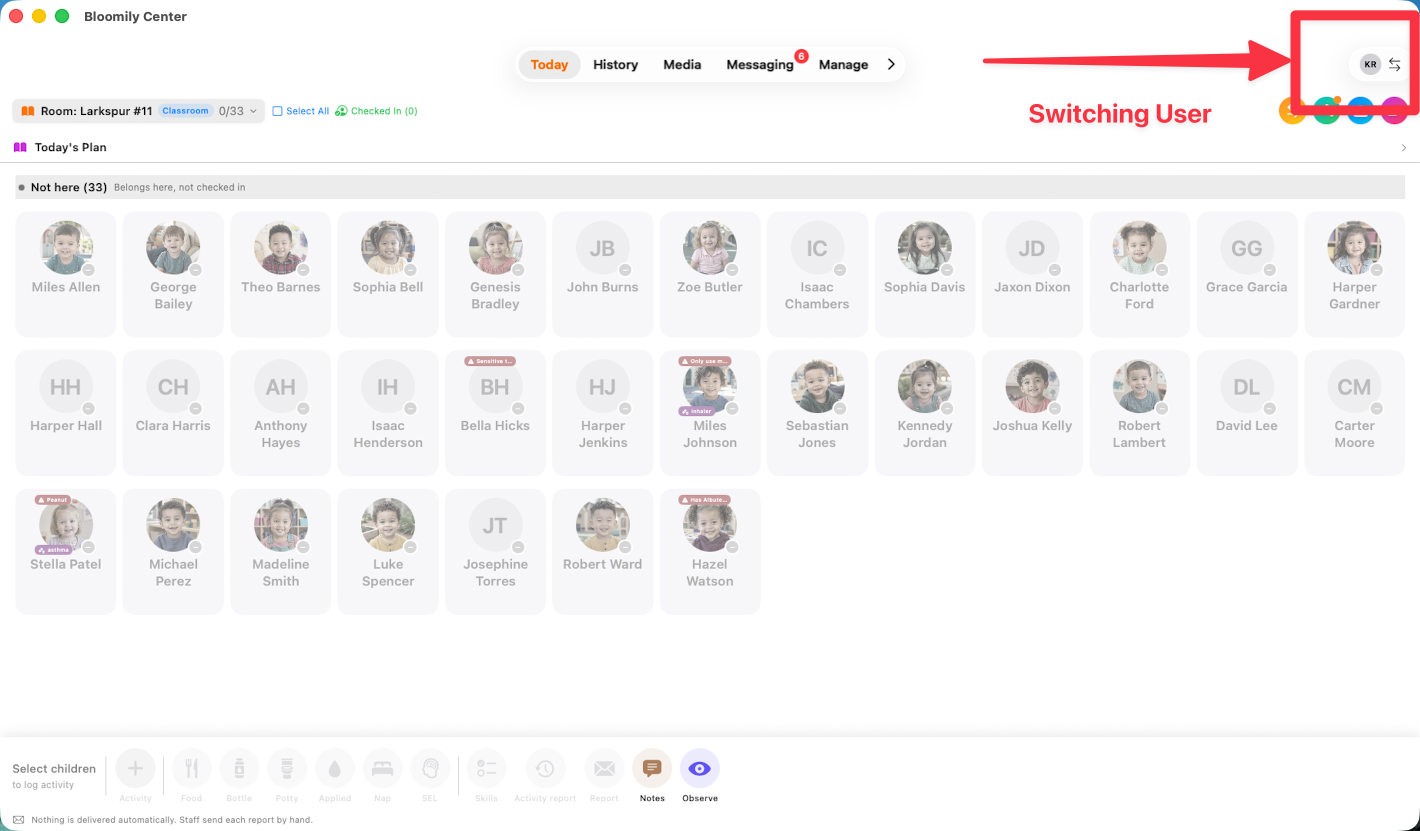
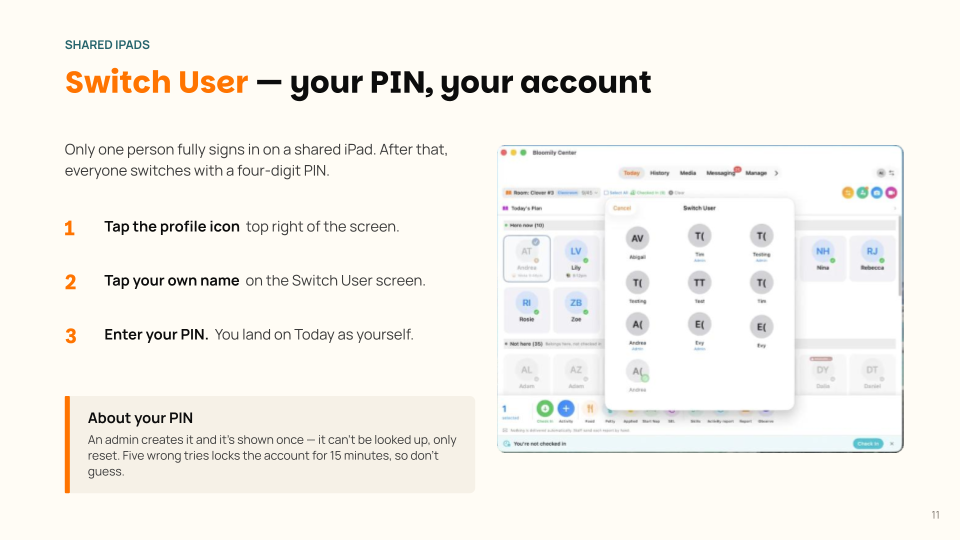
Your PIN
Select your own name and use your own shared-device PIN. Do not keep guessing if a PIN fails or the app reports a lockout. Follow the on-screen recovery options or ask an authorized administrator to reset the PIN.
A staff PIN is separate from your password and from guardian kiosk credentials. Use the available staff-profile controls to set or change it; do not expect an administrator to read back an existing hashed PIN.
Checking out matters as much as checking in
Check out when you leave. It's in the same Settings → Time Tracking panel — tap Check Out, with your running total for the day beside the button.
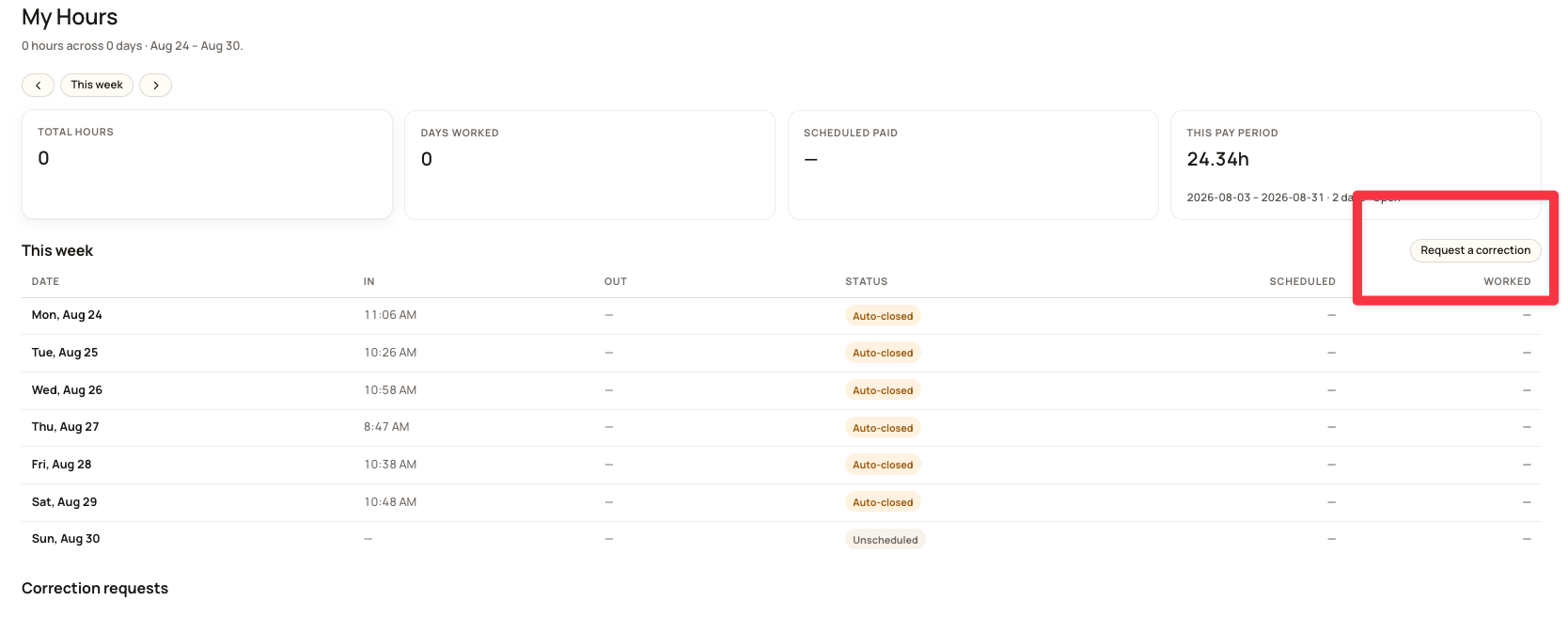
If a check-out is missing, the record may be marked Auto-closed. That status does not by itself determine the day’s worked hours. My Hours uses available timesheet entries and completed attendance intervals; an incomplete interval may contribute no hours until corrected.
Review the In, Out and Worked columns. If a check-out or worked time is missing, request a correction with the actual times. Do not assume that the whole day is zero just because its status is Auto-closed.
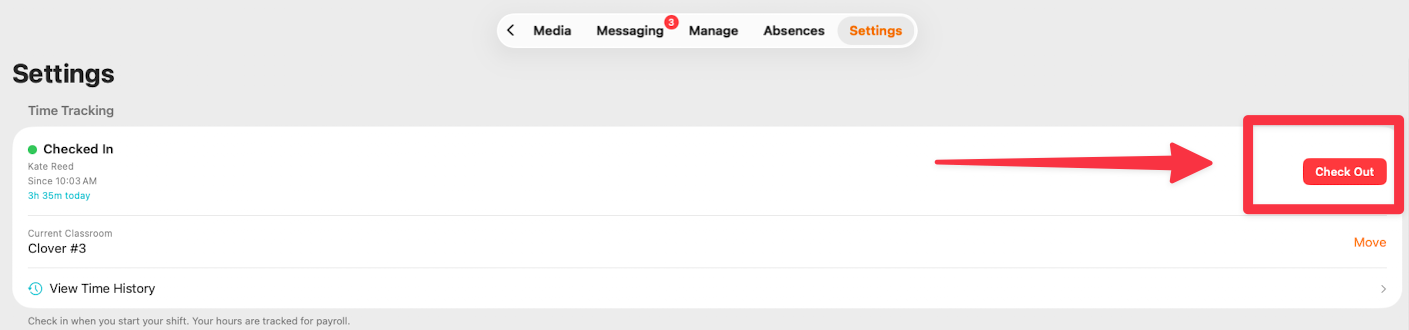
Bloomily sends a reminder in the evening if you're still checked in:
"Don't forget to check out — You're still checked in. Please check out before you leave so your hours are recorded correctly."
If that arrives after you've already left, the day still needs fixing. Request a correction the next time you're at a computer.
Checking your own hours
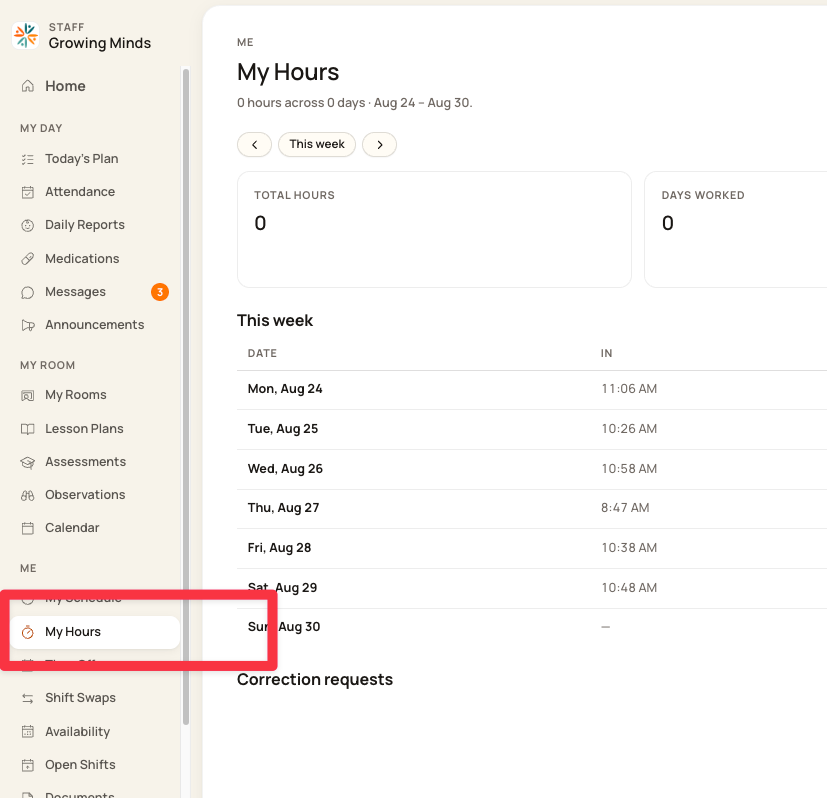
Sign in at bloomily.app and open My Hours, under Me in the left-hand menu.
Across the top you'll see Total Hours, Days Worked, Scheduled Paid and This Pay Period, with the current period's dates and whether it's still open. Use the arrows either side of This week to move between weeks.
Below that, every day is listed with its In time, Out time, status, and hours scheduled against hours worked. Two statuses are worth recognizing:
Auto-closed — the record was closed automatically without a recorded check-out. Review the worked hours and request any necessary correction.
Unscheduled — no shift was scheduled for you that day.
Check this every Friday. It takes fifteen seconds, and a missing day is far easier to explain while you still remember what you worked.
If a day is wrong: request a correction
You can't edit your own time record — and that's deliberate, since it's a payroll document. What you can do is ask for it to be fixed.
On My Hours, use the Request a correction button above the weekly table. Say which day it is and what actually happened — the time you arrived, the time you left.
Your requests and the answers to them appear under Correction requests at the bottom of the same page, so you can see what's been dealt with and what's still waiting.
Don't try to compensate by checking in late or out late on another day. An invented record is much harder to unpick than a missing one, and the correction request exists precisely so you don't have to.
If the app locks you out
Follow the unlock or sign-in options displayed by Bloomily Center. The available method depends on the app and the device’s security setup. If the shared device repeatedly cannot unlock, ask your director to review its passcode and app setup. Do not assume email-and-password sign-in bypasses every lockout.
Why this matters more than it looks
Your attendance records support payroll review. Check their accuracy and follow your employer’s timesheet process.
A missed check-out needs a correction. A missing or zero value in Bloomily is not a decision about what you are owed.
Your check-in is part of the ratio record. A room can look understaffed on paper because a teacher who was present never checked in.
Your current classroom is the other half of that record. Being checked in says you're at work; your room says where — and that's what the ratio counts.
All of it takes seconds. The cost of getting it right is tiny; the cost of fixing it later isn't.
Every screen has a ? guide button that explains the page you're on. For anything else, use in-app support or email support@bloomily.app.
Was this helpful?