Your schedule and time off
For teachers: where your shifts, time off, availability and requests live, and how they differ from the hours you actually worked.
Last updated About 3 hours ago
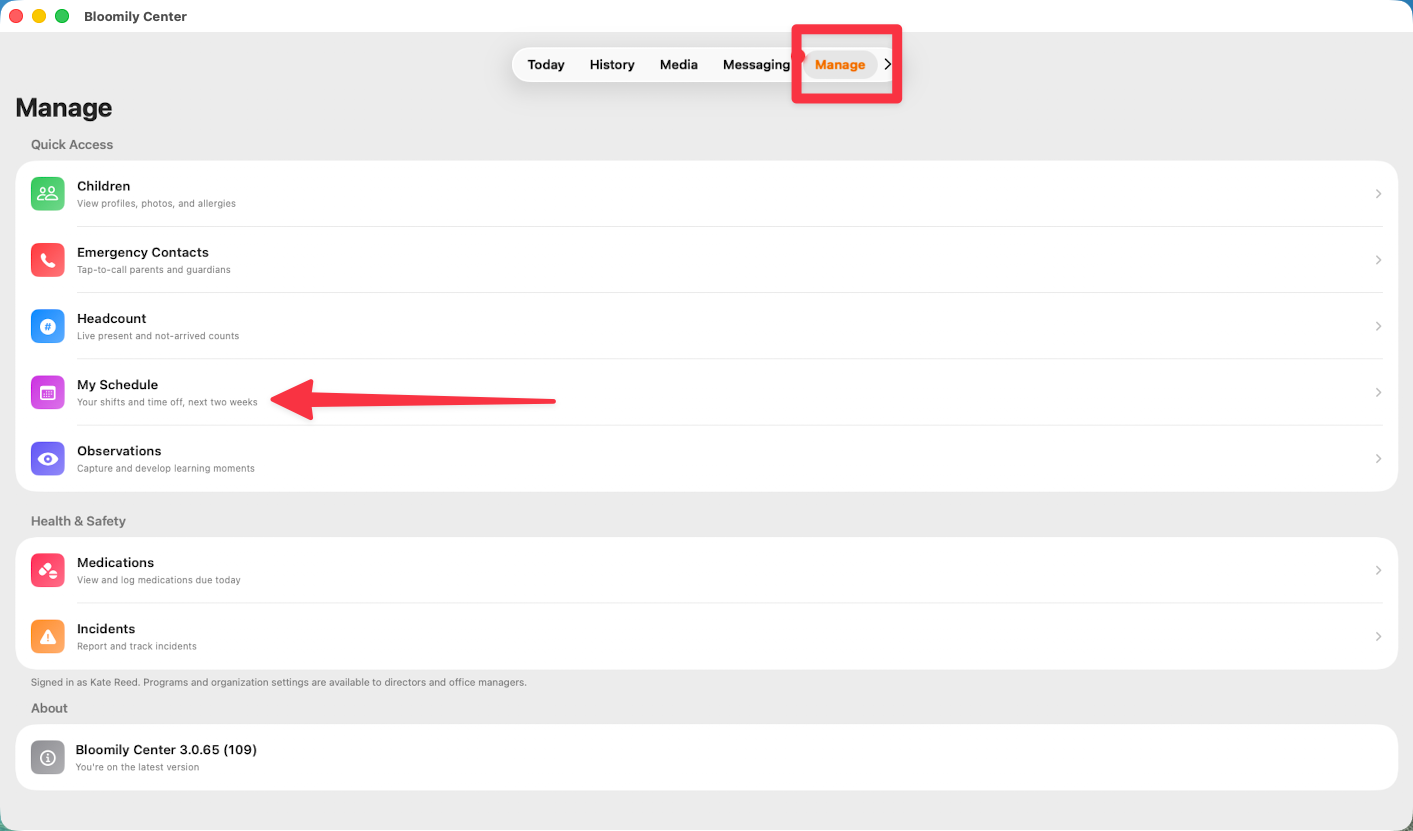
Your schedule, your time off and your availability all live under Me in the staff dashboard at bloomily.app. On the classroom iPad, Manage > My Schedule shows your shifts and time off for the next two weeks — enough for a quick look mid-shift, but the dashboard is where you'd go to change anything.
IPad:
Staff Portal Dashboard:
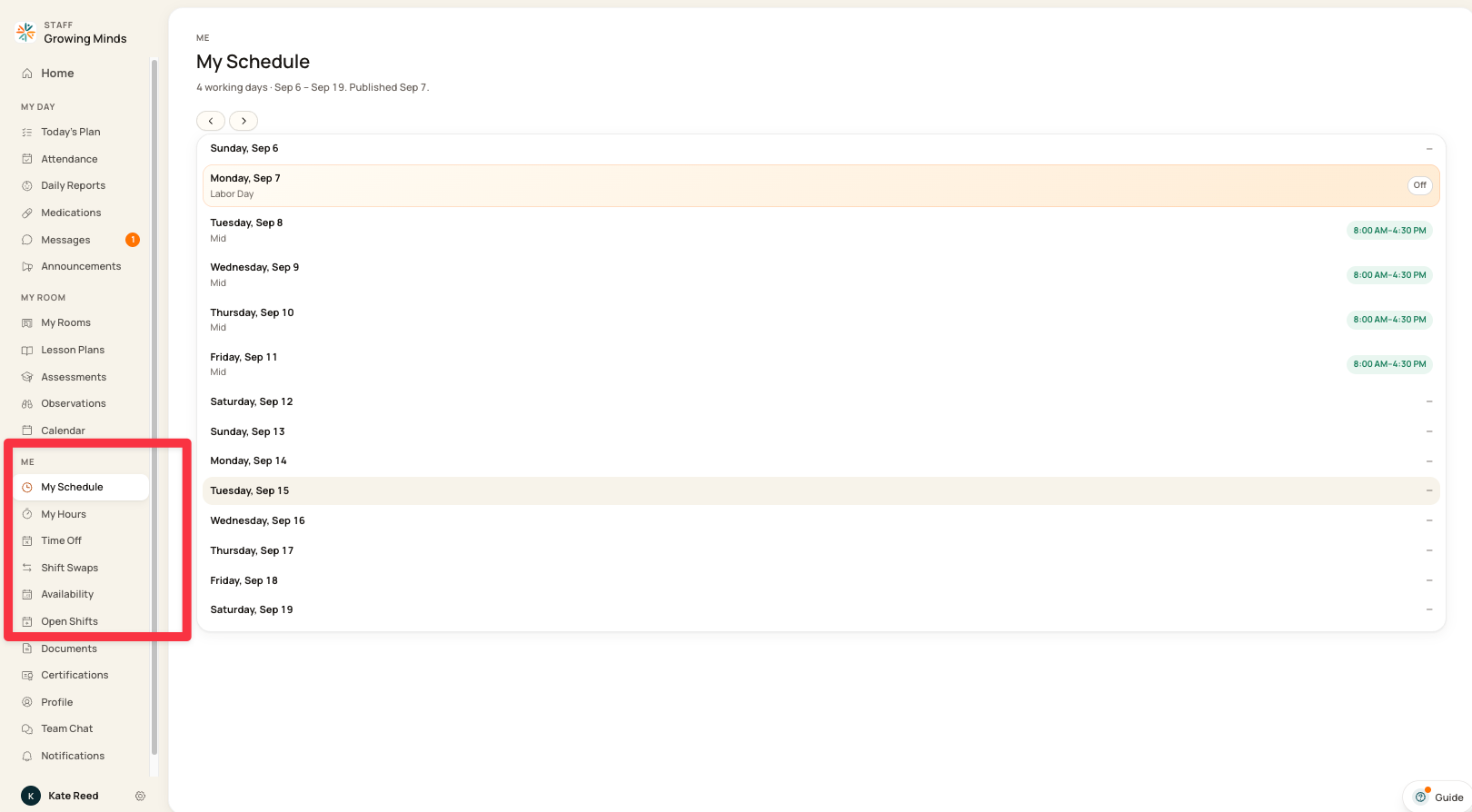
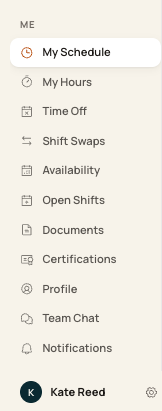
What's where
Not all of these will be switched on. Open Shifts, Shift Swaps and Availability depend on how your organization runs its rota. If one isn't in your menu, it isn't enabled — ask your director rather than assuming it's broken.
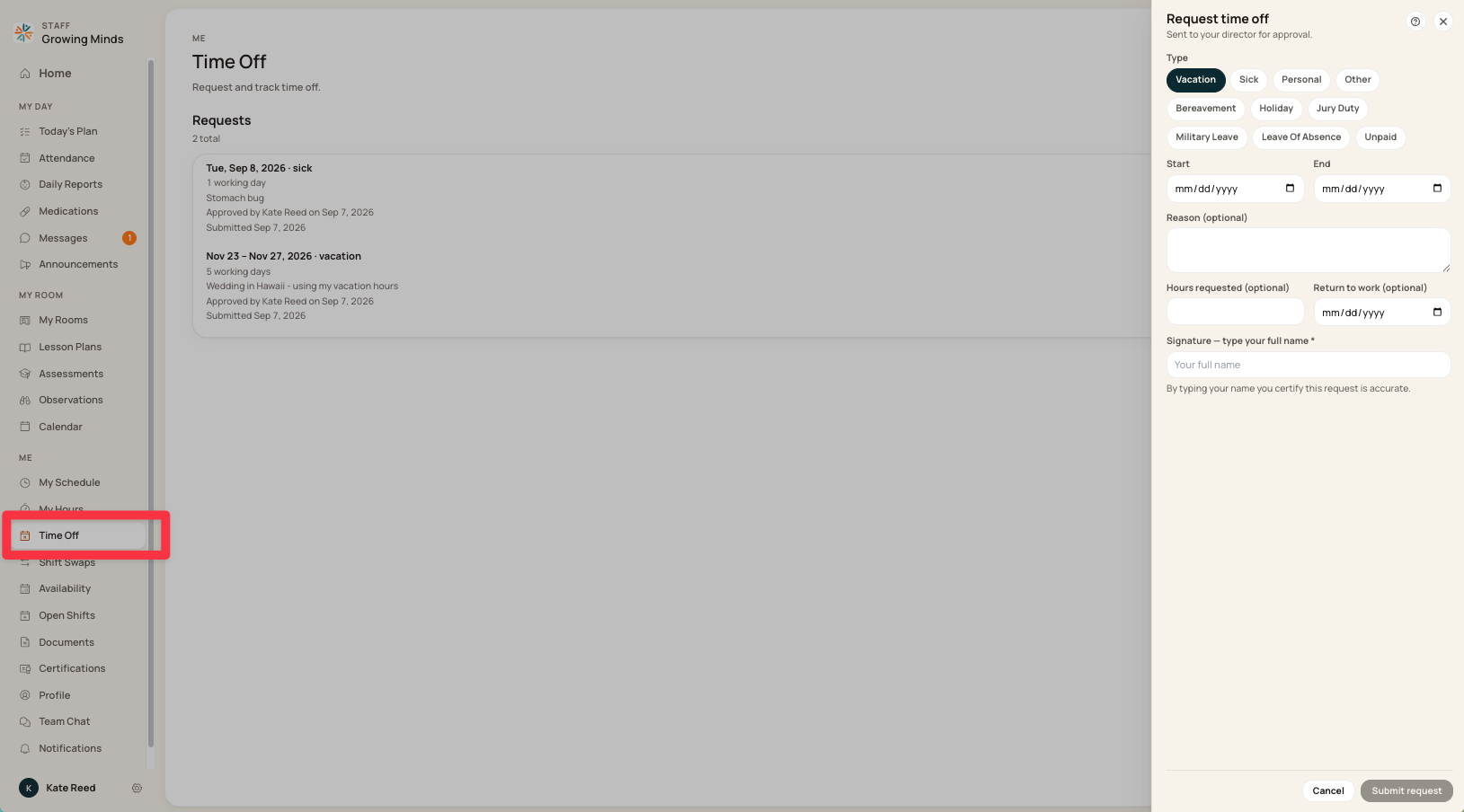
Asking for time off
Requests go in from Time Off. Once submitted, the request and its answer appear under My Requests, so you can see what's been approved and what's still waiting rather than having to ask.
Check the status before you make plans. Submitted isn't approved, and the page will tell you which it is.
Your hours are a different thing
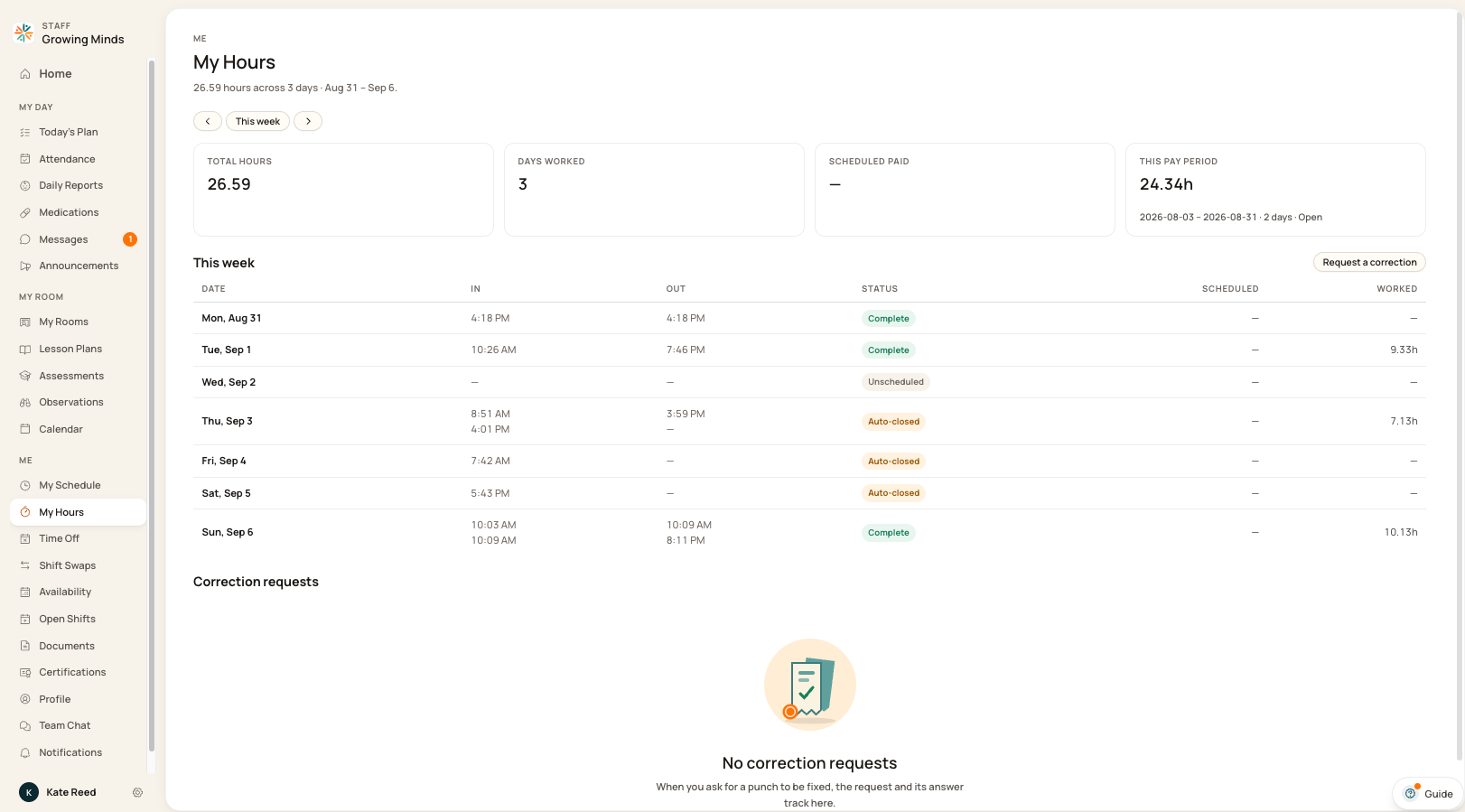
Your schedule is what you're meant to work. Your hours are what you did — those live under My Hours, and they're what payroll uses.
The two won't always match, and that's normal. What matters is that your hours are right. See Checking yourself in and out.
Staying told about changes
Under Notifications, two categories cover this:
Shift reminders — a nudge before a shift starts
Schedule changes — when something you're rostered for moves
Each can reach you by push, email, or both. Schedule changes is the one to leave on — it's how you find out a shift moved without having to go looking.
Every screen has a ? guide button that explains the page you're on. For anything else, use in-app support or email support@bloomily.app.
Was this helpful?