Find your way around Bloomily
Find children, forms, money, messages, and center settings.
Last updated About 3 hours ago
For center admins using Bloomily in a web browser. Your menu may look a little different based on your access and your center’s settings.
1. Check your center
Look at the center name at the top left. Make sure you are in the center you want to work in. Click Today to return to the daily overview.
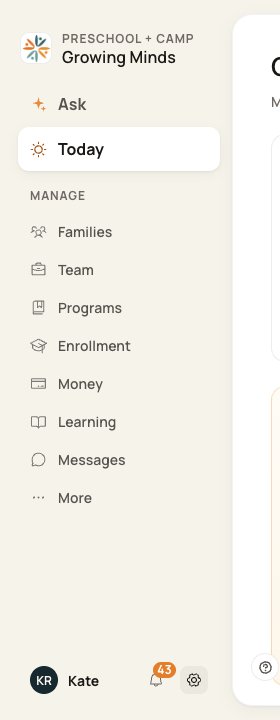
The center name and main menu are on the left.
2. Pick the part you need
Click Families to find a child or guardian. Click Team for staff. Click Enrollment for applications and forms. Click Money for billing. Click Messages for family messages.
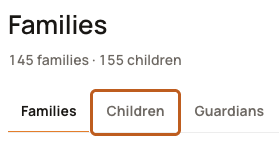
In Families, use the tabs to choose Families, Children, or Guardians.
3. Look in More
Can’t find a page in the left menu? Click More. You can find pages such as Attendance, Daily reports, Contacts & pickups, and Reports here. Click the page name to open it.
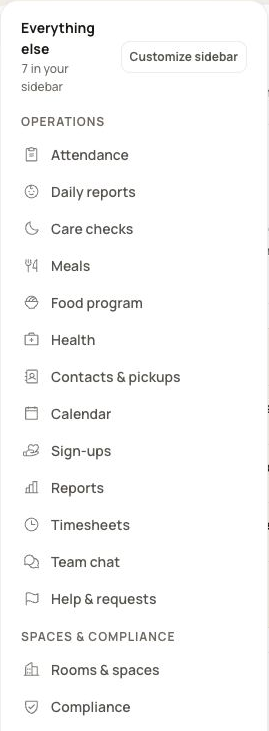
More holds additional pages. Click a page name to open it.
4. Find your center settings
Click the small gear at the bottom left. Then click Settings. This menu also has Subscription & plan, Website, and Tools & help when you have access.
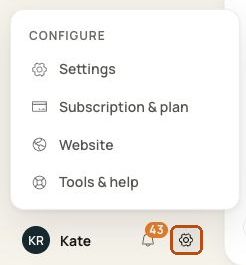
Open the gear menu, then choose Settings.
Still missing a page? Check More first, then ask your center’s admin to check your access. Tell them the center name and the page you need. A page shown in this guide may not be turned on for your center.
Was this helpful?