Editing or Removing a Meal Type
Use a meal type’s management menu to change its schedule or stop offering it without treating historical records as disposable.
Last updated About 3 hours ago
Use a meal type’s management menu to change its schedule or stop offering it without treating historical records as disposable.
1. Open the meal’s management menu
Go to More → Meals → Settings. Choose the management button beside the correct meal type.
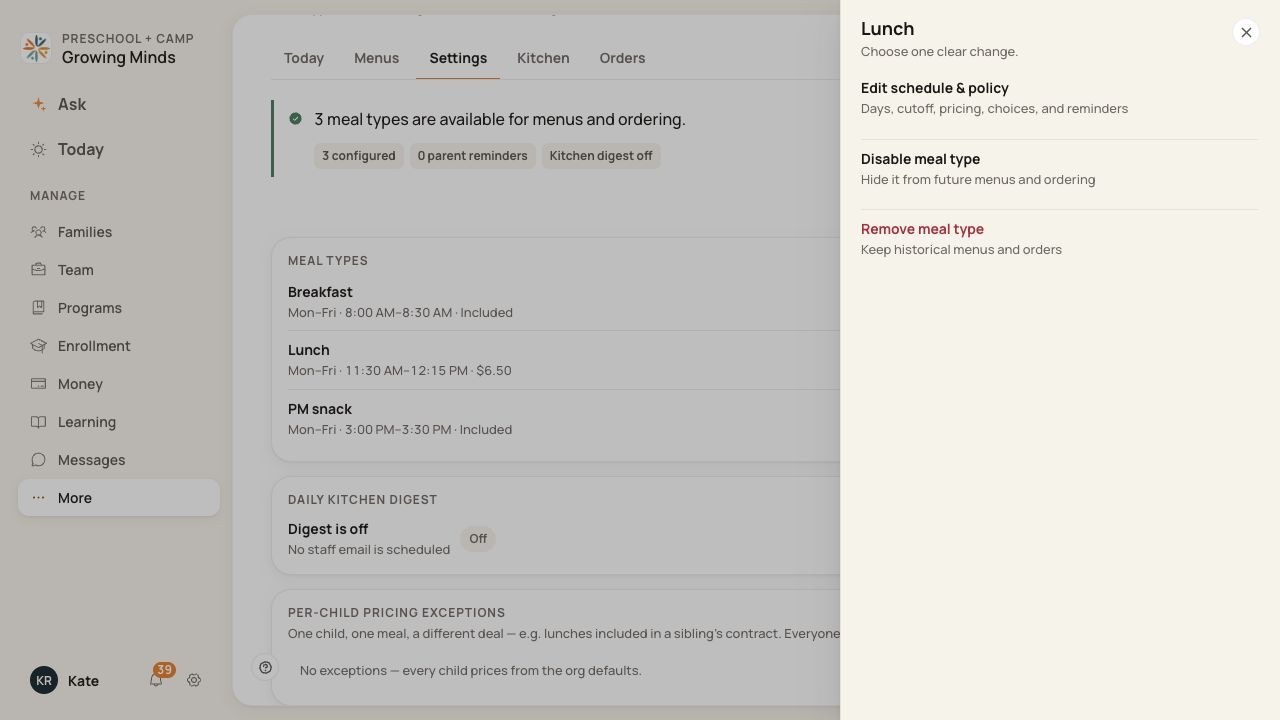
Choose whether to edit, disable or remove this meal type.
2. Edit its configuration
Choose Edit schedule & policy. Review days, service times, cutoff, pricing, choices and reminders. Choose Save changes and check the updated row.
3. Stop offering the meal
Choose Disable meal type when the meal should no longer be offered. Read the confirmation before applying it. Check future menus and ordering afterward.
4. Remove the configuration when appropriate
Use Remove meal type only after reviewing the affected service and its remaining orders. Read the confirmation carefully.
Before you finish
Disabling or removing a meal type preserves historical menus and orders. It does not automatically cancel every existing order.
Existing orders for a disabled service may remain in Orders even when the service is no longer shown for future ordering. Review them explicitly.
Changing pricing does not establish that past invoices were recalculated.
Related guides
Screenshots show an example center. Meal prices, times, service days and ordering policies depend on your center’s configuration.
Was this helpful?