Editing, Unpublishing, or Deleting a Menu
Use the date’s management controls for menu changes. Check existing orders before changing a published menu.
Last updated About 3 hours ago
Use the date’s management controls for menu changes. Check existing orders before changing a published menu.
1. Find the exact menu
Open Meals → Menus, select its meal type and month, then open the date’s management button.
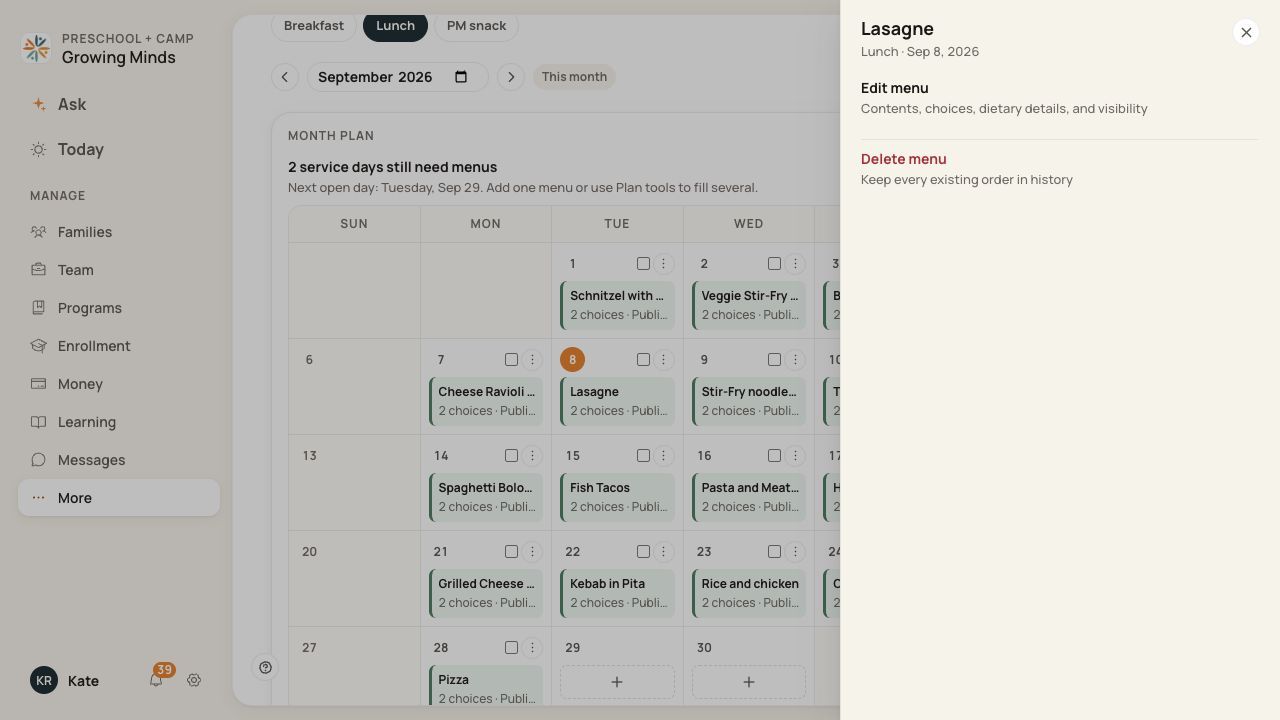
Manage the menu for the selected service date.
2. Edit the content
Choose Edit menu, make the correction and save. Check the date, description, choices and dietary information.
3. Unpublish when families should no longer see it
In the edit form, clear Publish to families and save. For multiple menus, select them and use Unpublish, reviewing the confirmation.
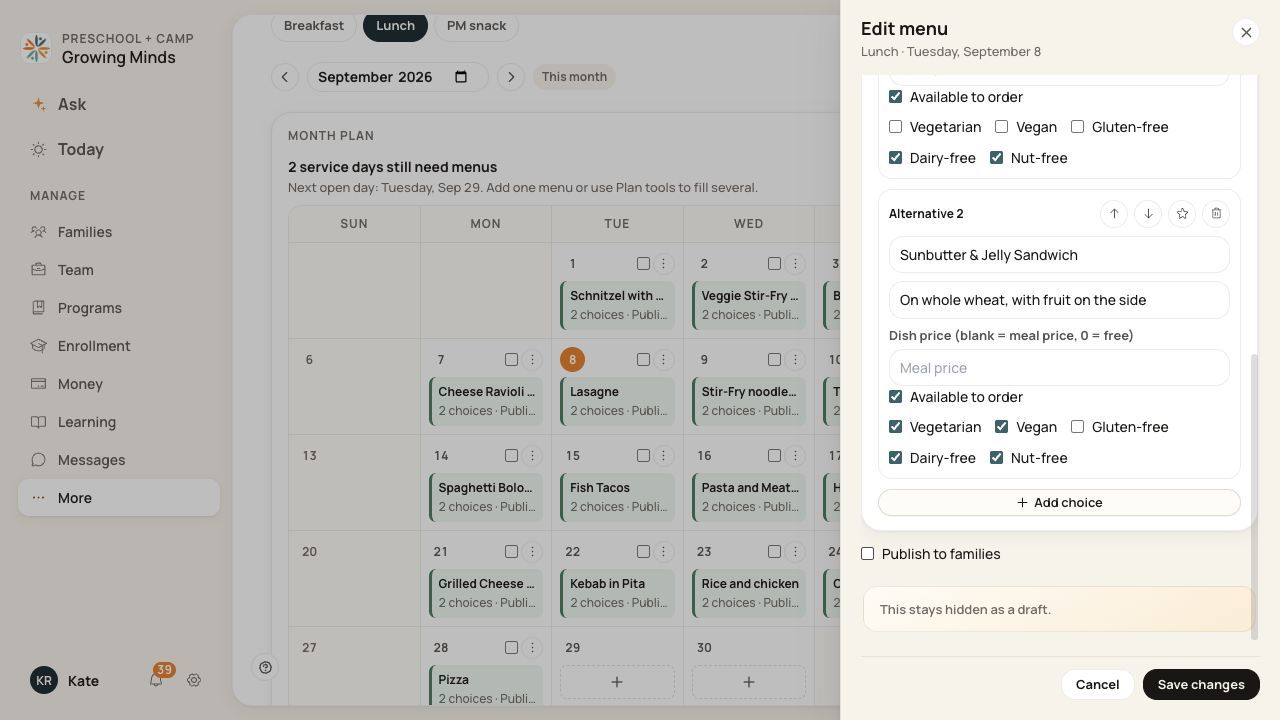
Clear the publication checkbox to return the menu to a draft.
4. Delete only after reviewing the impact
Choose Delete menu and read the confirmation. Verify the intended menu was removed and inspect any existing orders for that day.
Before you finish
Deleting a menu preserves existing order history. It is not a substitute for cancelling an order.
Unpublishing does not establish that an already placed order, invoice or family message was reversed.
Use a No service entry when you need to communicate that a meal will not be offered on a particular day.
Related guides
Screenshots show an example center. Meal prices, times, service days and ordering policies depend on your center’s configuration.
Was this helpful?