Setting Up the Daily Kitchen Digest
The daily kitchen digest is a staff preparation email. Configure the intended recipients and schedule in Meals settings.
Last updated About 3 hours ago
The daily kitchen digest is a staff preparation email. Configure the intended recipients and schedule in Meals settings.
1. Open the digest settings
Go to More → Meals → Settings and open the Daily kitchen digest row.
2. Choose the schedule and recipients
Enable the digest, set its local send time and enter the staff recipient email addresses, separated by commas. Check every address before saving.
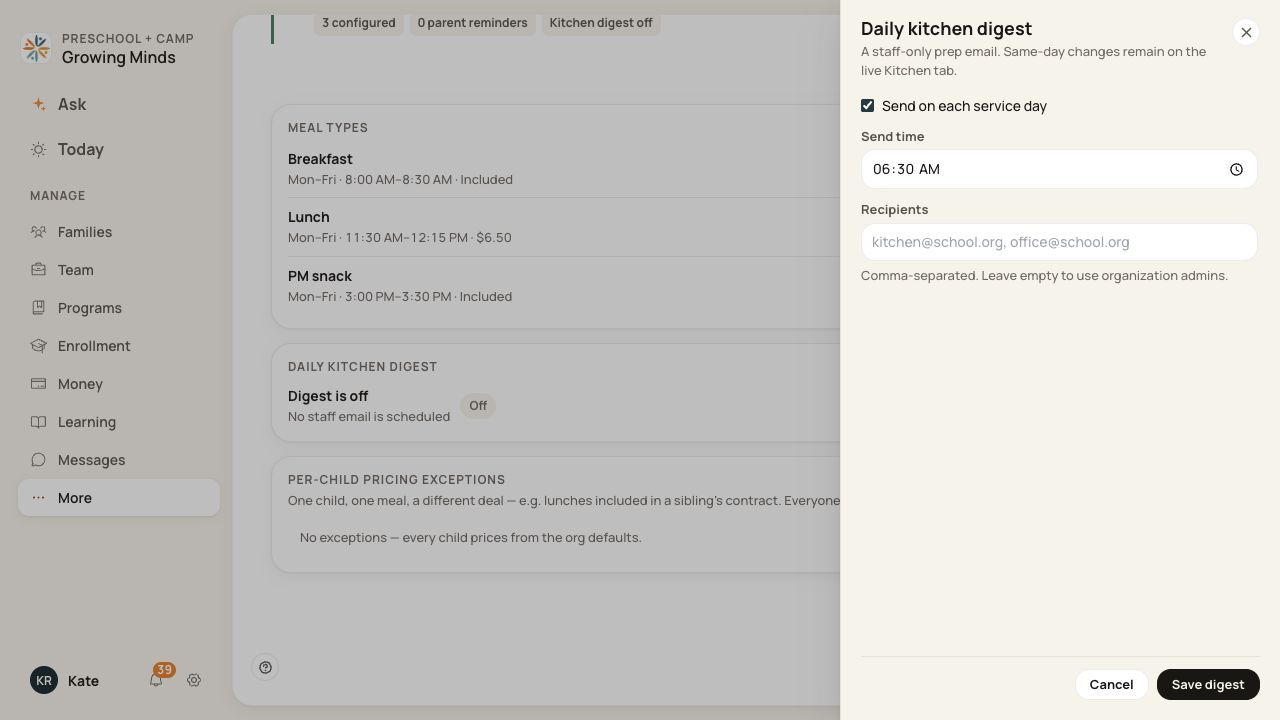
Enter explicit recipients. The older empty-recipient hint shown in this form should not be relied on.
3. Save the configuration
Choose the save action and confirm the digest settings persist. At least one recipient is required to enable the digest; up to 15 recipients are supported.
4. Use the live kitchen view for changes
Use Meals → Kitchen for the current date’s preparation information. An email is a snapshot and may not include orders changed after it was generated.
Before you finish
The digest is for staff, not families. It can contain preparation and dietary information, so choose recipients who need it.
Saving the schedule is not an immediate send or proof of delivery. Check the configured recipients and actual mailbox after the scheduled run.
To stop future digests, turn the digest off and save.
Related guides
Screenshots show an example center. Meal prices, times, service days and ordering policies depend on your center’s configuration.
Was this helpful?