Using the Kitchen View and Daily Kitchen Digest
Use Kitchen for current preparation information and the digest as a scheduled staff snapshot.
Last updated About 3 hours ago
Use Kitchen for current preparation information and the digest as a scheduled staff snapshot.
1. Select the meal and day
Open More → Meals → Kitchen. Choose the meal type and preparation date.
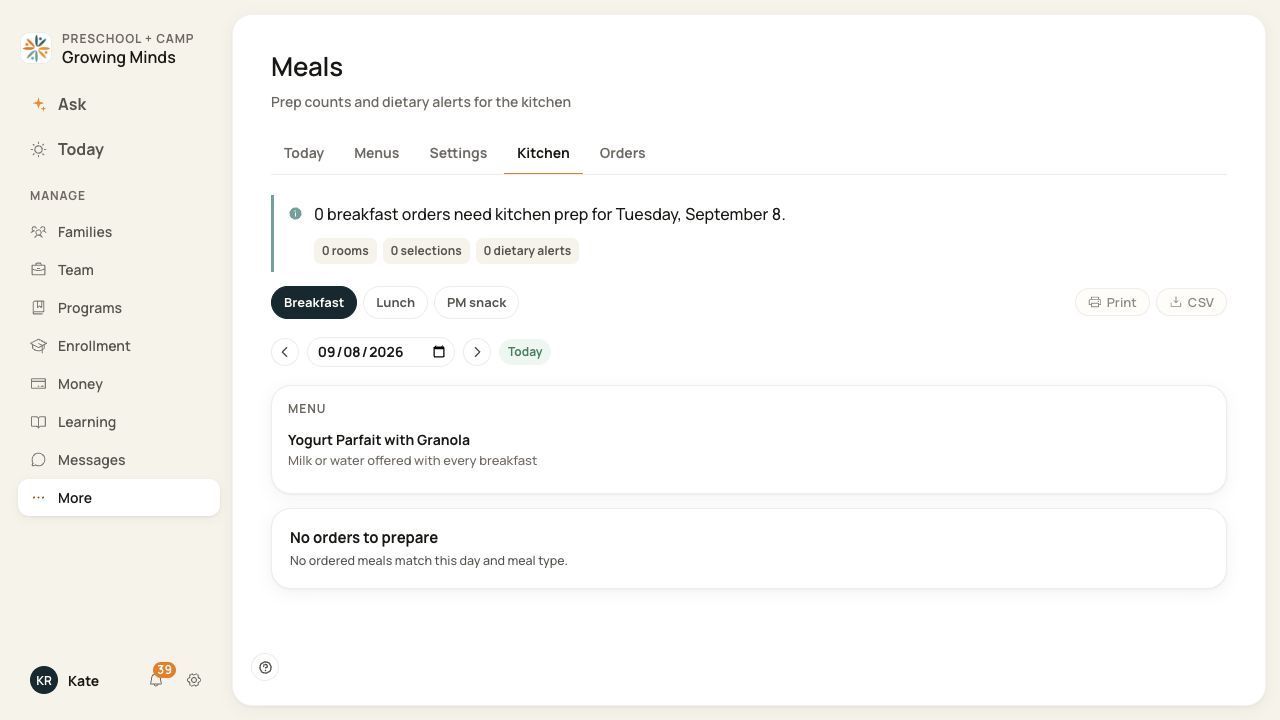
An empty kitchen view means no ordered meals match this selection; check the meal and date.
2. Review the preparation information
Check the menu, order and selection totals, room groupings and dietary information shown. Investigate missing or unavailable health information before treating it as clear.
Orders are grouped under Prep by room by each child's classroom. A child with no classroom assigned appears under Unassigned. Dietary alerts lists a child's allergy and dietary note together on one line — for example, "Tree nuts · Also no dairy" — so both show on screen, in Print, and in the CSV export.
3. Print or export when available
Use Print or CSV for the selected preparation view. Check the output date and meal type before distributing it to staff.
4. Recheck after an email snapshot
If your center enables the daily digest, read its date and service details. Return to the live Kitchen view for changes made after that email was generated.
Before you finish
The digest is staff-facing and depends on your center’s enabled schedule and explicit recipients.
Dietary labels on a menu and a child’s health information serve different purposes; review both through your center’s food-safety process.
Preparation counts do not establish that meals were served or recorded for CACFP.
Related guides
Screenshots show an example center. Meal prices, times, service days and ordering policies depend on your center’s configuration.
Was this helpful?