Copying a Week of Menus
Reuse a week’s menus for the selected meal type. The copy follows weekdays and respects offered service days.
Last updated About 3 hours ago
Reuse a week’s menus for the selected meal type. The copy follows weekdays and respects offered service days.
1. Open the weekly copy tool
In Meals → Menus, select the meal type, then choose Plan tools → Copy a week.
2. Choose the source and target weeks
Set Source week and Target week. The tool aligns weeks Monday to Monday; choosing a date within a week identifies that week.
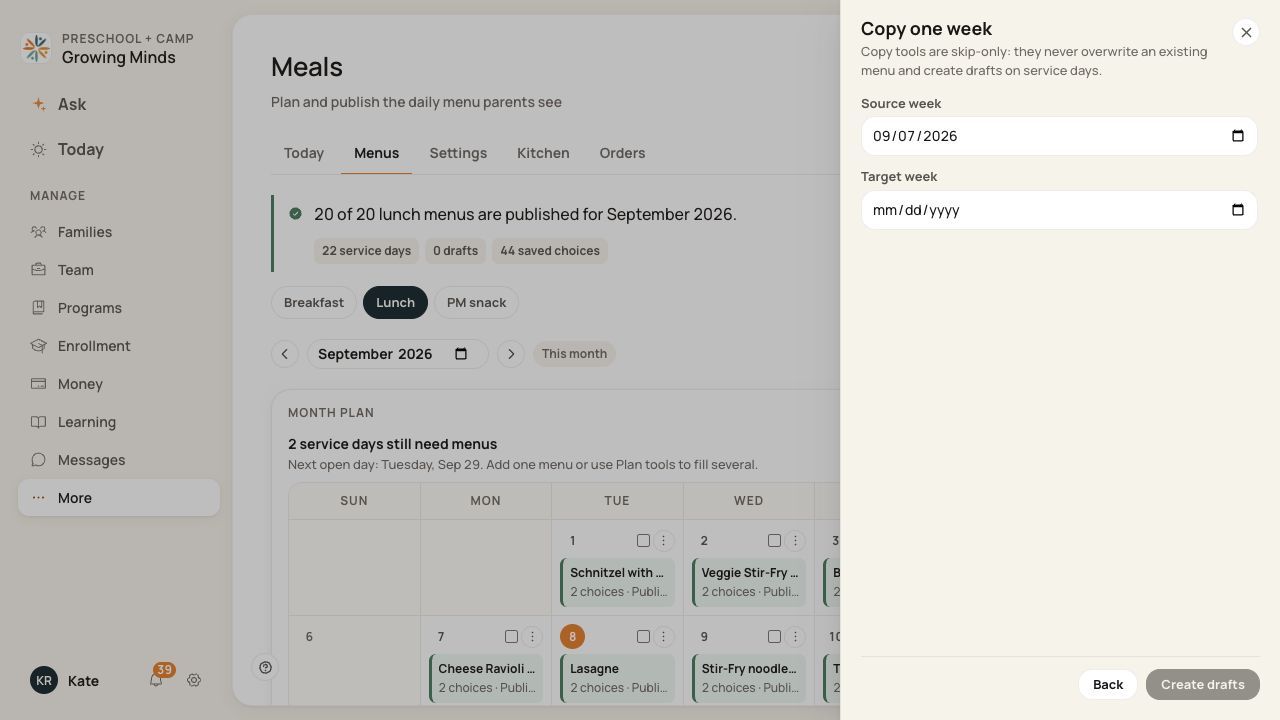
Review both weeks before creating drafts.
3. Create drafts
Choose Create drafts and read the result. Existing target menus are skipped.
4. Review the destination week
Check every copied service date. Adjust date-specific notes, dishes and closures, then publish the ready menus.
Before you finish
This copies the selected meal type. Repeat for another meal type if needed.
No-service entries are not a reusable weekday meal pattern; check the target’s calendar independently.
Copied menus remain drafts and do not create orders.
Related guides
Screenshots show an example center. Meal prices, times, service days and ordering policies depend on your center’s configuration.
Was this helpful?