Recording Meals as Served, Cancelled, or No-Show
Record the actual outcome of an ordered meal so the kitchen record reflects what happened.
Last updated About 3 hours ago
Record the actual outcome of an ordered meal so the kitchen record reflects what happened.
1. Find the correct ordered meal
Open the order from Meals → Today or Orders. Confirm the child, date, meal type and selection.
2. Choose the outcome
Select Update or Update order. Choose Served after the meal was handed to the child, No-show for an uncollected meal, or Cancelled when the order is cancelled.
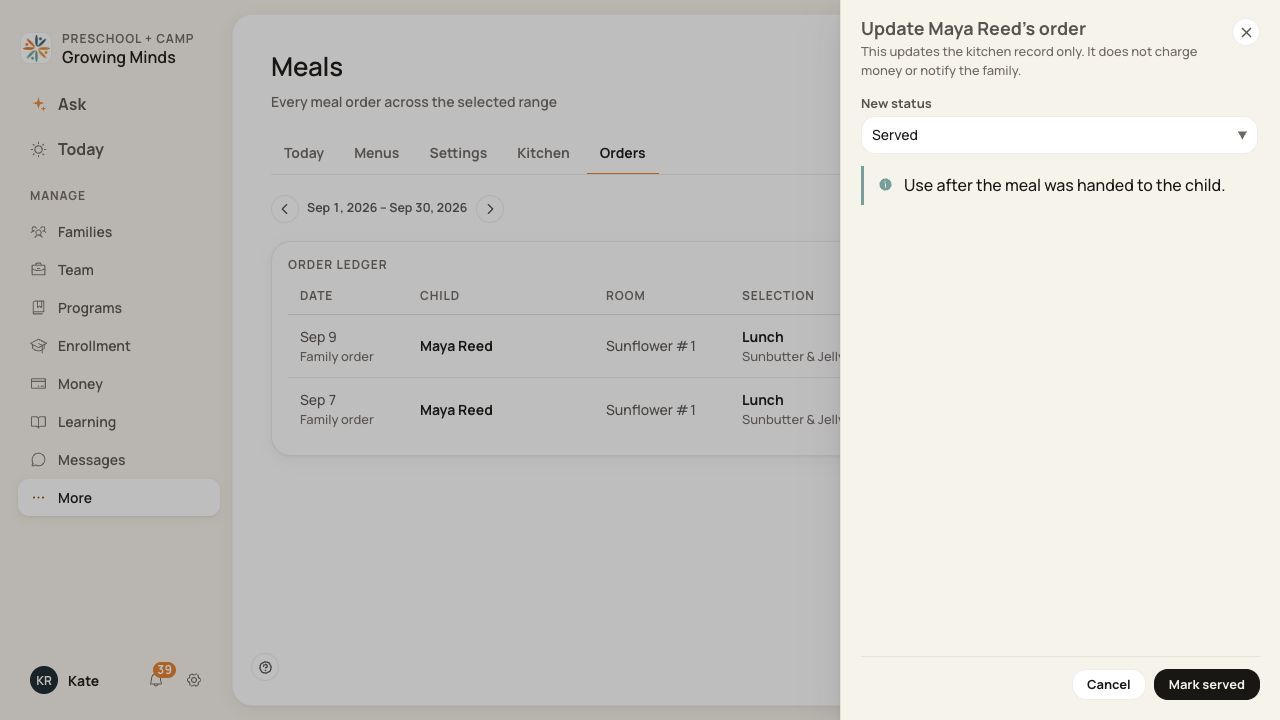
The status choice records the kitchen outcome.
3. Review and confirm
Read the form’s explanation. Add a reason when cancelling. Choose the matching confirmation action only when the outcome is correct.
4. Check the saved status
Verify the updated status in the order record. If it disappears from an active-only list, select All statuses to find it.
Before you finish
Only an Ordered meal can transition through this control. If a completed outcome is wrong, ask the authorized administrator to review the correction path.
This action does not send a family message, record how much the child ate or create a daily report.
A Served order is not automatically a CACFP point-of-service count or proof of claim eligibility.
Related guides
Screenshots show an example center. Meal prices, times, service days and ordering policies depend on your center’s configuration.
Was this helpful?