Viewing Daily Meal Counts and Participation
Use Today to review meal activity for a selected date, then inspect individual records when a total needs explanation.
Last updated About 3 hours ago
Use Today to review meal activity for a selected date, then inspect individual records when a total needs explanation.
1. Choose the service date
Open More → Meals → Today. Use the date control or day arrows to select the intended day.
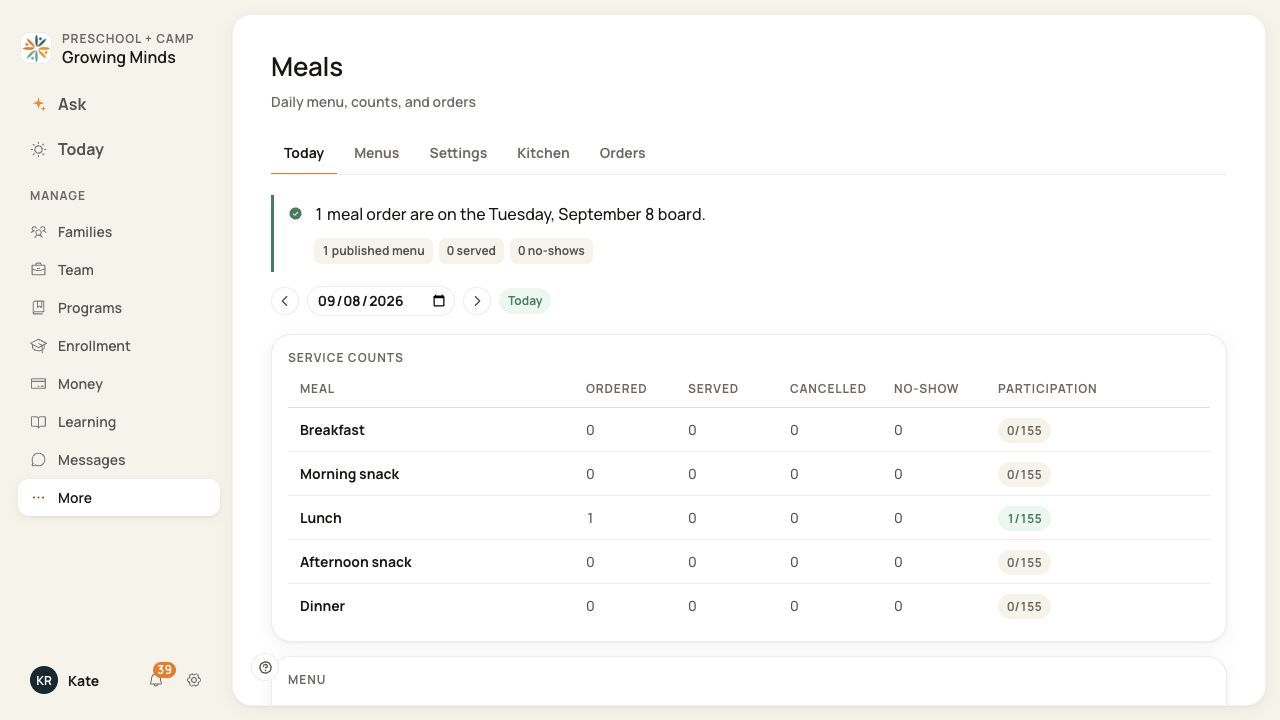
Read the selected date before interpreting counts.
2. Read each status separately
In Service counts, review Ordered, Served, Cancelled, No-show and Participation for each meal. The Ordered total includes orders already marked Served; do not add those two columns together. Participation compares that ordered total with the roster count shown.
3. Check the records behind the count
Review the day’s menus and Orders section. Use child, meal-type and status filters, then choose Apply. Open an order to inspect its selection and status.
4. Use the appropriate workspace
Use Kitchen for preparation, Orders for a broader date range and Food program for enabled point-of-service program records.
Before you finish
Participation is an order-to-roster summary, not an attendance or consumption rate. It does not establish that a meal is reimbursable.
A zero count and an incomplete or failed load are different. Refresh or resolve a load warning before relying on totals.
Related guides
Screenshots show an example center. Meal prices, times, service days and ordering policies depend on your center’s configuration.
Was this helpful?