Understanding What Bloomily Does—and Does Not—Send to Payroll
Timesheets prepares downloadable hours. Its import, correction, approval and export actions do not submit payroll to a provider.
Last updated About 3 hours ago
Timesheets prepares downloadable hours. Its import, correction, approval and export actions do not submit payroll to a provider.
1. Review the scope message
Read the statement at the top of Timesheets: payroll is processed outside Bloomily.
2. Choose a download
Time entries → Export timesheets offers Payroll summary (CSV), timesheets (CSV) and timesheets (PDF).
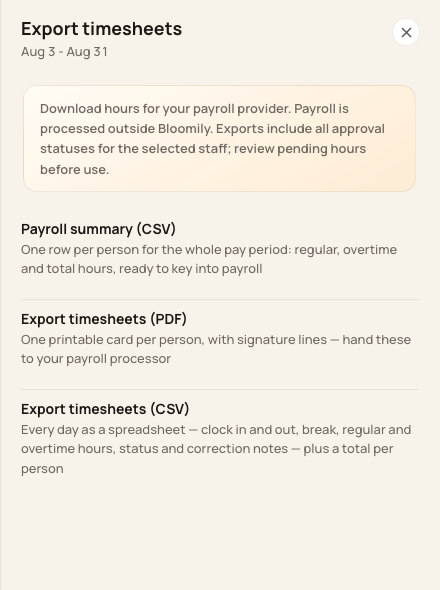
These actions create files for review or use with your payroll provider.
3. Check provider requirements
Confirm the provider’s current template and employee-code mapping. A generic CSV may require reformatting; the presence of a CSV option is not a certified integration.
4. Confirm payroll separately
Have the responsible person verify the provider’s submission, totals and payment status after using the file.
Before you finish
Saving pay rates in Bloomily does not establish withholding, benefits, bank accounts or a payroll-provider connection.
Do not treat a previously prepared record’s status as proof of a bank transfer.
Related guides
Screenshots show an example center. Pay periods, approval, rounding, breaks and overtime settings depend on your organization’s configuration.
Was this helpful?