Managing Staff with Multiple Roles or Pay Rates
The current staff setup supports dated compensation records. It does not expose a per-shift role-rate allocation workflow.
Last updated About 3 hours ago
The current staff setup supports dated compensation records. It does not expose a per-shift role-rate allocation workflow.
1. Distinguish the requirement
A rate changing on a date is different from a person earning two different role rates on the same day.
2. Use effective dates for agreed changes
Save a dated compensation change using the staff rate form.
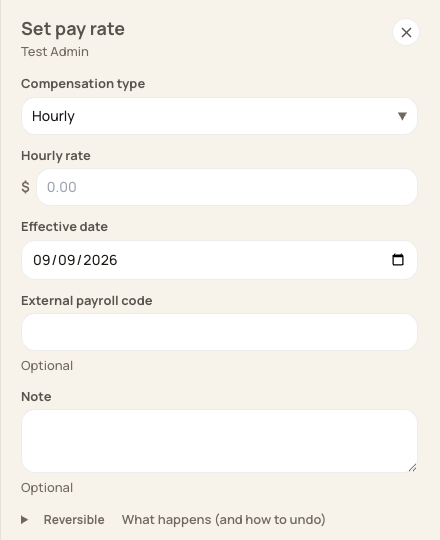
This form has one compensation type and rate for the dated record, not a list of shift roles.
3. Prepare multi-rate payroll carefully
If a provider needs hours split by role, location or rate, maintain the verified allocation in your payroll process and reconcile it against total filed hours.
4. Confirm support before relying on automation
Ask Bloomily Support about your required allocation if the current controls do not represent it. Do not assume exports calculate blended rates or mid-period wage splits.
Before you finish
Avoid duplicate timesheets or staff accounts as a workaround for multiple pay rates.
Related guides
Screenshots show an example center. Pay periods, approval, rounding, breaks and overtime settings depend on your organization’s configuration.
Was this helpful?