Updating a Staff Member’s Pay Rate
Record an agreed rate change with the appropriate effective date.
Last updated About 3 hours ago
Record an agreed rate change with the appropriate effective date.
1. Confirm the agreement
Check the new amount, Hourly versus Annual salary and start date with the person responsible for payroll.
2. Open the existing rate
In Staff & setup → Staff pay rates, choose the staff member’s edit action.
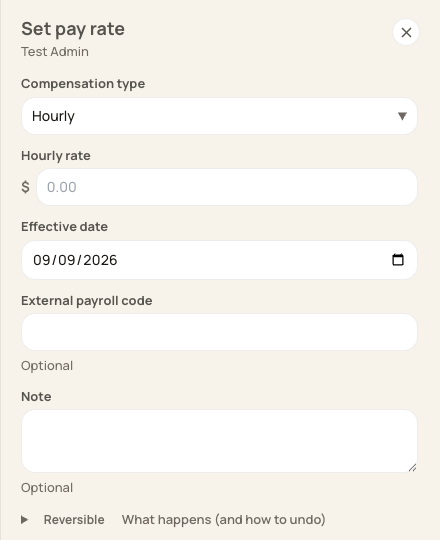
Review the person and effective date before changing a rate.
3. Save the dated change
Enter the new amount and effective date. Use a note to explain the agreement if appropriate. Saving against an existing effective date changes that dated record.
4. Check payroll treatment
Verify the saved details and communicate the rate change through your payroll process. Reconcile any mid-period split in the provider.
Before you finish
Changing a rate does not update an already downloaded file or payroll already processed elsewhere.
Related guides
Screenshots show an example center. Pay periods, approval, rounding, breaks and overtime settings depend on your organization’s configuration.
Was this helpful?