Understanding Pay Periods
A pay period groups work dates for review and export. Its date range and its lock status answer different questions.
Last updated About 2 hours ago
A pay period groups work dates for review and export. Its date range and its lock status answer different questions.
1. Read the range
In Overview, read the selected start and end dates. Entries belong to a pay period; choose the intended one before importing.
2. Check its state
Open periods can accept eligible changes. Locked or completed periods restrict changes. An ended date range may still be Open.
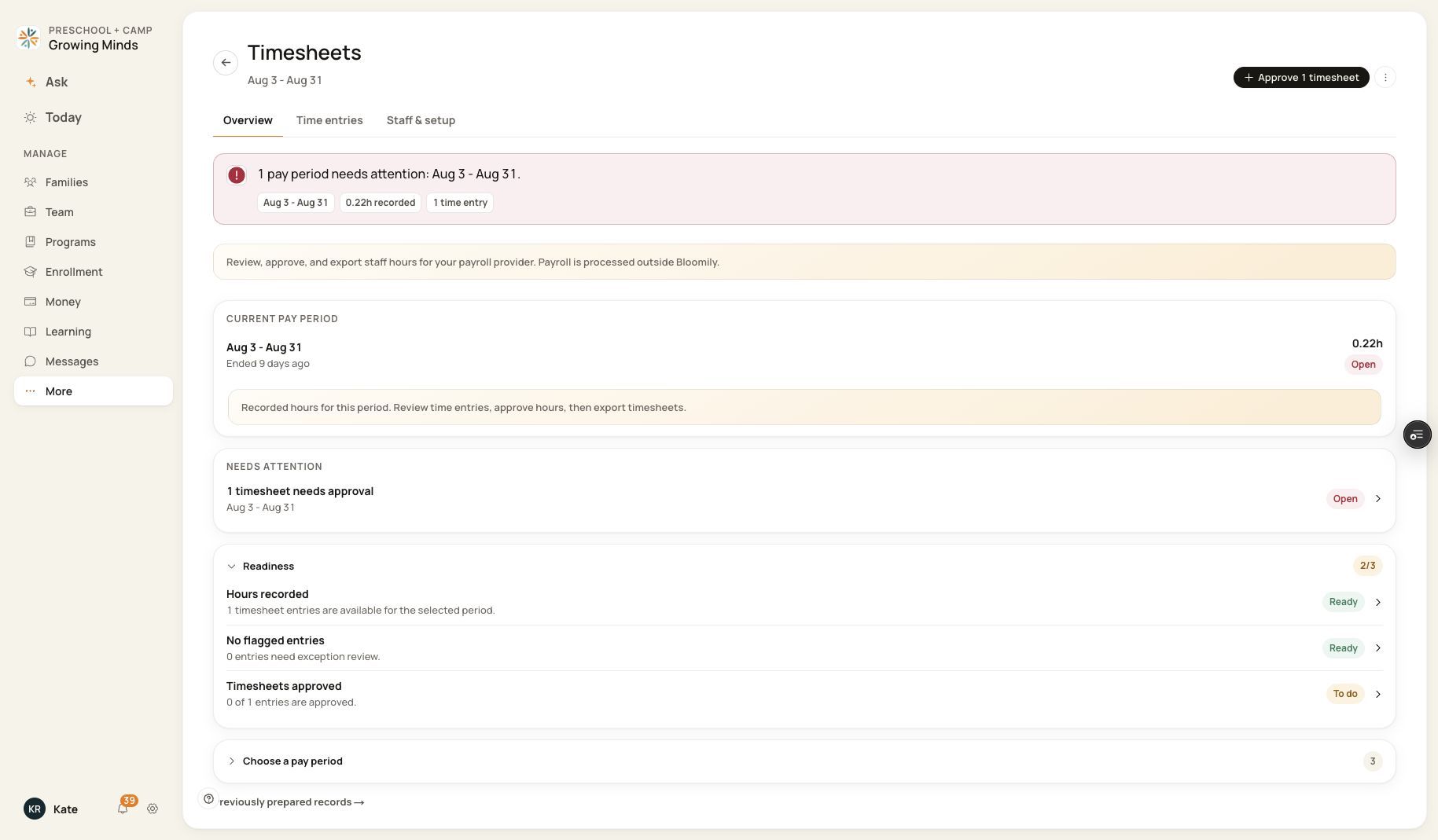
This example period has ended but its status is still Open.
3. Review the cadence
Under Staff & setup → Pay period settings → Edit settings, review the configured frequency, start rules and optional anchor.
4. Check the expected pay date
Pay after period is a scheduling setting. It does not schedule a transfer from Bloomily.
Before you finish
Settings shown are examples. Use your organization’s agreed policies and verify the final hours with the person responsible for payroll.
New pay periods cannot overlap an existing period.
Related guides
Screenshots show an example center. Pay periods, approval, rounding, breaks and overtime settings depend on your organization’s configuration.
Was this helpful?