Exporting Detailed Timesheets to CSV
Download dated time entries and totals for detailed checking.
Last updated About 2 hours ago
Download dated time entries and totals for detailed checking.
1. Confirm the period and staff
Open Time entries and set the intended staff scope. The Show filter does not restrict the output.
2. Choose Export timesheets (CSV)
Open Export timesheets and choose the timesheets CSV option.
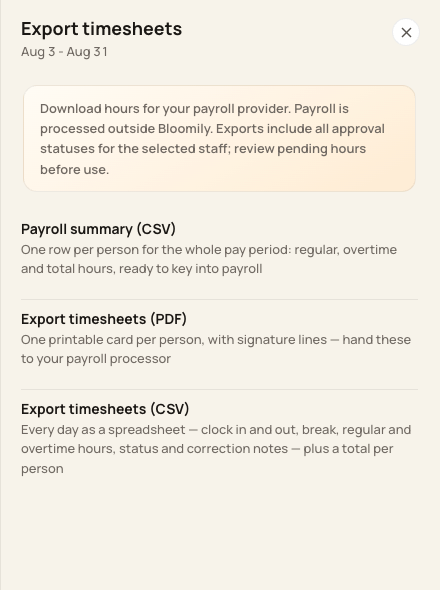
Detailed CSV includes daily entries rather than only a summary row.
3. Read the entry columns
Review staff name, payroll code, pay period, date, clock in/out, break minutes, hours, regular hours, overtime hours, status, source and notes. The file includes staff TOTAL rows.
4. Avoid counting totals twice
When importing or calculating in a spreadsheet, distinguish daily rows from TOTAL rows. Reformat to the provider’s template if required.
Before you finish
The detailed CSV Overtime hours column combines overtime and double-overtime hours. The summary CSV exposes them separately.
Exports include every approval status for the selected staff across the whole pay period. The Show filter does not limit the export.
Related guides
Screenshots show an example center. Pay periods, approval, rounding, breaks and overtime settings depend on your organization’s configuration.
Was this helpful?