Confirming That Exported Hours Match Bloomily
Compare filed hours and the downloaded file using the same period and staff scope.
Last updated About 2 hours ago
Compare filed hours and the downloaded file using the same period and staff scope.
1. Confirm matching scope
Check the period dates, selected staff and all approval statuses. The Show filter does not constrain the export.
2. Compare person by person
Check staff identifiers, number of worked dates, break minutes and regular/overtime/total hours. Use detailed CSV when a summary differs.
3. Resolve format differences
In detailed CSV, Overtime combines overtime and double overtime; summary separates them. Do not sum daily entries and TOTAL rows together.
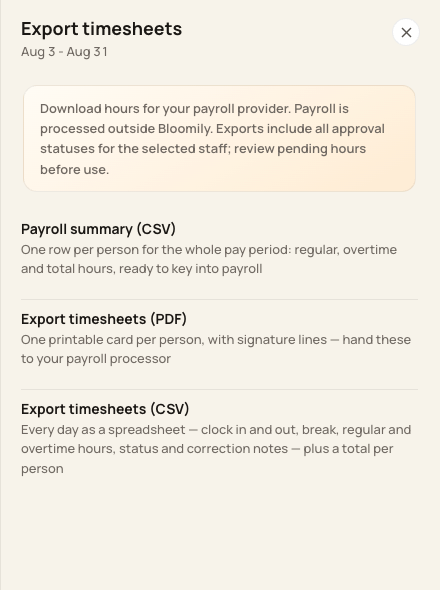
Use detailed CSV to investigate and summary CSV to reconcile staff totals.
4. Investigate before payroll
Compare corrections, source records and export timing. If the filed entries changed since the download, make a new export and identify the replacement clearly.
Before you finish
Reconcile a workweek spanning two periods before relying on weekly overtime totals.
A matching total alone does not prove the right employee codes, rates or earning categories reached the provider.
Related guides
Screenshots show an example center. Pay periods, approval, rounding, breaks and overtime settings depend on your organization’s configuration.
Was this helpful?