Adding Photos, Videos, Learning Goals, and Notes
Add context to a learning activity so families can understand what happened and which learning goals it supported.
Last updated About 2 hours ago
Add context to a learning activity so families can understand what happened and which learning goals it supported.
Workflow: Add media → Connect goals → Write context → Review saved entry
1. Open the activity for the right children
From Today, select the participating children and tap Activity. Check the children listed in the form. Add a name if it helps describe the experience.
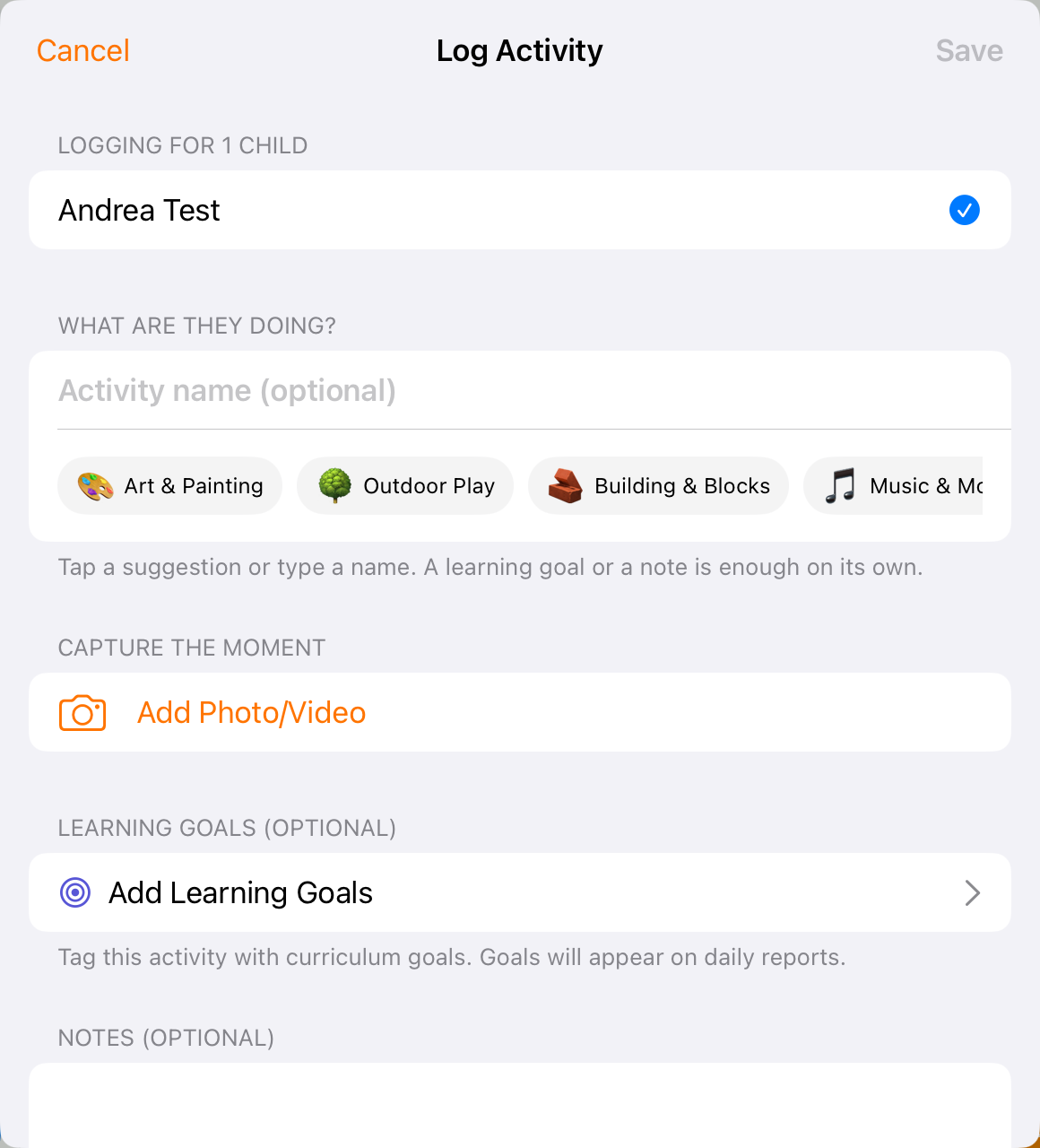
Media, goals and notes belong to the activity for the selected children.
2. Add a photo or video
Tap Add Photo/Video. Choose Take Photo or Take Video to capture something new; use Choose from Gallery for the device library, or Choose from Bloomily for existing Bloomily media. The choices and permissions available can depend on the device.
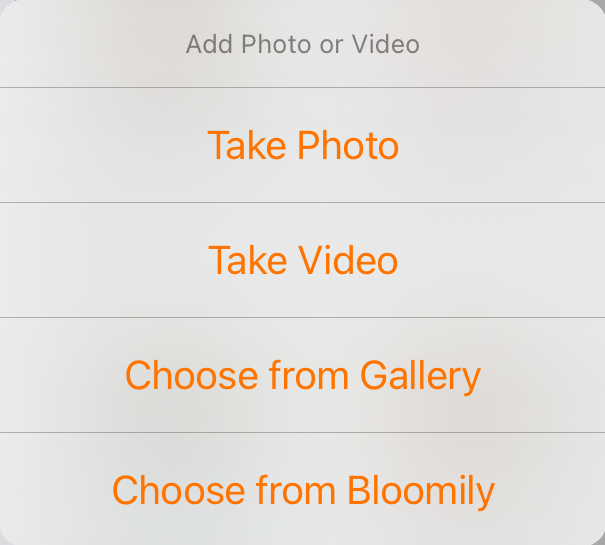
Choose the appropriate media source. Bloomily media and the device gallery are separate sources.
3. Check the attachment
Review the attachment before saving. Make sure it matches the children and activity, and remove or replace anything incorrect. Follow your center’s consent and media-review process. A saved attachment can still be waiting for approval before it is included in family delivery.
4. Attach relevant learning goals
Tap Add Learning Goals. Browse the available categories and select the goals that genuinely match what you observed, then return to the activity. The catalog reflects the learning framework available to your organization.
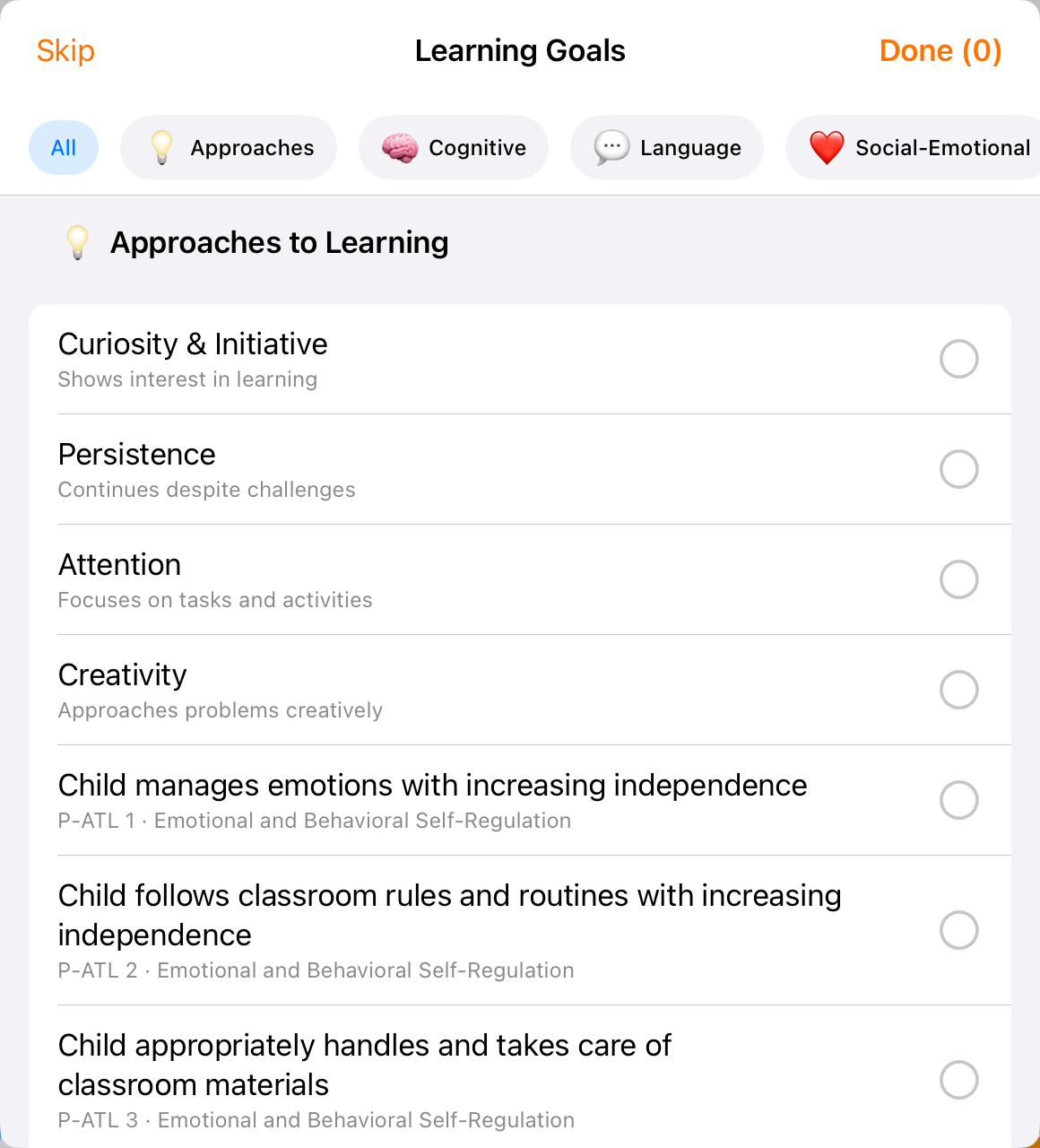
Browse the available learning categories and choose relevant goals; this catalog is an example.
5. Write a useful note and save
Describe what the children did or said, using specific observations. Check the event date and time, then tap Save. Open the child’s Activity report to verify the saved entry and attachment.
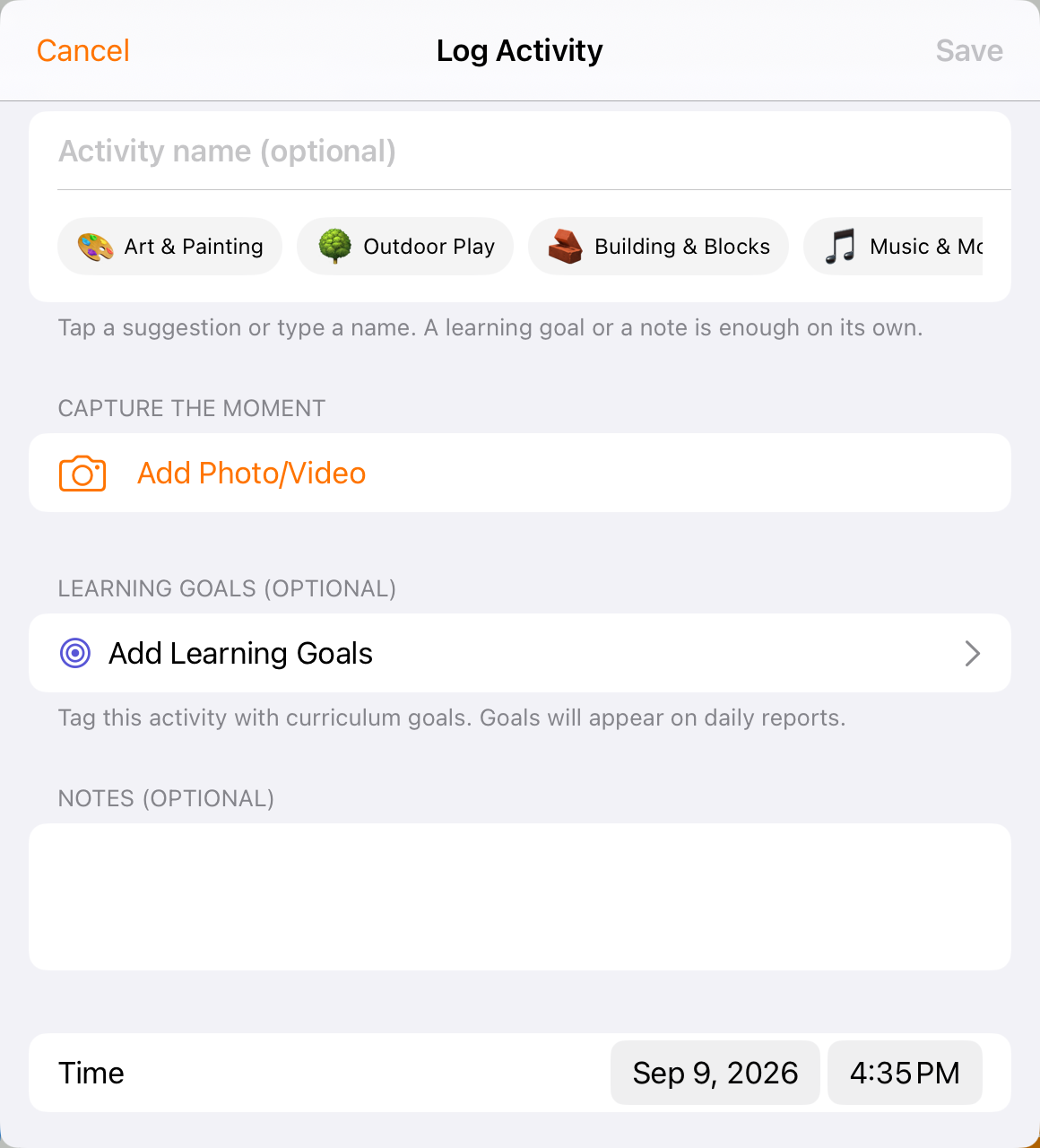
Use Notes for the activity description and Time for when it happened.
Before you finish
Adding a learning goal to an activity is different from recording an individual skill assessment.
An activity note belongs to that activity. Use Today → Notes for a room-wide or child-specific message accompanying the daily report.
If media is waiting for approval, review the warning before sending; do not assume it is already visible to families.
Related guides
Screenshots show an example center. Delivery, permissions and learning frameworks depend on your organization.
Was this helpful?