Editing or Deleting Activities Through History
Find an existing activity on its recorded date, correct its details, or remove an entry that should not be there.
Last updated About 2 hours ago
Find an existing activity on its recorded date, correct its details, or remove an entry that should not be there.
Workflow: Choose date → Open original entry → Edit or delete → Verify
1. Open History and choose the date
Open History, check your room or group, then use the previous/next day controls or tap the date to choose the day you need. The report-status banner is information about that day; it is not a Send button.

Use the date selector in History to locate the day of the original entry.
2. Open the original entry
Find the child and activity in the timeline, then tap the row to open Edit Activity. Check the child and activity type at the top. Those fields identify the original record; editing is not a way to move an entry to a different child.
3. Correct the details and save
Edit the fields available for that activity type, such as food amount, bottle quantity, nap times, activity name, notes, media or timestamp. Tap Save, then verify the corrected entry in History. If you only wanted to inspect it, use Cancel.
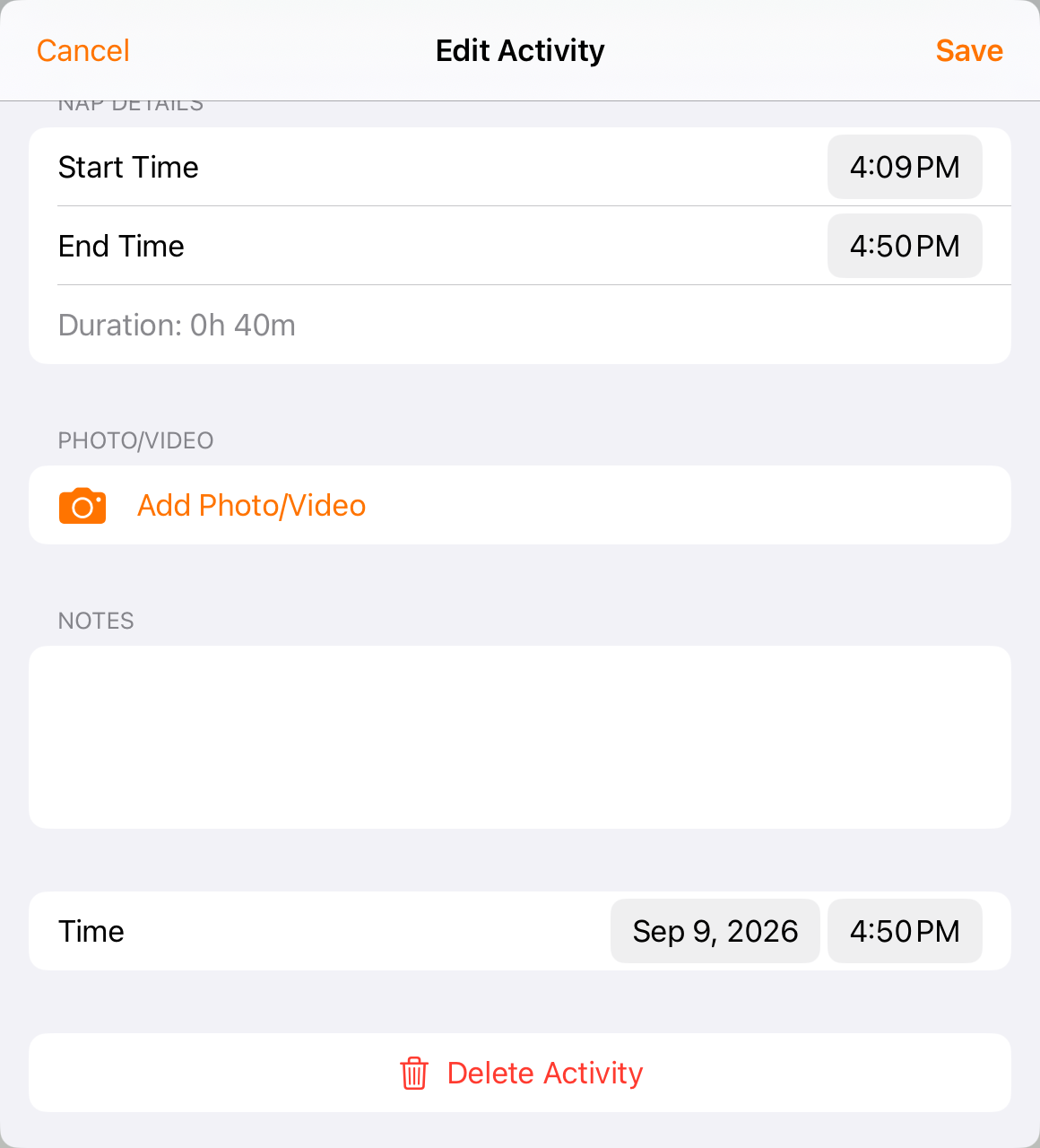
Edit Activity includes the relevant detail fields, notes, time, Save and Delete Activity.
4. Delete only an entry that should be removed
Scroll to Delete Activity. Read the confirmation and confirm only after checking that you opened the intended child’s entry. Return to History to verify removal. Deleting a child’s activity is different from removing media from an attachment.
5. Check any report that was already sent
If the activity appeared in a sent report, review that report after the correction. Updating the report’s content and notifying the family again are separate steps; use the sent-report guide when a new notification is needed.
Before you finish
History is for reviewing and correcting existing entries. Use Activity report → + to add a missing activity, checking its date/time explicitly.
A bulk activity has child-specific records. Do not assume editing or deleting one child’s entry updates every participant’s record.
If a record was logged against the wrong child or as the wrong activity type, follow your center’s correction process rather than changing unrelated fields to disguise the mistake.
Related guides
Screenshots show an example center. Delivery, permissions and learning frameworks depend on your organization.
Was this helpful?