Updating a Daily Report After It Has Been Sent
Correct the underlying activity or family note, then decide whether the family needs another notification about the updated report.
Last updated About 2 hours ago
Correct the underlying activity or family note, then decide whether the family needs another notification about the updated report.
Workflow: Correct the source → Review refreshed report → Check notification eligibility → Send update if needed
1. Find the child and the sent report
Select one child on Today and open Activity report. Choose the report’s date and check that it was sent. Review the sent/updated information when available.
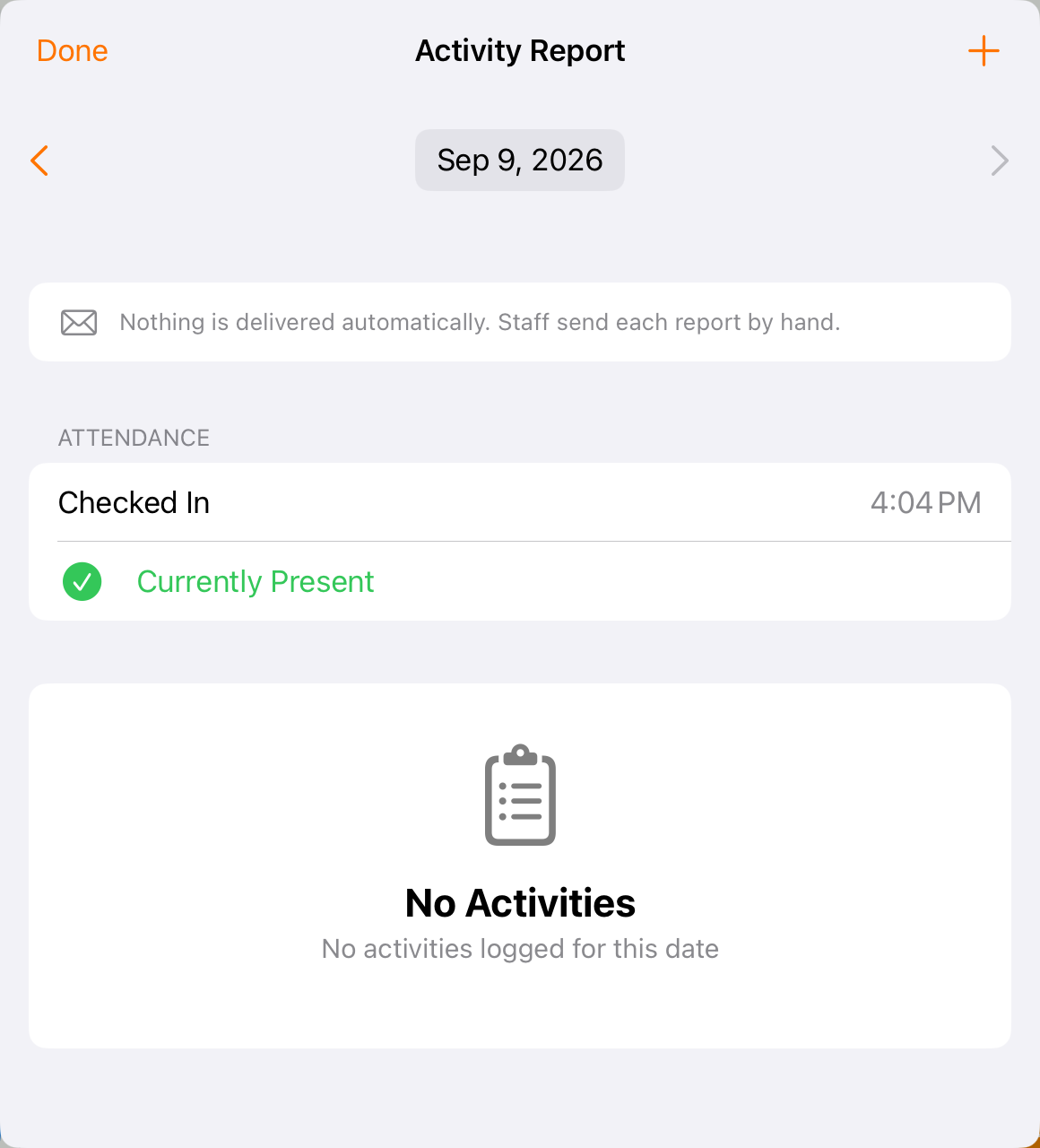
Use the child report’s date controls to locate the intended day; this screenshot shows the review screen before sending.
2. Correct an activity at its source
For a wrong meal amount, nap time, activity note or similar detail, edit the original entry through History or the report’s activity editor. Save and check the corrected record.
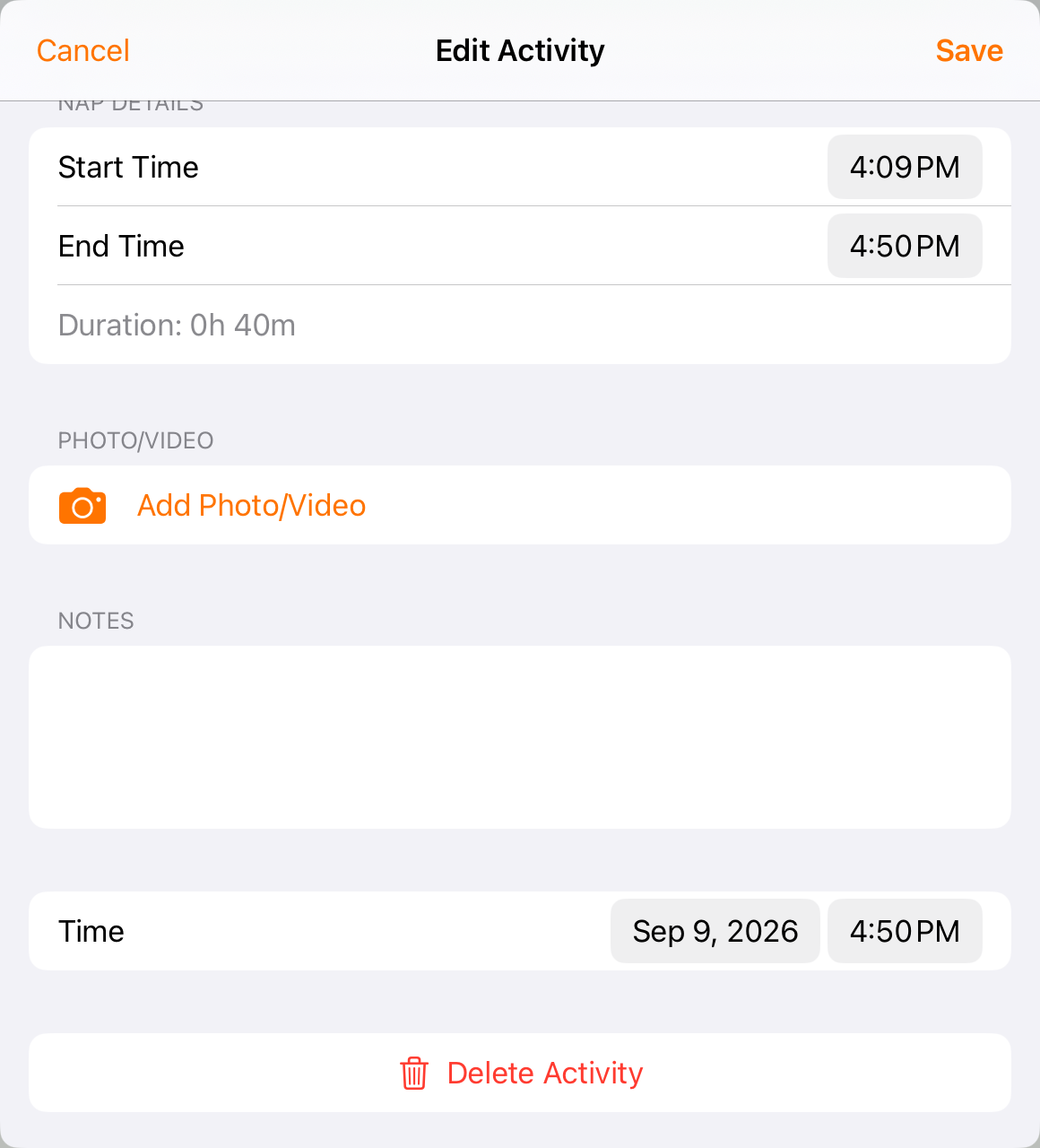
Correct activity details in Edit Activity; the report-level Edit report action is for family notes.
3. Correct the family message when needed
On a sent report, Edit report opens the family-notes editor when you have permission. Check whether the change belongs in the room-wide message or the individual child’s note. Save the correction.
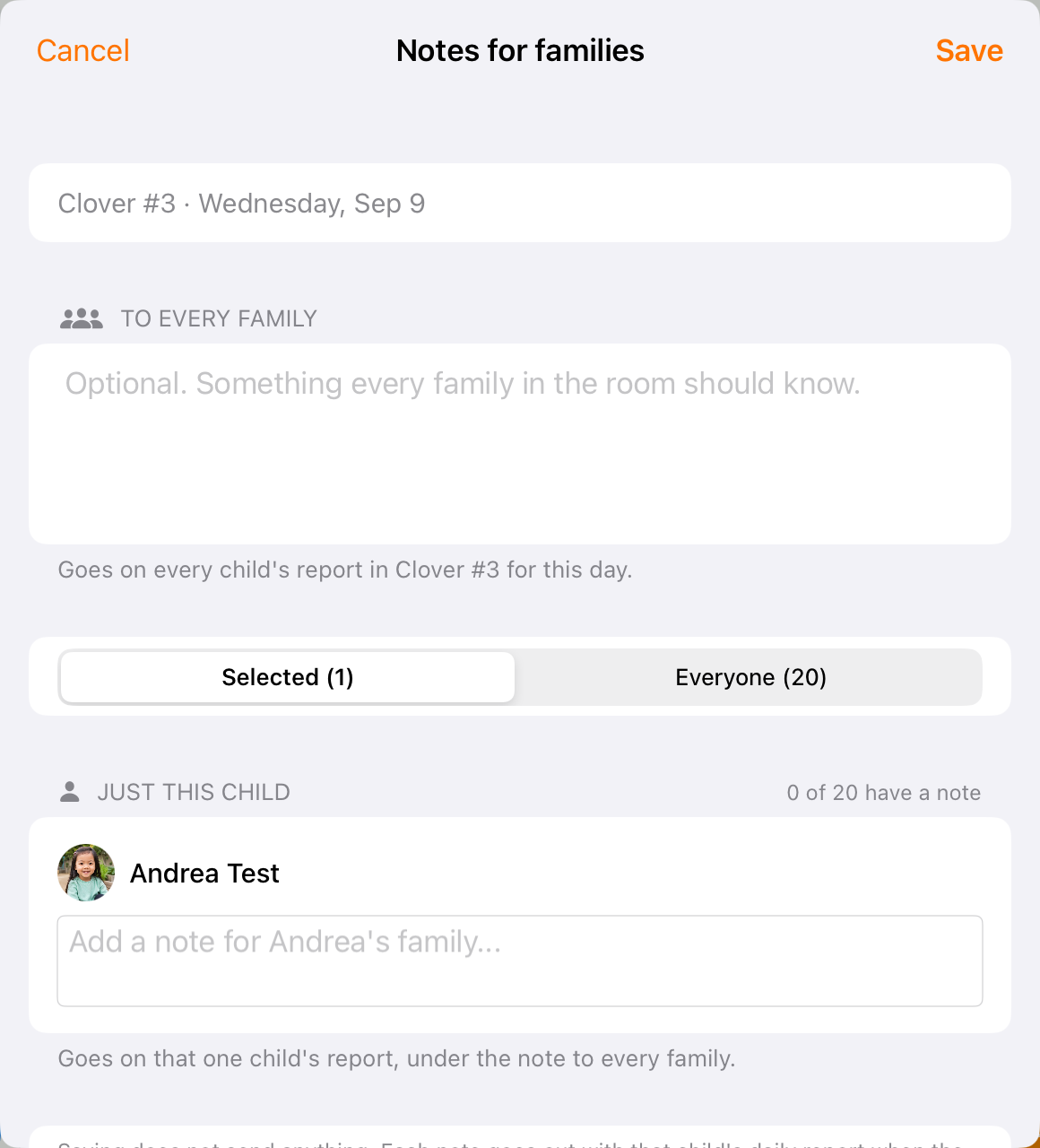
Check the audience before changing a family note, especially the room-wide message.
4. Review the refreshed report
Changes to a sent report are used to refresh the family’s in-app report. Review the content and the revision information after the update completes. A refreshed report is separate from a new push or email notification.
5. Send an update when available
If the sent report has changes the family has not been notified about and delivery is enabled, Send update becomes available. Review the confirmation and its description of what changed, then confirm only when a new notice is appropriate. Read the result rather than assuming every request produced a notification.
6. Understand why another notice may not be sent
Update notifications follow delivery settings and service limits. The current update flow uses a quiet period for automatic notices and limits repeated notices; Send update can request an immediate notice but does not bypass eligibility or limits. If no update action appears, check whether there is an unnotified change and ask an administrator to review delivery access/settings.
Before you finish
An update changes the in-app report; it cannot rewrite an email the family already received.
Edit report is for the family note. Correct meal, bottle, nap or other activity details in the activity editor.
Do not tell families that every correction always triggers an email. Notification behavior depends on your center’s settings and the result shown.
Related guides
Screenshots show an example center. Delivery, permissions and learning frameworks depend on your organization.
Was this helpful?