Identifying Missing Clock-Ins or Clock-Outs
Identify missing punches before approving hours or sending a file to payroll.
Last updated About 3 hours ago
Identify missing punches before approving hours or sending a file to payroll.
1. Check readiness
In Overview, review Needs attention and the flagged-entry readiness item.
2. Inspect the affected record
Open Time entries and check the relevant person/date. Use Correct to inspect available clock-in and clock-out values where eligible.
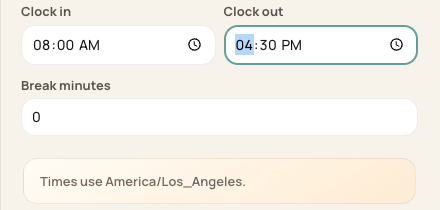
The correction form exposes the clock fields and break minutes. Times shown here are unsaved examples.
3. Verify the missing time
Compare attendance and obtain the actual work time through your organization’s review process. Do not substitute a scheduled time without checking what happened.
4. Correct and review
Save only a verified eligible correction, then confirm the filed hours and status before approval.
Before you finish
A zero-hour entry can reflect missing or invalid punches; it is not proof no work occurred.
If the entry is already approved or the period is locked, use the restricted-correction guidance.
Related guides
Screenshots show an example center. Pay periods, approval, rounding, breaks and overtime settings depend on your organization’s configuration.
Was this helpful?