Can I Move an Approved Timesheet Back to Pending?
The current Admin OS Timesheets controls do not provide a working Approved → Pending transition.
Last updated About 3 hours ago
The current Admin OS Timesheets controls do not provide a working Approved → Pending transition.
1. Confirm the current state
Check the entry’s Approved status and the period’s Open/Locked state.
2. Do not use Reject as an unapprove action
Reject selected only updates eligible non-approved statuses. A zero updated count is not proof the approved row changed.
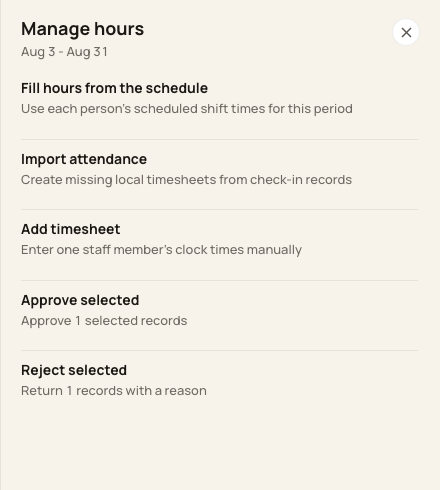
The selection menu does not expose a dedicated Unapprove or Move to Pending action.
3. Request the correction path
Contact Bloomily Support or the authorized payroll administrator with the person, work date and discrepancy. Identify any file already sent to payroll.
4. Verify the resolved record
After the supported correction, verify the filed values, review state and fresh export. Coordinate any replacement with your payroll provider.
Before you finish
Reopening a period does not remove individual entry approval.
Do not add a duplicate entry to offset or replace protected hours.
Related guides
Screenshots show an example center. Pay periods, approval, rounding, breaks and overtime settings depend on your organization’s configuration.
Was this helpful?