Correcting Clock-In and Clock-Out Times
Correct an eligible filed entry after verifying the actual clock times.
Last updated About 3 hours ago
Correct an eligible filed entry after verifying the actual clock times.
1. Check the entry and period
In Time entries, identify the staff member and date. The period must be Open and the entry must not be Approved.
2. Open Correct
Choose Correct on that row. Read the organization time zone displayed in the form.
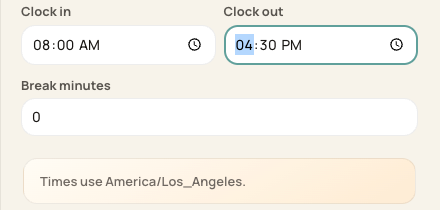
Clock fields use the displayed organization time zone; these are unsaved example values.
3. Enter verified values
Review Clock in, Clock out and Break minutes. Check the resulting hours and any validation message. The same-day form does not provide a next-day clock-out date.
4. Save and verify
Choose Save correction and complete the confirmation. Confirm the saved times, Adjusted source and recalculated totals in the refreshed view.
Before you finish
Overlapping positive-hour entries are rejected. Do not create a duplicate to work around validation.
The current correction form has no free-text reason field. Keep the supporting reason through your organization’s recordkeeping process.
No payroll-provider update is sent by this correction.
Related guides
Screenshots show an example center. Pay periods, approval, rounding, breaks and overtime settings depend on your organization’s configuration.
Was this helpful?