Correcting Timesheets After an Export
Correct the source record and coordinate a replacement file when an export is no longer accurate.
Last updated About 3 hours ago
Correct the source record and coordinate a replacement file when an export is no longer accurate.
1. Identify what has already happened
Determine whether the file was only downloaded, uploaded to a provider, or used in processed payroll.
2. Check correction restrictions
An Open, non-approved entry can use Correct. A locked period can be reopened only when eligible; reopening does not unapprove individual entries.
3. Make the supported correction
Verify the correct clock times and break, save through the available correction path and review the resulting hours. For an Approved entry, request the supported resolution from Bloomily Support.
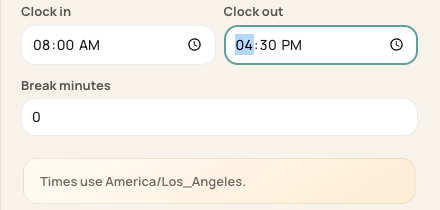
Correct changes clock times and break minutes on eligible entries.
4. Export and reconcile again
Repeat review and export. Label the replacement clearly and coordinate with the provider before re-importing or changing processed payroll.
Before you finish
An old download is not updated when Bloomily changes.
Do not submit both versions or create duplicate entries to compensate for an incorrect file.
Related guides
Screenshots show an example center. Pay periods, approval, rounding, breaks and overtime settings depend on your organization’s configuration.
Was this helpful?