Setting a Staff Member’s Pay Rate
Save compensation details for an accepted staff member from Staff & setup.
Last updated About 3 hours ago
Save compensation details for an accepted staff member from Staff & setup.
1. Find the person
Open More → Timesheets → Staff & setup. Expand Staff pay rates and find the correct person.
2. Open the pay-rate form
Choose the edit/set-rate action beside that person. Confirm their identity before entering compensation.
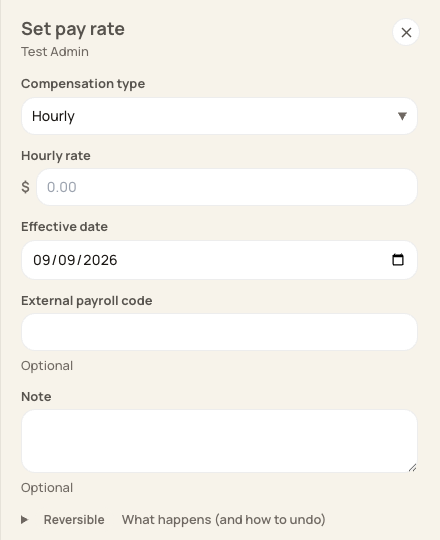
The form separates compensation type, rate, effective date and payroll code.
3. Enter the agreed details
Select Hourly or Annual salary, enter the positive rate and choose its effective date. Add the payroll provider’s employee code and a note when appropriate.
4. Save and verify
Choose Save, then check the staff row and effective date. Invited staff must accept before their pay rate can be set.
Before you finish
An annual salary is an annual amount, not a per-period or hourly amount.
Saving compensation does not pay staff or send a payroll instruction.
Related guides
Screenshots show an example center. Pay periods, approval, rounding, breaks and overtime settings depend on your organization’s configuration.
Was this helpful?