Daily Reports Overview for Teachers
Use Bloomily Center on the classroom iPad to record care and learning throughout the day, review each child’s activities, and prepare a daily report for their family.
Last updated About 3 hours ago
Use Bloomily Center on the classroom iPad to record care and learning throughout the day, review each child’s activities, and prepare a daily report for their family.
Workflow: Select children → Log the day → Review → Send or follow center delivery
1. Open Today and choose your room
Sign in with your own staff account. Open Today and check the group selector at the top. Choose the room or group you are working with. Your available rooms and actions depend on your access.
2. Choose children before logging
Tap the children the entry is about. Check the selected count before choosing an action. Use Activity for a flexible learning entry, or a care action such as Food, Bottle, Potty or Applied.

The Today action bar appears beneath the children. Check the selection before choosing an action.
3. Build the day as it happens
Record what happened, who participated and when. Add relevant photos, learning goals or notes where available. A shared entry should contain information that applies to every selected child; use separate entries when amounts or experiences differ.
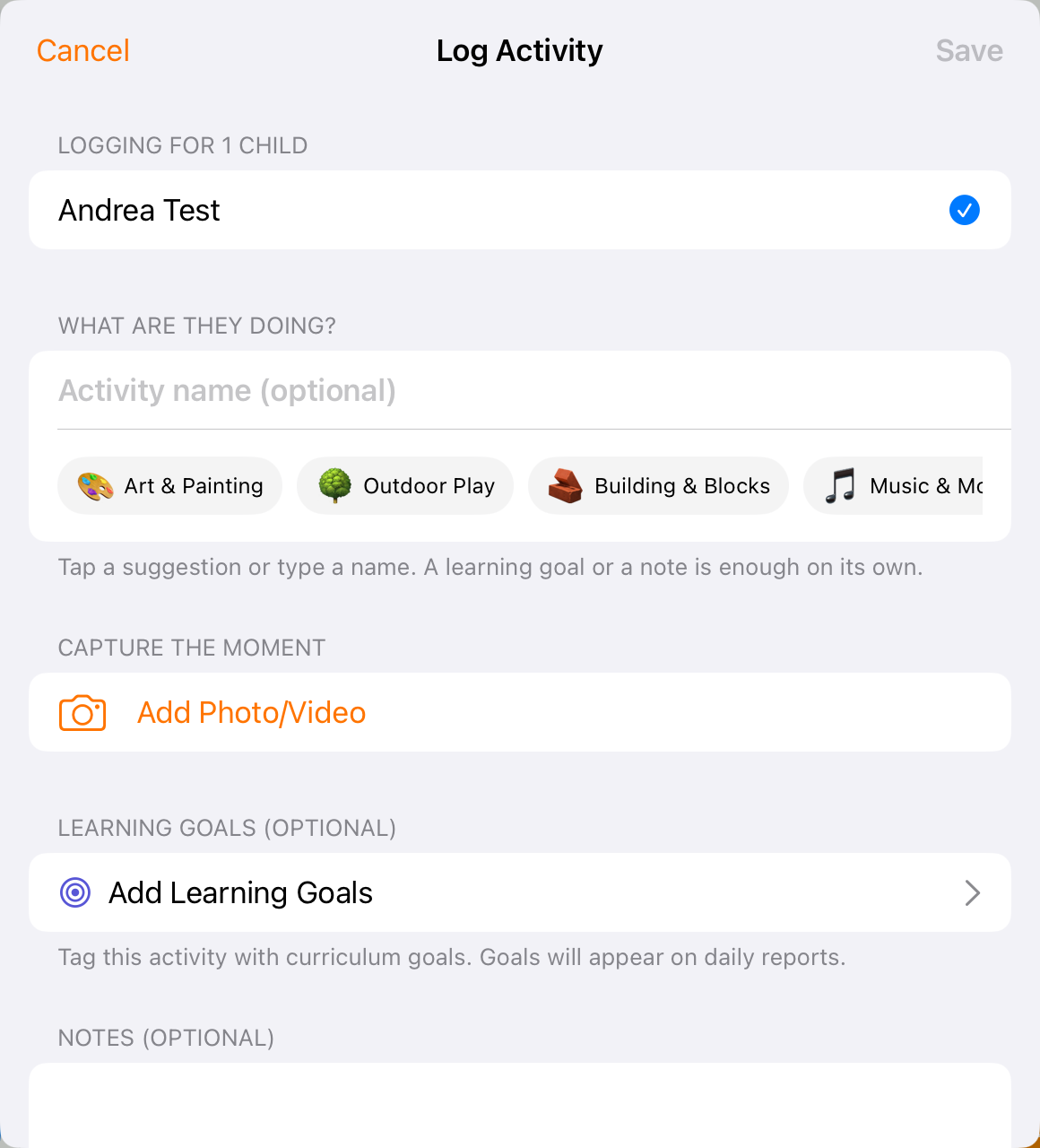
Activity combines an optional name, media, learning goals and notes in one entry.
4. Review the child’s day
Select one child, then open Activity report. Check the date, attendance, activities and photos. Open History to find and correct an existing entry for a particular day.
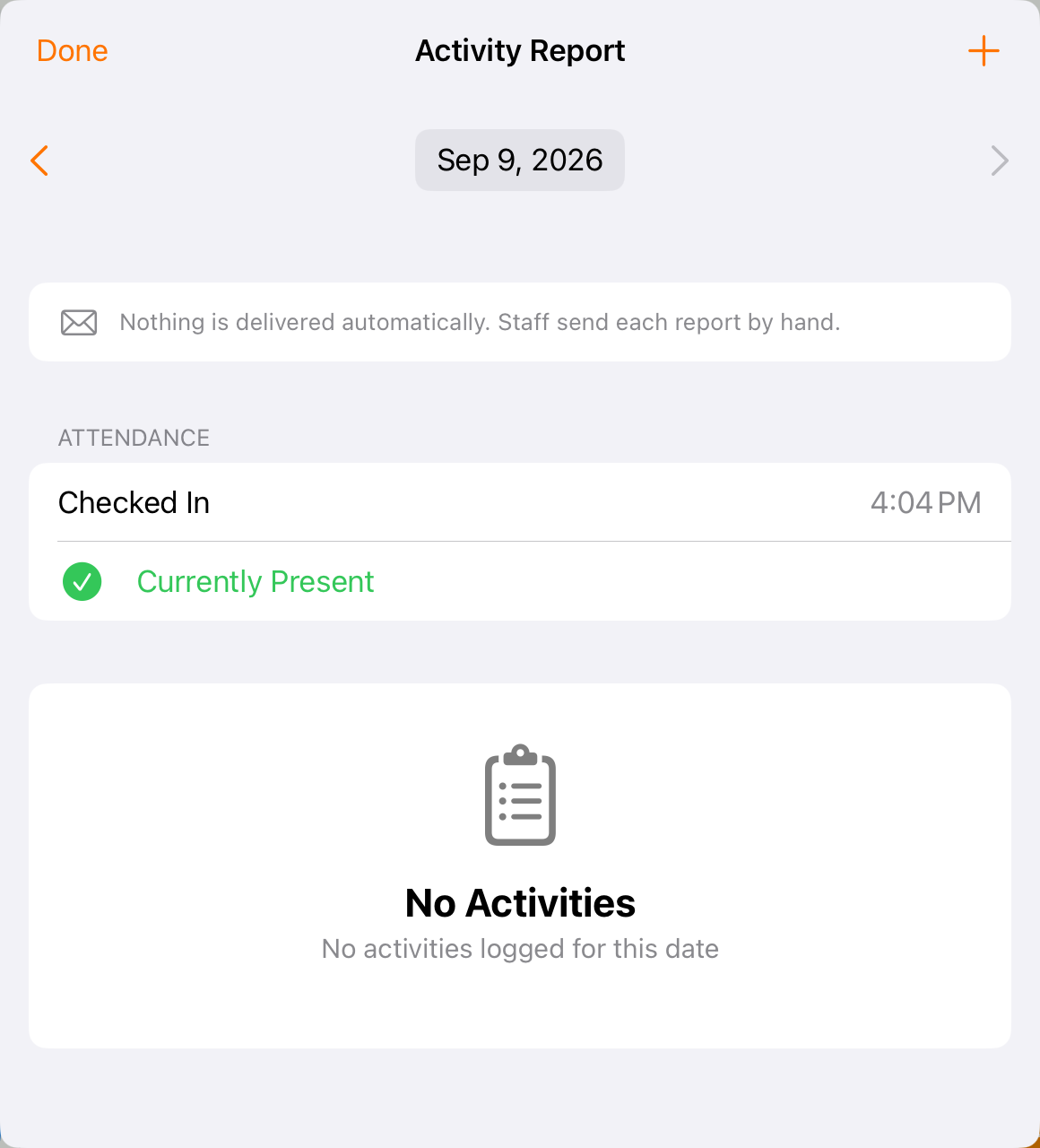
Activity report is the child-specific review screen. This example has attendance but no activities yet.
5. Add family notes and check delivery
Use Notes for the room-wide message or a child-specific family note. Use Report to review the send confirmation. Follow the delivery information shown for your center: automatic delivery and manual sending depend on its configuration.
Before you finish
Saving an activity or a family note is not confirmation that a report was delivered. Check the report’s status or the send result.
The delivery sentence in screenshots describes the example center, not a rule for all Bloomily customers.
Internal SEL entries and classroom observations should not be assumed to appear in every family’s report.
Related guides
Screenshots show an example center. Delivery, permissions and learning frameworks depend on your organization.
Was this helpful?