Logging and Updating Naps
Use the nap action on Today to record a nap as it happens. Use the activity editor to correct the times of an existing nap.
Last updated About 3 hours ago
Use the nap action on Today to record a nap as it happens. Use the activity editor to correct the times of an existing nap.
Workflow: Select sleepers → Start nap → End nap → Review or correct
1. Select the children who are starting their nap
On Today, select only the children who are actually beginning to nap. Check the selected count and the nap button’s wording.

The nap action changes according to whether the selected children are already napping.
2. Start or end the nap at the right moment
When none of the selected children are napping, Start nap starts their naps immediately. When all selected children are napping, End nap ends their naps immediately. These actions do not open a normal form with a separate Save step. If the selection mixes napping and non-napping children, Bloomily opens nap options; read the choice before applying it.
3. Check the recorded nap
After ending the nap, open the child’s Activity report or the matching day in History. Review the start, end and duration. If only one child woke up, end that child’s nap separately.
4. Correct an existing nap
In History, select the date and tap the nap entry. In Edit Activity, adjust Start Time and End Time. Check the displayed duration and the entry’s date/time, then tap Save.
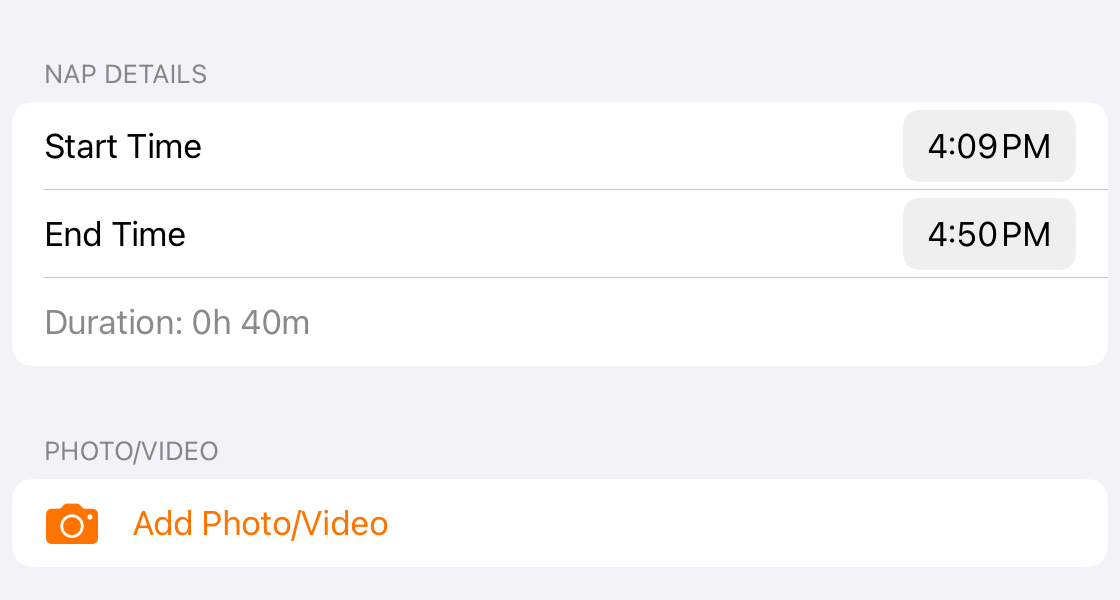
An existing nap can be corrected with separate start and end time fields.
5. Add a missed nap carefully
For a nap that was never recorded, select one child on Today and open Activity report. Use + to add an activity, choose Nap, and enter the actual start and end. Check the activity date/time explicitly before saving; do not use Start nap now to represent a nap that already ended.
Before you finish
Check the selection before tapping Start nap or End nap: both can save immediately.
A nap entry records sleep timing; follow any separate nap-check workflow required by your center.
If the daily report was already sent, review the updated report and follow the sent-report correction guide.
Related guides
Screenshots show an example center. Delivery, permissions and learning frameworks depend on your organization.
Was this helpful?