Logging SEL, Skills, and Observations
Choose the tool that matches what you want to record: SEL for a social-emotional snapshot, Skills for an individual assessment, or Observe for a richer learning observation.
Last updated About 3 hours ago
Choose the tool that matches what you want to record: SEL for a social-emotional snapshot, Skills for an individual assessment, or Observe for a richer learning observation.
Workflow: Choose SEL, Skills or Observe → Set scope and visibility → Record evidence → Save and review
1. Record an SEL snapshot
Select the relevant children on Today and tap SEL. Choose the level that matches what you observed: Withdrawn, Dysregulated, Regulated, Engaged or Initiating. Add factual context and any relevant behavior details available in the form.
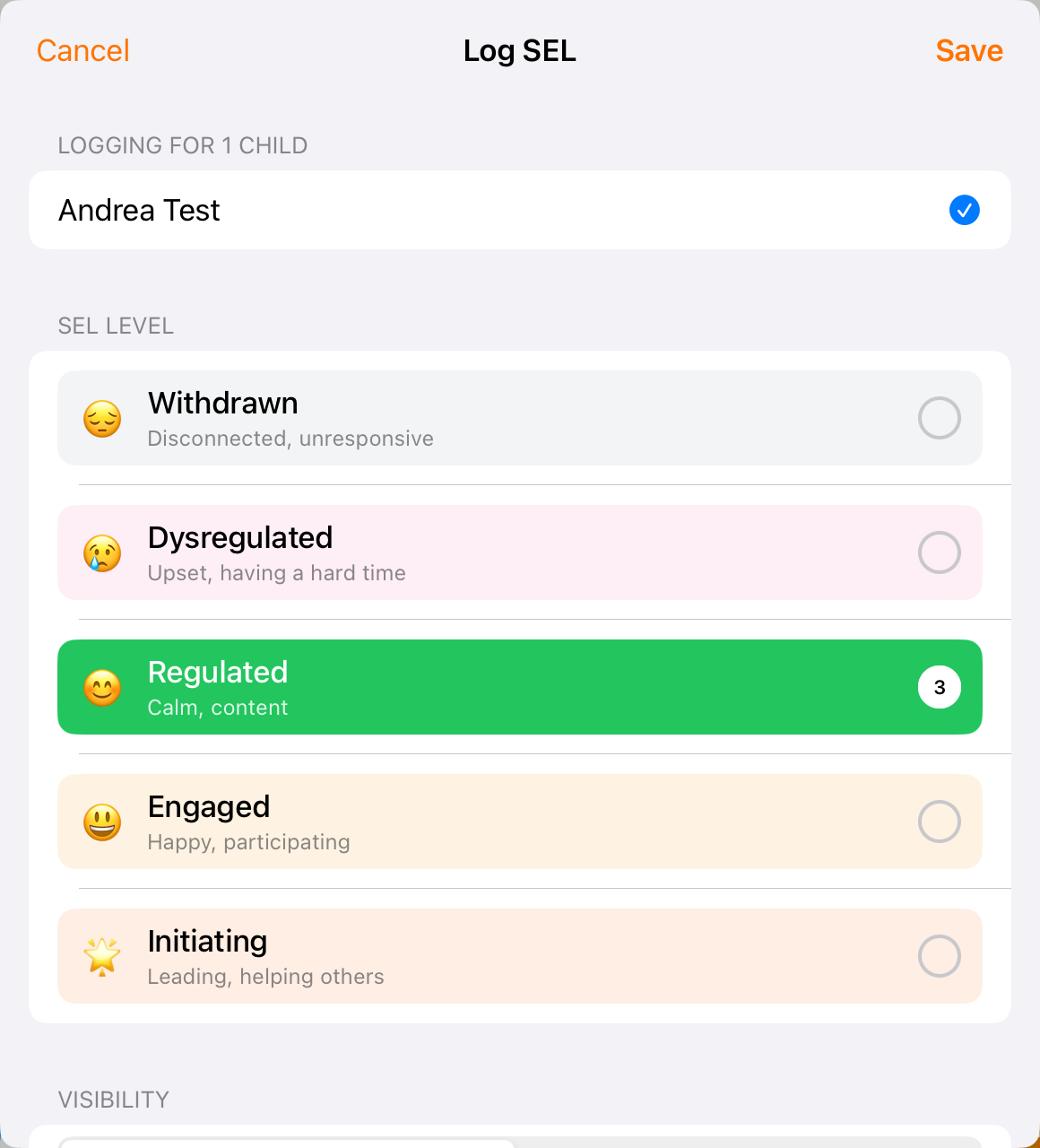
Choose the observed SEL level and check Visibility before saving.
2. Decide who can see the SEL entry
Review Visibility. SEL starts as internal-only; including it in the family’s daily report is an explicit choice. Follow your center’s practice, check the time and save. Do not assume that saving an internal entry shares it with the family.
3. Assess an individual skill
Select one child and open Skills. When the skills list is available, browse a domain, open a skill and choose the appropriate rating. Add notes or supporting media as needed, then save.
There are four ratings:
Not Yet — not demonstrating yet
Developing — developing with support
Consistent — regularly demonstrates
Exceeding — extends beyond expectations
If the list fails to load, return and try again; ask an administrator to check access or setup if the problem continues.
4. Create a learning observation
Tap Observe. Choose who the observation is about and review the child selection. Write what you noticed, add evidence or attributed quotes, and include further context where useful. A whole-class observation belongs to the classroom; it is not automatically copied into every child’s record.
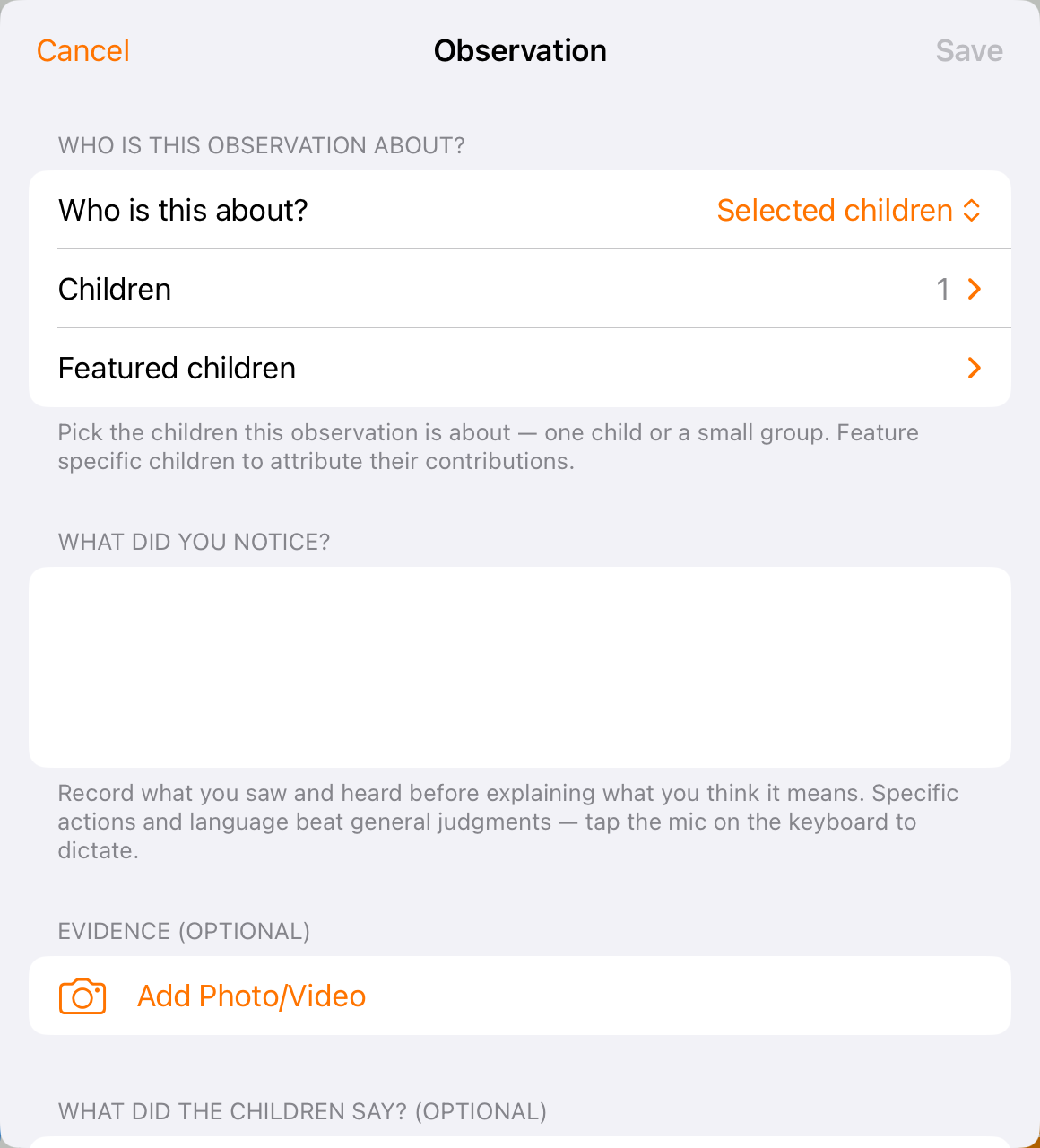
Set the observation scope before writing what you noticed and adding evidence.
5. Save and review in the correct place
Save the observation and return through Manage → Observations to develop it further. Review individual skills in Skills and family-facing content in the child’s report. Use Add Learning Goals inside Activity when you want to connect a daily activity to learning goals without creating a skill rating.
Before you finish
SEL visibility, a skill rating and an observation are different records; none should be treated as an automatic report-send action.
Which skills your center tracks varies by organization; the four ratings above do not.
Use specific actions and children’s words rather than unsupported judgments.
Related guides
Screenshots show an example center. Delivery, permissions and learning frameworks depend on your organization.
Was this helpful?