Logging Activities for One or Multiple Children
Create a learning activity for one child or a shared experience for several children from the Today screen.
Last updated About 3 hours ago
Create a learning activity for one child or a shared experience for several children from the Today screen.
Workflow: Choose children → Describe activity → Check time → Save and verify
1. Select the intended children
On Today, check your room or group. Tap one child for an individual entry, or tap each participating child for a shared entry. The select-all and checked-in selection controls can help with a group; still review the selection before proceeding.

The selected count tells you how many children the next action will affect.
2. Open Activity and check the recipients
Tap Activity (called Log activity by VoiceOver). Review Logging for… at the top. Return to Today and adjust the selection if it includes anyone who did not participate.
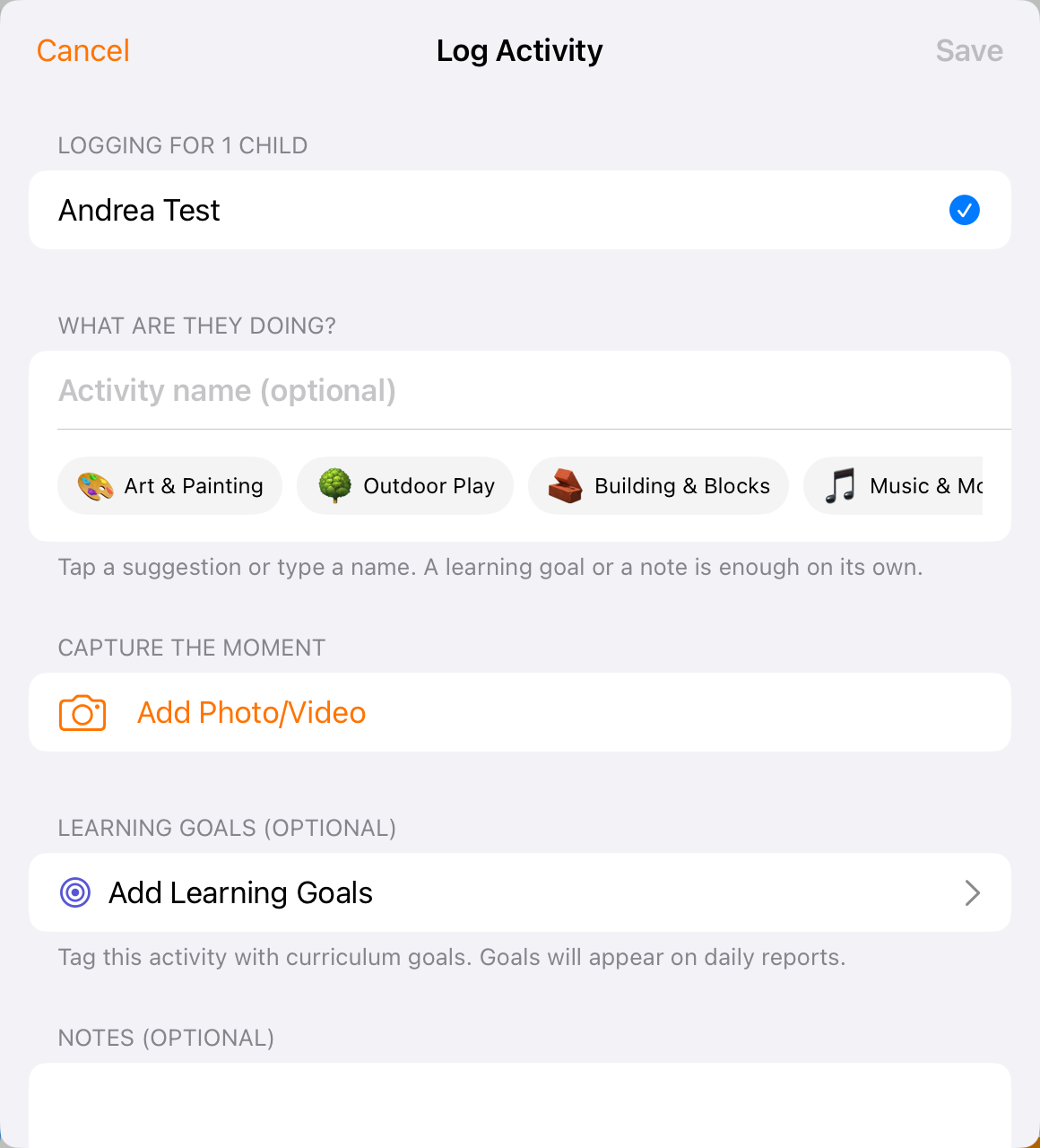
Check the children listed before entering the shared activity.
3. Describe the activity
Type an activity name or use a quick pick. Add a brief factual note, relevant media or learning goals. The name is optional; complete the entry with the meaningful details available in the form. Scroll down to find notes and the event time.
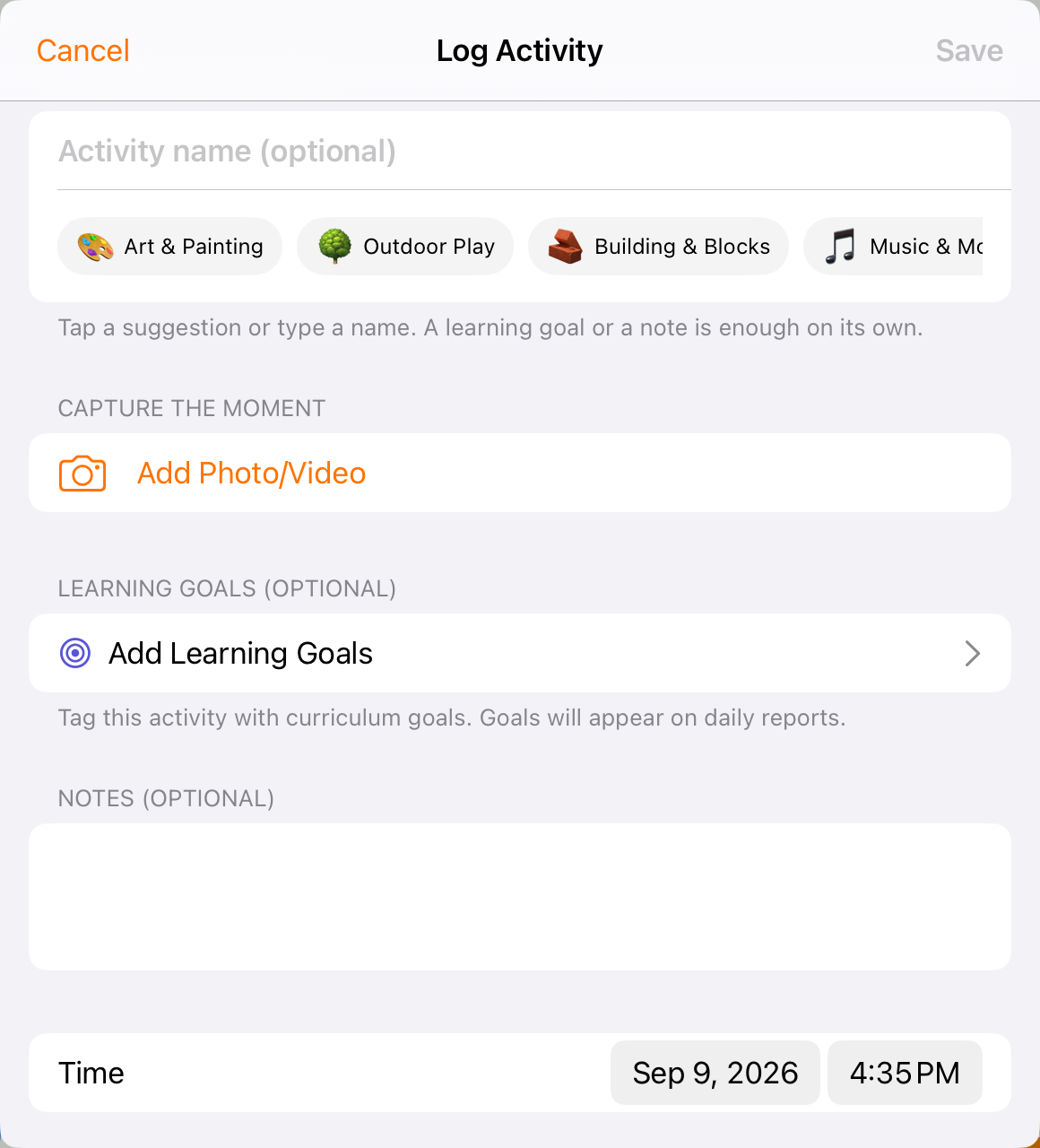
Notes and Time are farther down the Activity form.
4. Set the time and save
Check the date and time against when the activity happened, then tap Save. Wait for the save to complete. If the app displays an error, check the child’s report before retrying so you do not create an unintended duplicate.
5. Verify an individual child’s record
Return to Today, select one child and open Activity report. Confirm the activity is on the intended date with the correct description. For a group entry, check another participant when needed.
Before you finish
Group logging shares the entered details with the selected children. Log separate entries if children need different notes, quantities or times.
Skills and Activity report require a single selected child.
Selecting children does not check them in or out.
Related guides
Screenshots show an example center. Delivery, permissions and learning frameworks depend on your organization.
Was this helpful?