Match a bank deposit to its payments, refunds, and fees
Choose a payout date, review payments, refunds and fees, and export transaction detail to reconcile a Stripe bank deposit.
Last updated About 2 hours ago
Choose a payout arrival date, see the transactions behind each Stripe payout, and export the detail to match your bank deposit.
These screenshots use Growing Minds, Bloomily’s demo center. The sample payout and amounts are illustrative.
1. Open the report
Open Money, select Setup & reports, and choose Reports. Select Reports & exports.
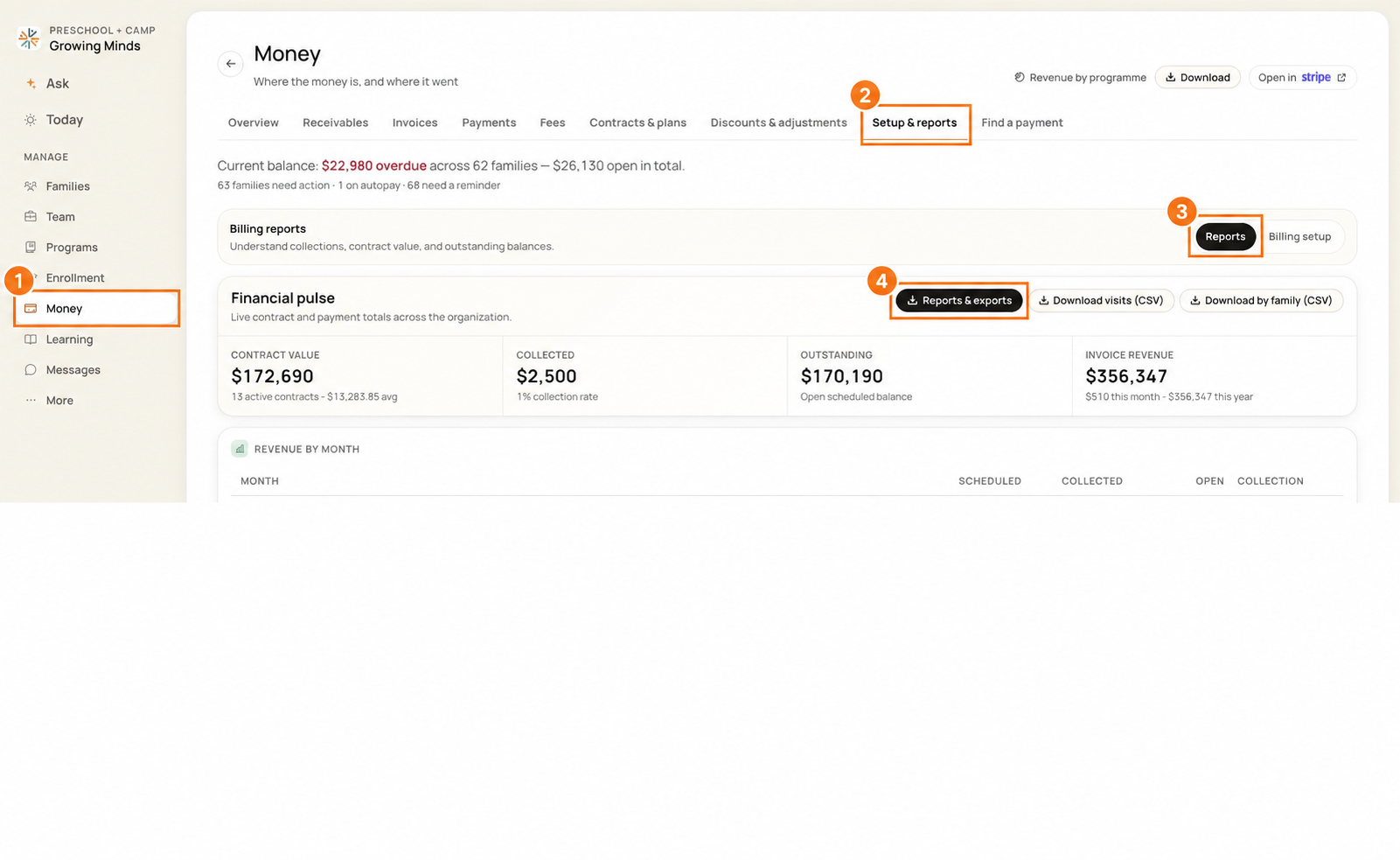
Open Money → Setup & reports → Reports → Reports & exports. Select the image to enlarge it.
You can also open Reports → Billing → Reports & exports.
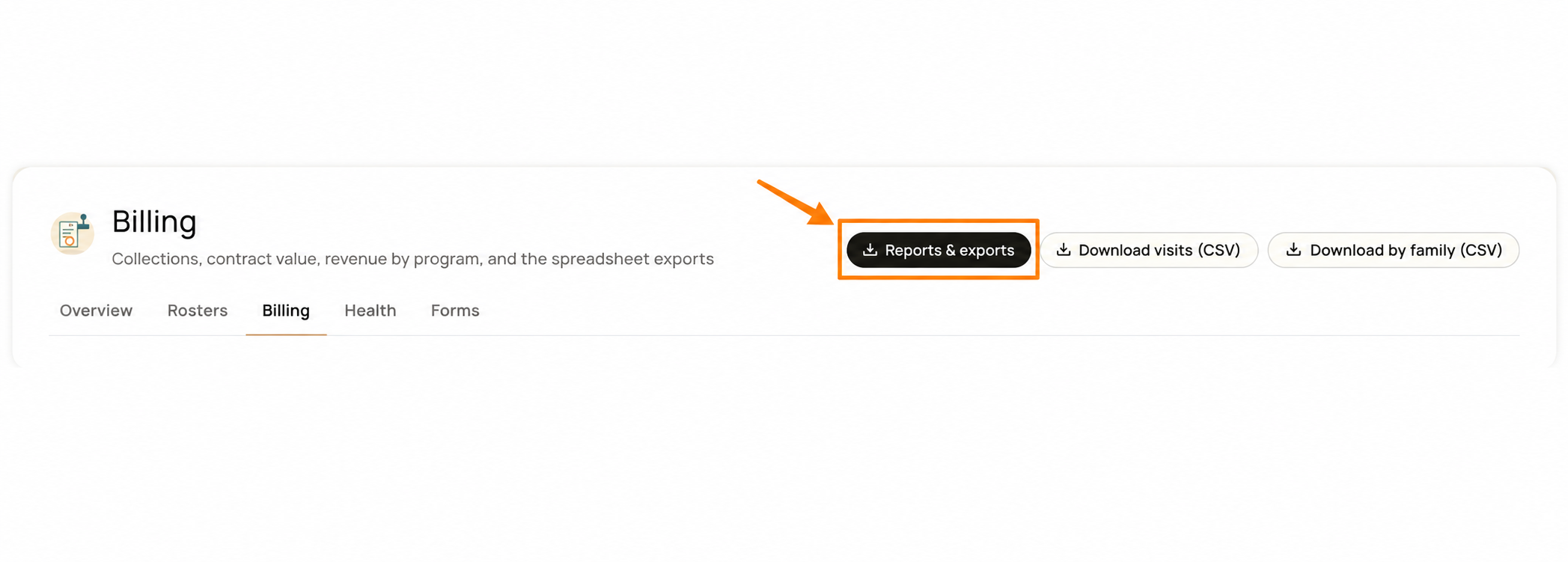
On the Billing reports page, select the framed Reports & exports button. Select the image to enlarge it.
2. Choose the payout arrival date
Set Report to Reconciliation.
Set Time window to Custom date range. For one date, enter the same date in From and Through. Use your payout arrival date; use a wider range if the bank posts it on a different day.
Select View report.
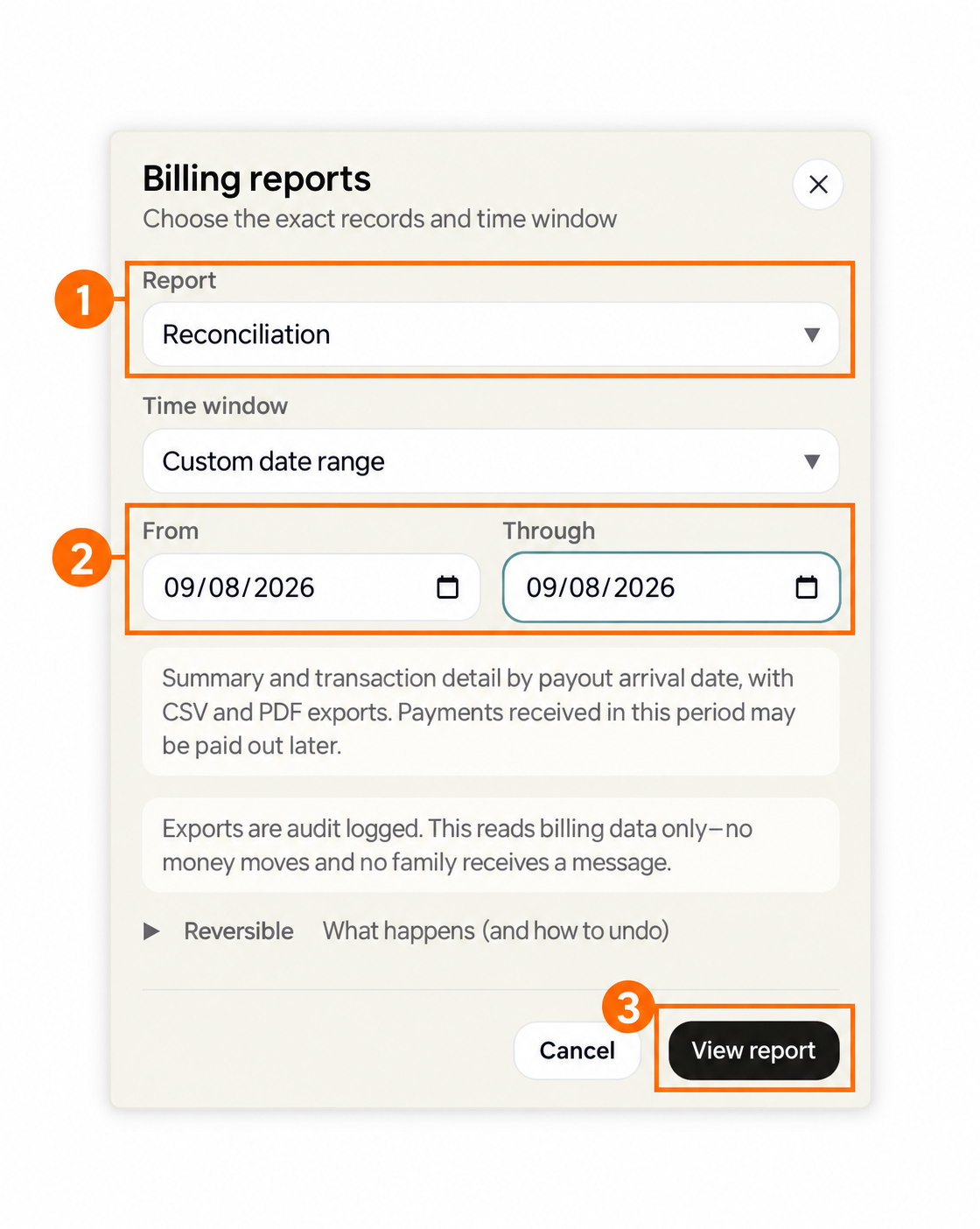
Example: both dates are September 8, 2026. Enter your own payout date. Select the image to enlarge it.
3. Find the payout that matches your deposit
In Summary, find the arrival date and a payout with status paid. Compare its payout amount with the bank deposit. Select the small triangle beside the payout ID to expand its transactions.
If several payouts share a date, compare each payout separately. The daily total may combine several deposits.
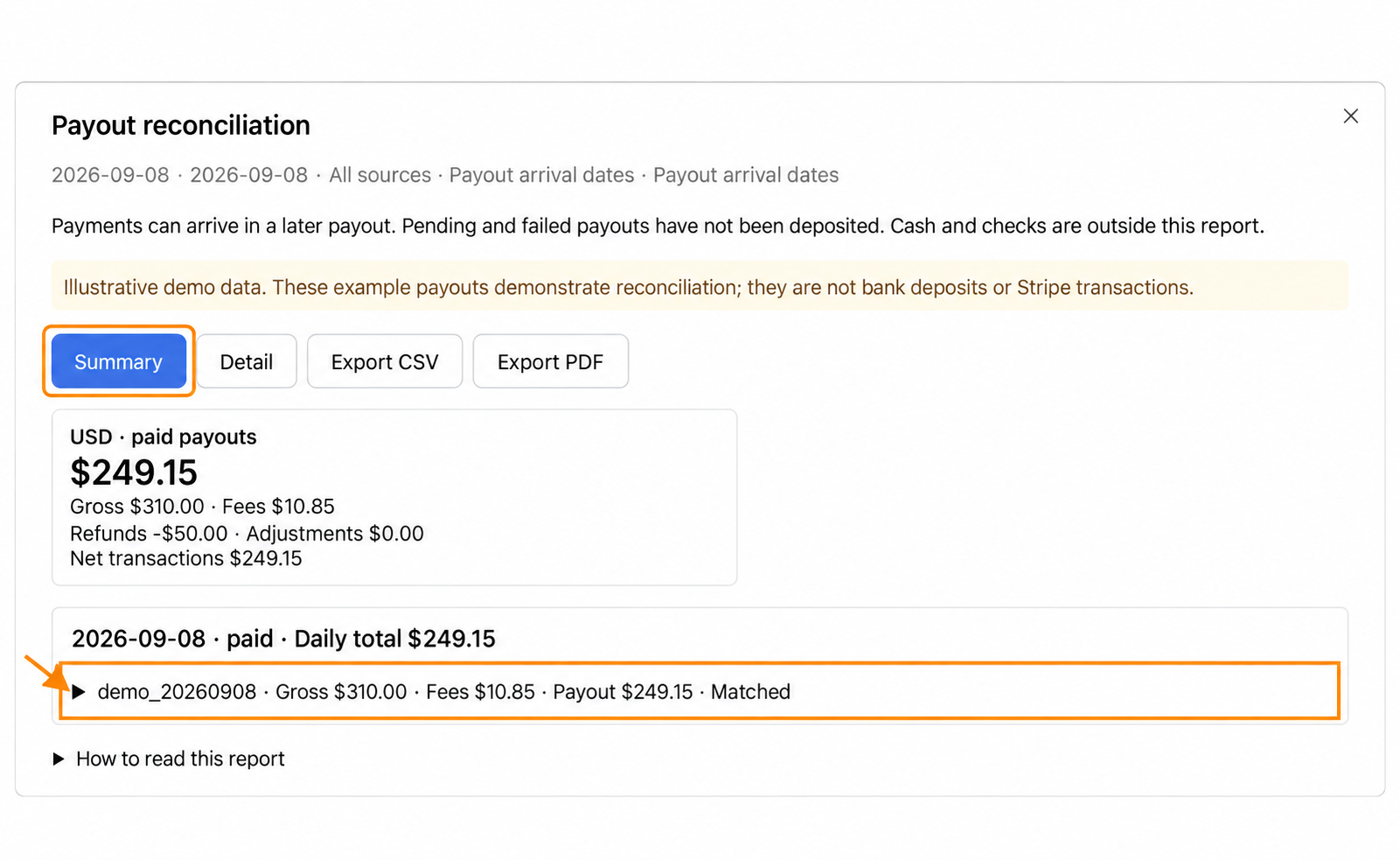
Expand the framed payout row. This demo payout is $249.15. Select the image to enlarge it.
4. Export the transaction detail
Select Detail to see transaction rows.
Select Export CSV for a spreadsheet, or Export PDF for a printable copy. The export uses the selected view, so choose Detail first when you need transactions.
In your spreadsheet, filter Payout ID to the payout you are checking and total Net to Org.
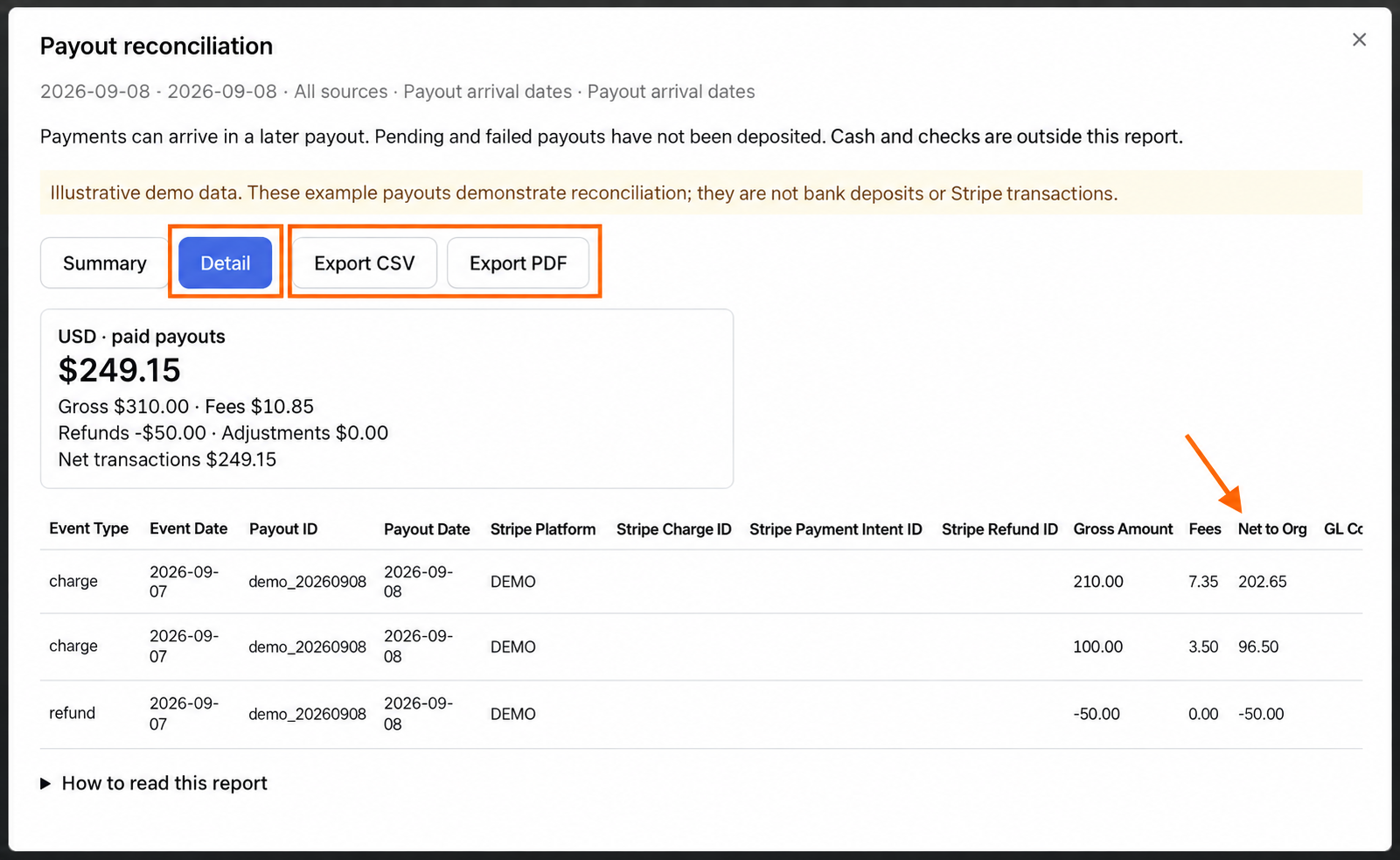
Use Detail → Export CSV. Total Net to Org for one payout ID. Select the image to enlarge it.
Example: how the rows match the deposit
$202.65 + $96.50 − $50.00 = $249.15. Net to Org already includes fees. Do not subtract the Fees column again. Keep refund and adjustment amounts signed, including negative values.
The Summary card separates gross payments ($310.00) from refunds (−$50.00). The table above adds the signed transaction amounts, including the refund, which is why its Gross amount total is $260.00.
If the amounts do not match
Check the date basis. This report uses payout arrival dates. A payment received today can belong to a later payout.
Check the payout and currency. Filter to one payout ID and compare amounts in the same currency. Pending or failed payouts have not been deposited.
Include every transaction type. Refunds and adjustments can change the deposit total.
Avoid counting totals twice. Summary exports include totals as well as payout rows. Use Detail when summing transactions.
Separate offline payments. Cash and checks are outside this Stripe payout report.
Check missing context separately. A transaction can contribute to a payout even when a child or invoice reference is unavailable. Keep the row in the reconciliation.
If no rows appear, widen the dates and confirm you are in the right center. If a payout still cannot be matched, contact Bloomily support with its payout ID, date, amount, and the difference you found. Manual payouts or transactions without a payout association may need further investigation.
Related help
Was this helpful?